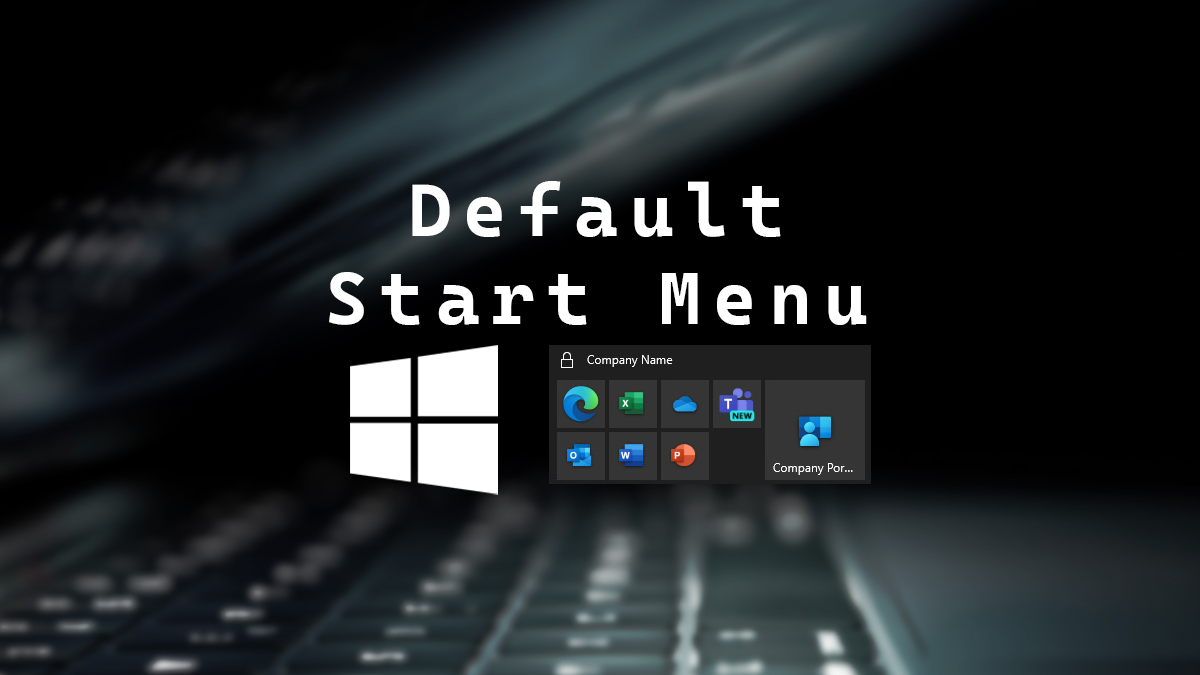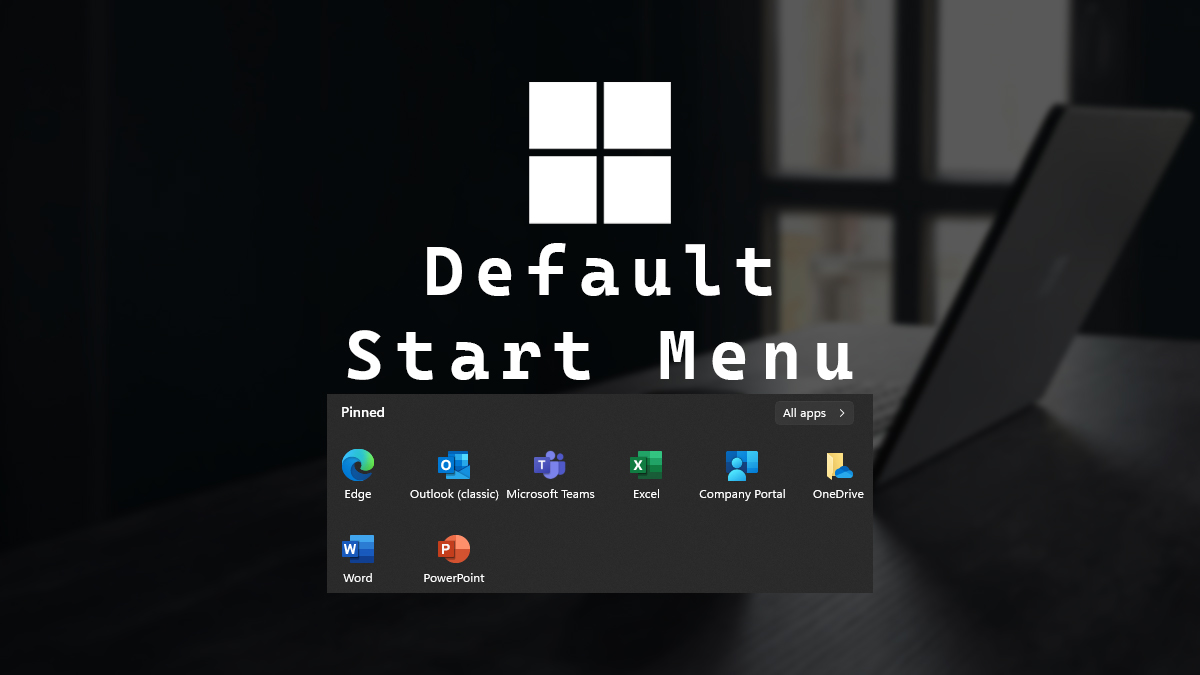
Intune Deploy Windows 11 Default Start Menu
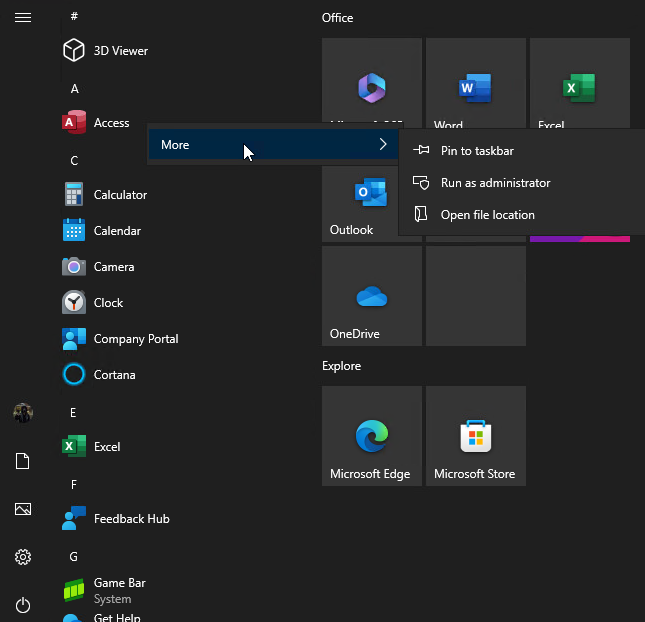
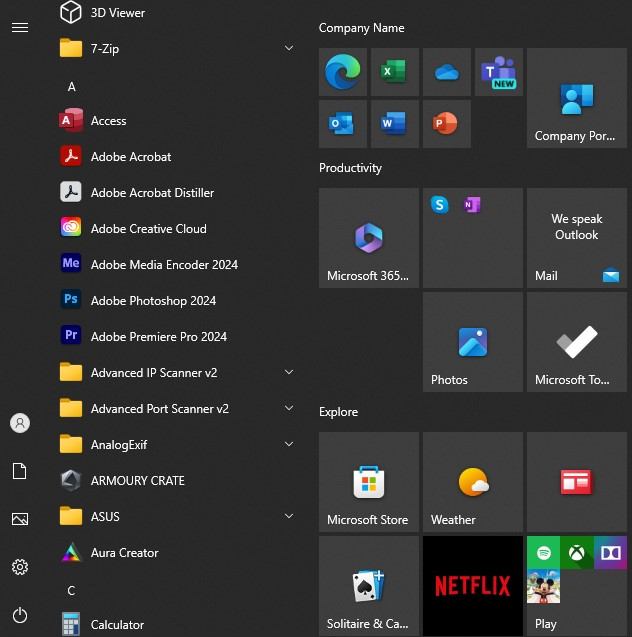
With Windows 11, many visual elements have changed, and one of the most noticeable ones is the Start Menu. With a new star menu comes a new way to manage it. With Windows 10, you can control the start menu with an XML file. Now, with Windows 11, you can control it with a JSON file.
What’s extra interesting is that you still control the taskbar with an XML file. If you want to know how to deploy a default taskbar, my blog post, Intune Deploy Default Taskbar, covers how to do that.
There are a few pitfalls when you control the Windows 11 Start Menu. The first one is that users will no longer be able to pin anything extra to the Start Menu.
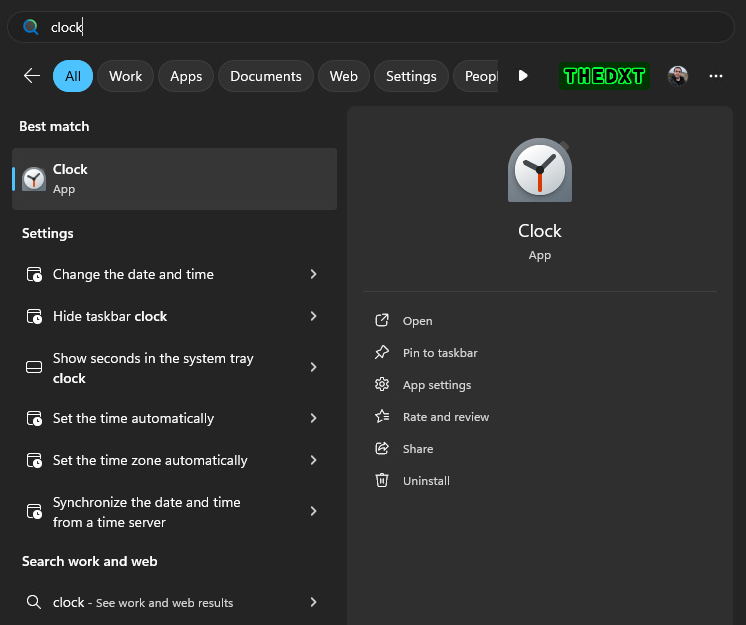
Another pitfall is that users can technically reorder the applications you pin in the start menu but the next time they log in, it is reset to the layout you defined.
In this post, I will show you step-by-step how to deploy a Windows 11 default Start Menu layout using Microsoft Intune.
Building the Start Layout
- On a source system, pin the applications to the start menu in the order you want.
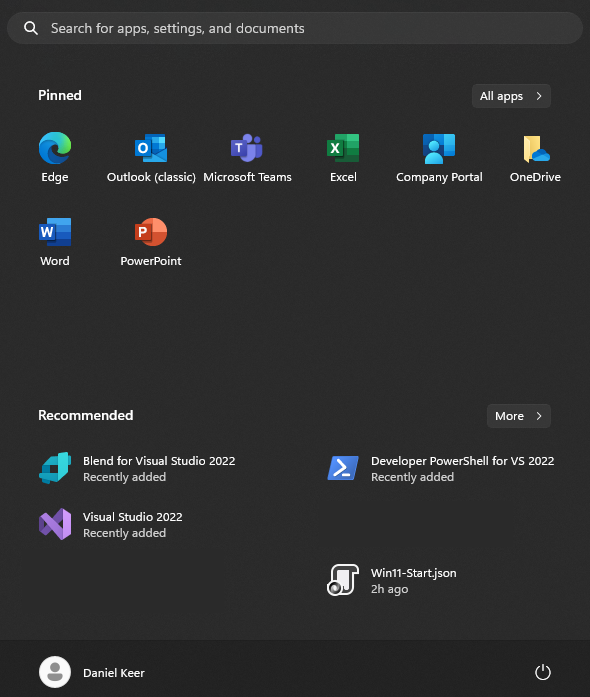
- Export the Start Menu layout by running the following PowerShell command
Export-StartLayout -path C:\temp\Win11-Start.json