Schedule VMware Exam
In this post, I will show you step by step how to schedule a VMware exam.
The Process
The entire process is split into a few stages.
- Testing Portal Login
- Private Access Codes
- Exam Selection
- Testing Center
- Voucher and Promo Codes
- Payment
Testing Portal Login
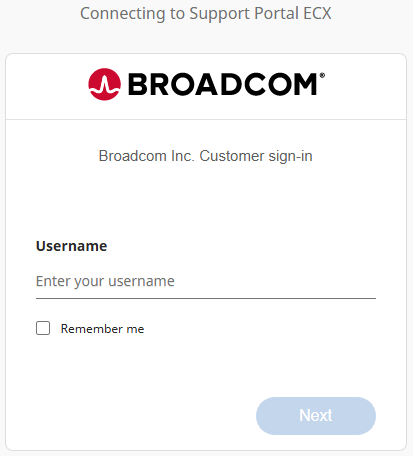
- Log in to the Broadcom Support portal https://support.broadcom.com/
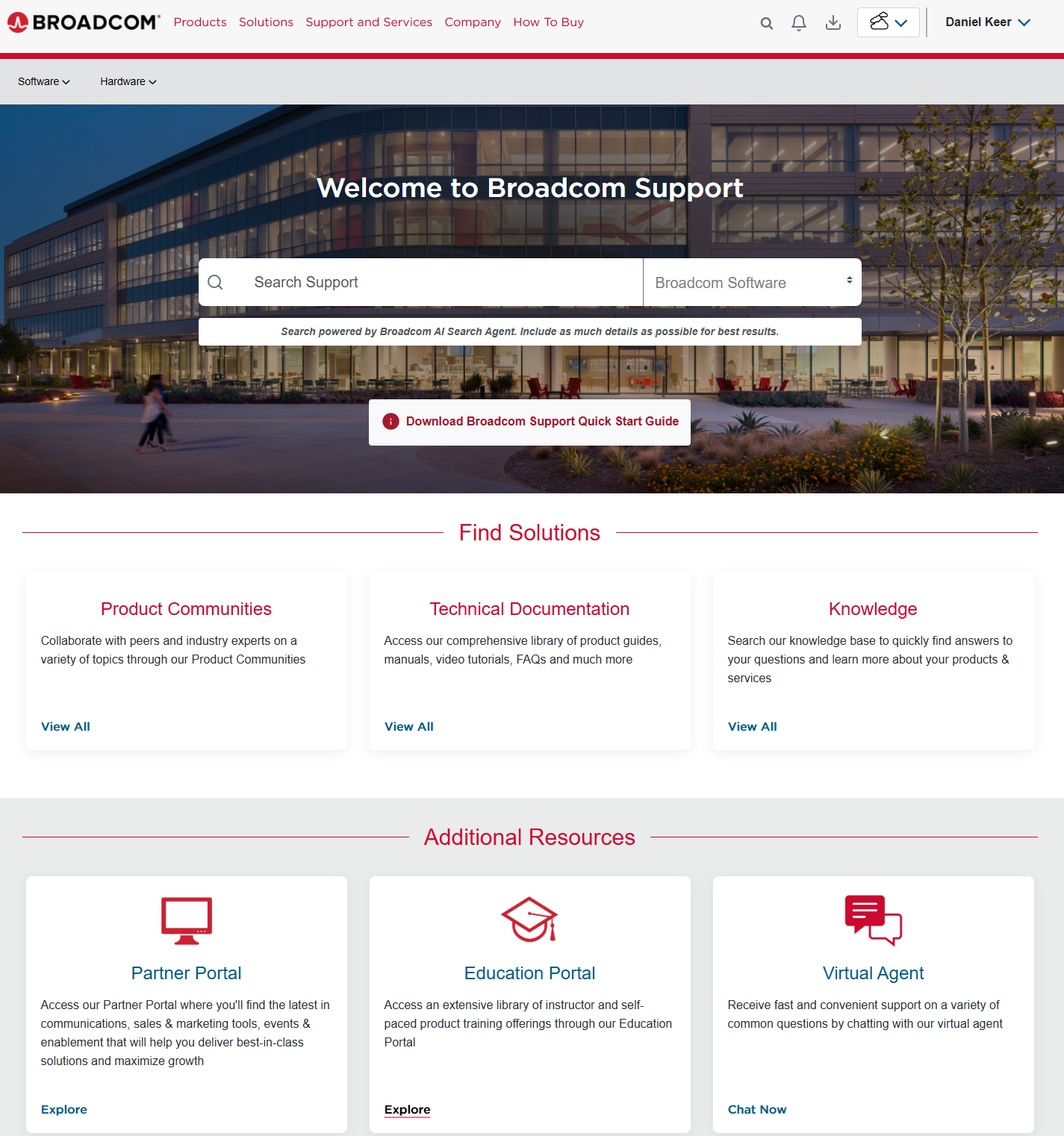
- In the Additional Resources section, on the Education Portal tile, click Explore.
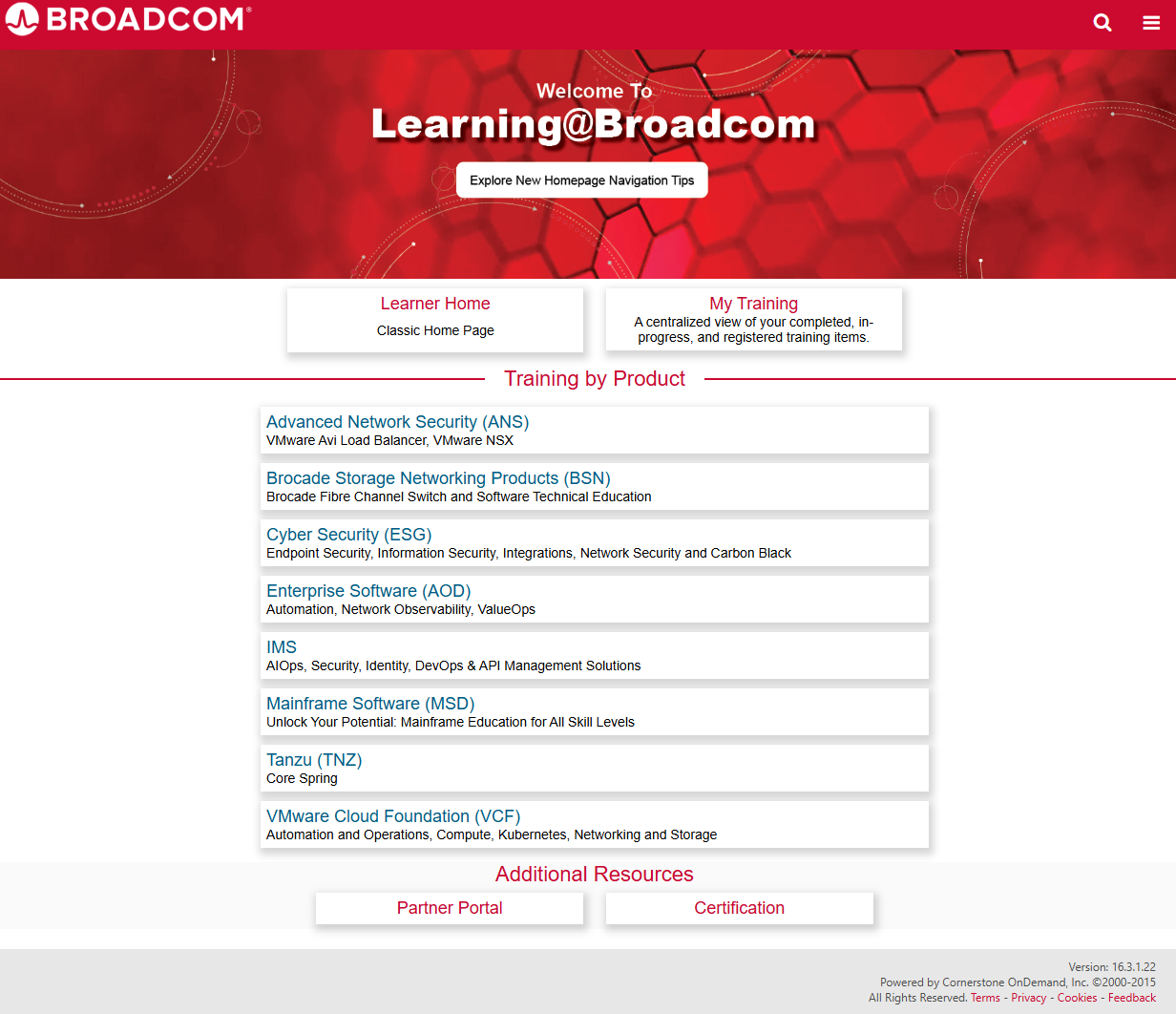
- On the new page that opened up under the Addition Resources section, click on Certification.
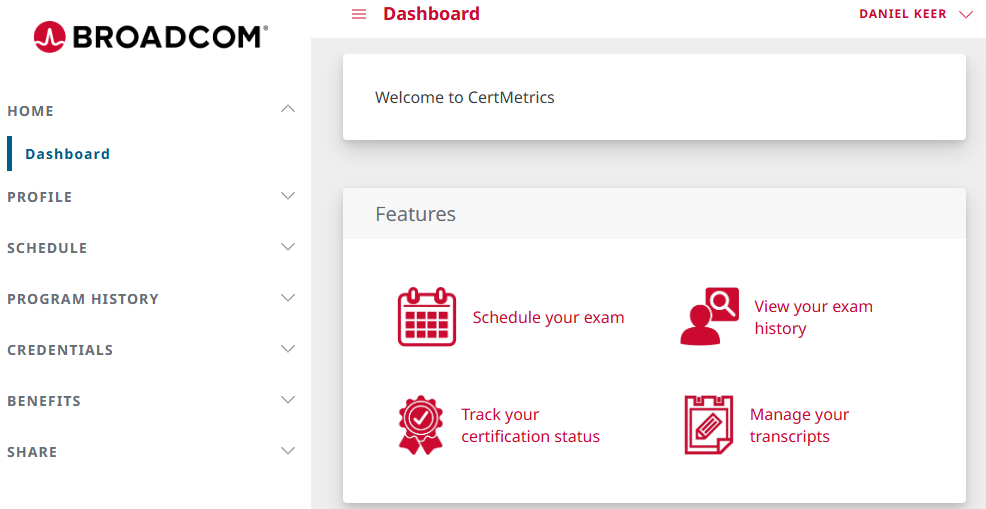
If you want, you can skip those clicks and go directly to the following URL https://cp.certmetrics.com/vmware/en/home/dashboard
- Under Features, click on Schedule your exam.
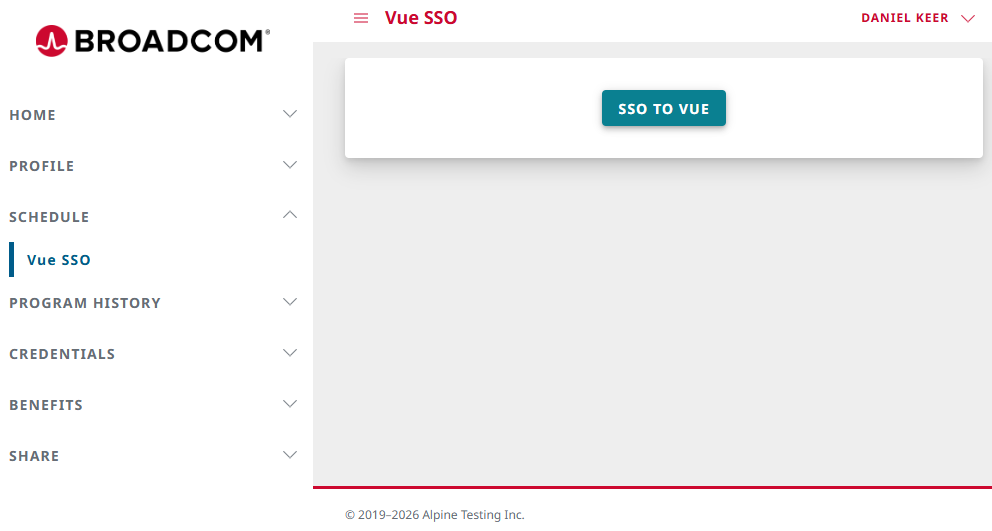
- Click on SSO to Vue.
Private Access Codes
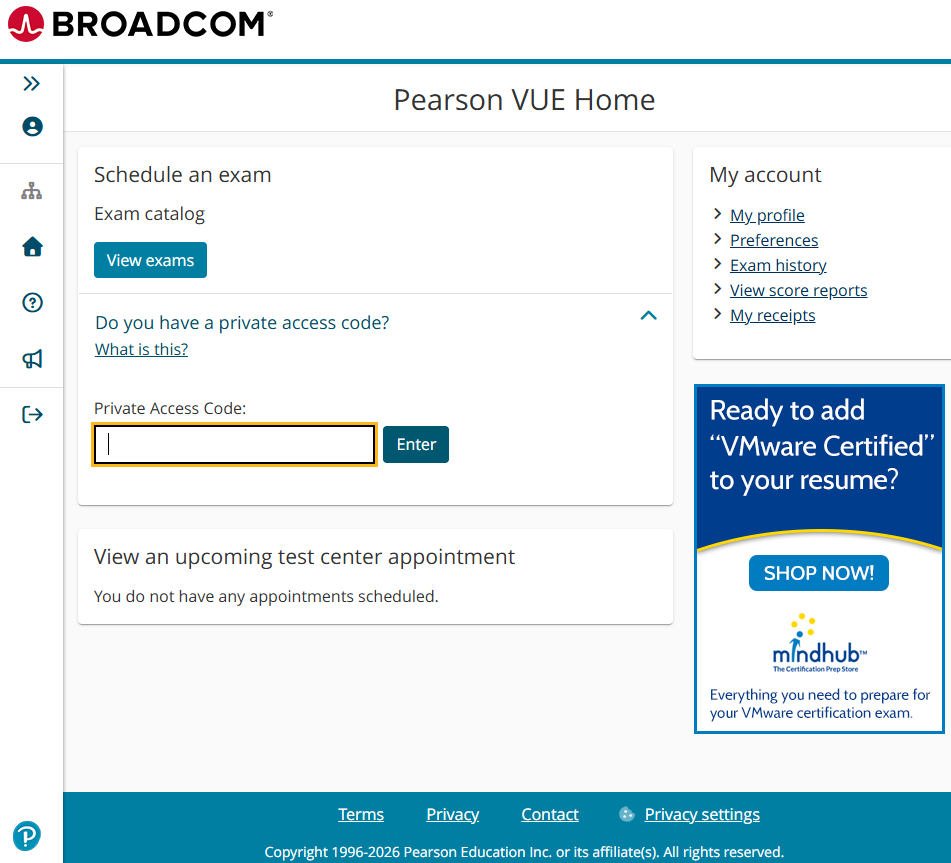
If you are taking a VMware exam at a conference, you will likely have a private access code to access the on-site exam center.
- Click Private Access Code, type in the Private Access Code, then click Enter.
Exam Selection
- Click on View exams.
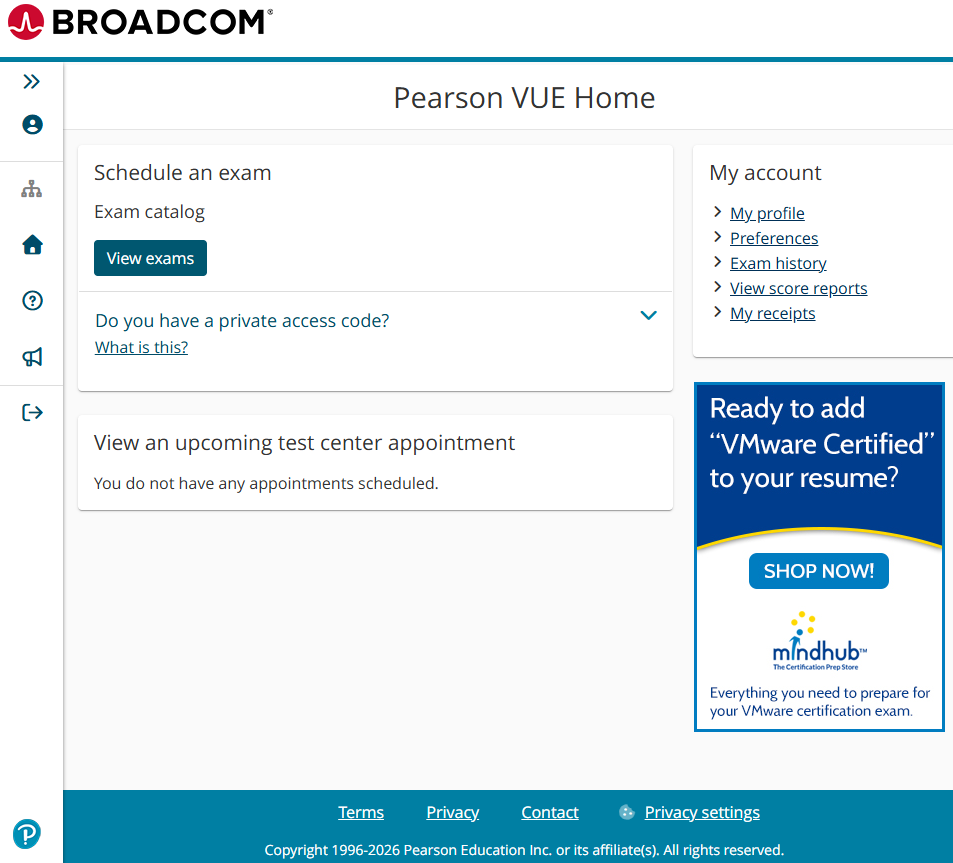
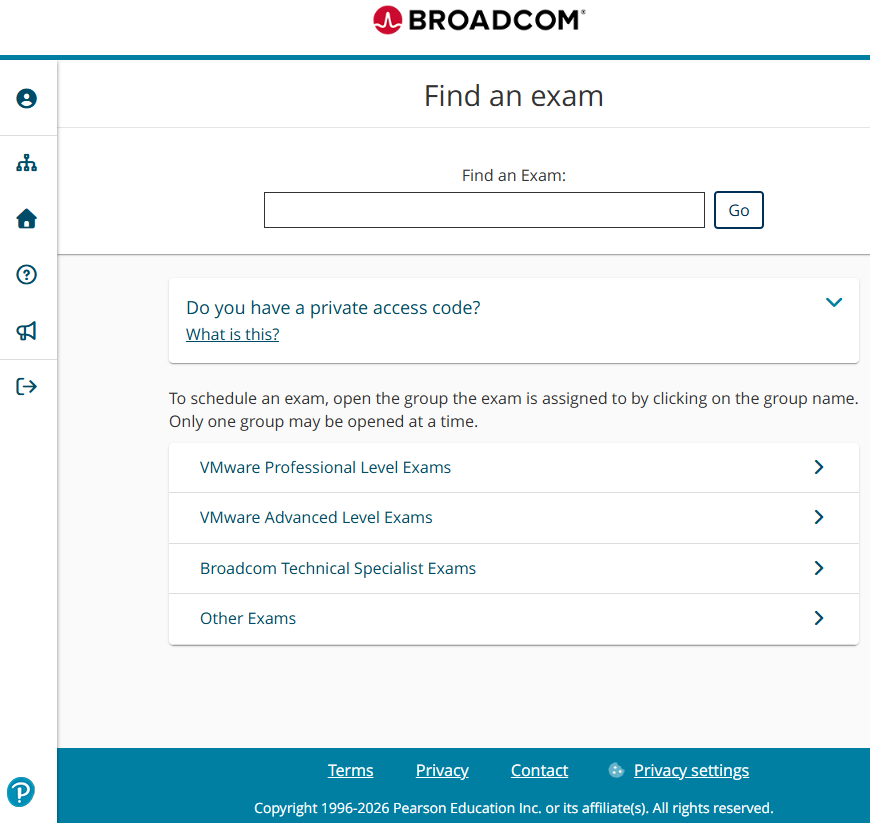
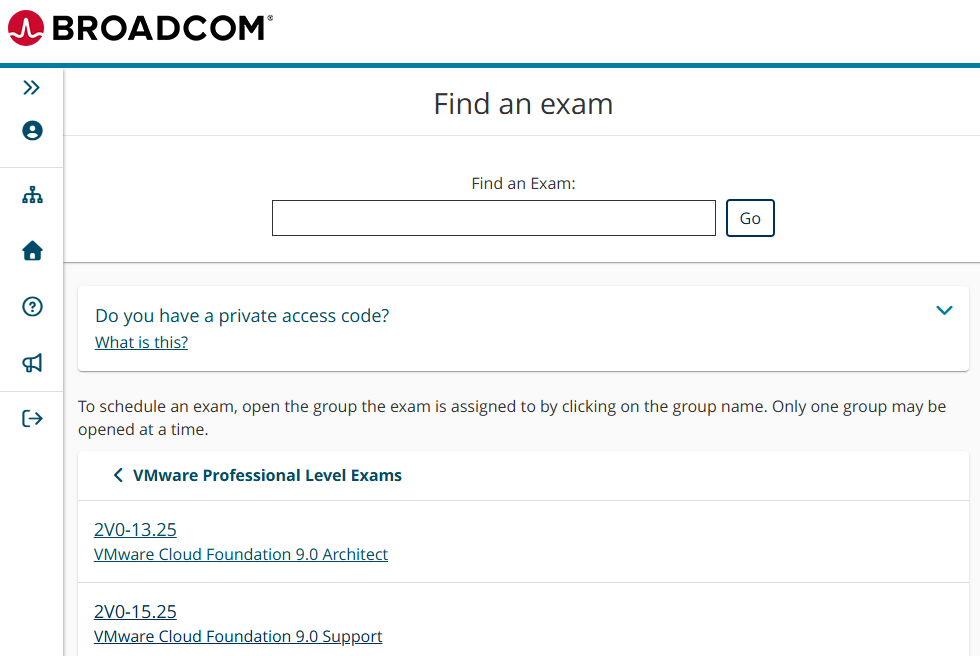
- Depending on the exam you are taking, you may need to click on VMware Professional Level Exams or VMware Advanced Level Exams. You can also search for the exam.
- Select the exam you want to take.
In my example, I will click on 2V0-15.25: VMware Cloud Foundation 9.0 Support.
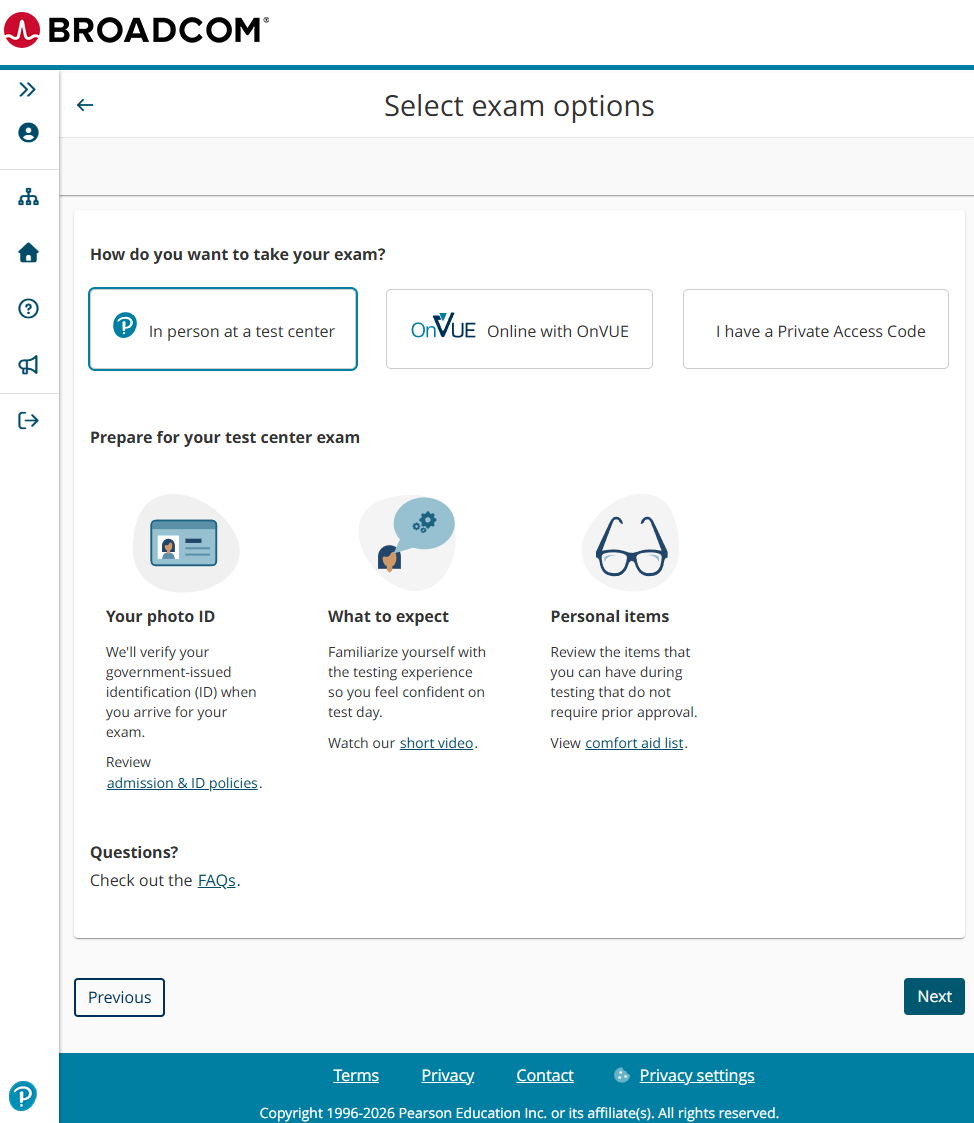
- Select how you want to take the exam and click Next.
In my example, I will click on In person at a test center.
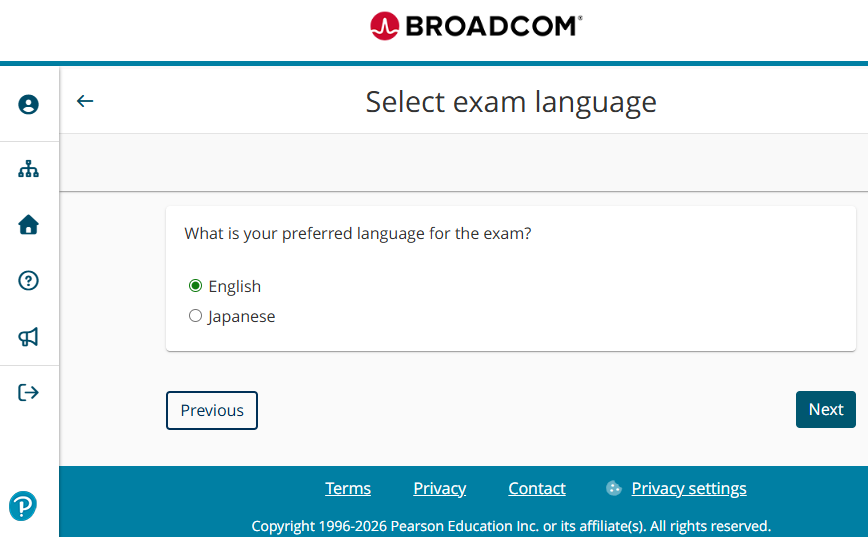
- Select the language you want to take the exam in and click Next.
In my example, I will select English.
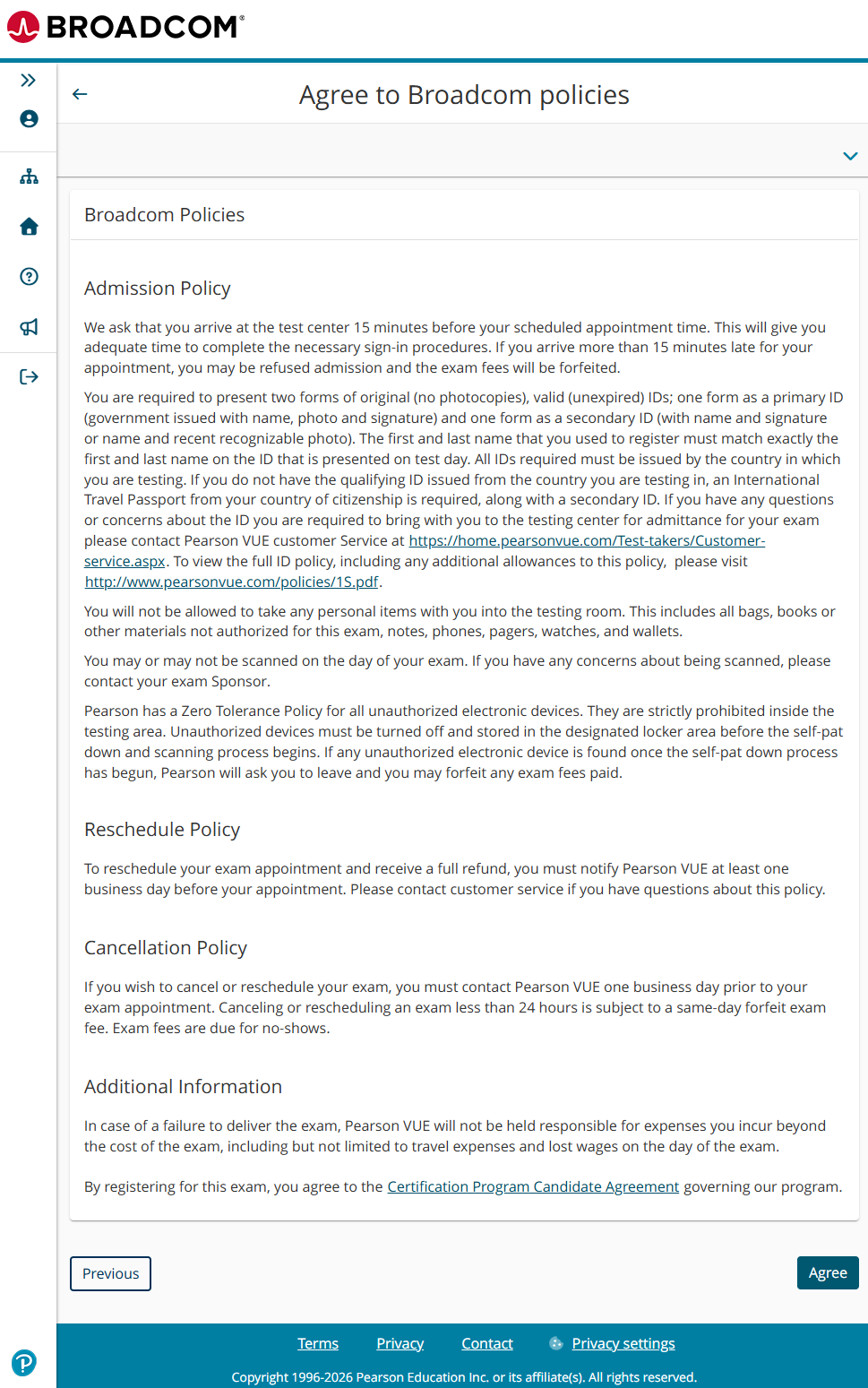
- Review the Broadcom policies. If you agree, click on Agree.
Testing Center
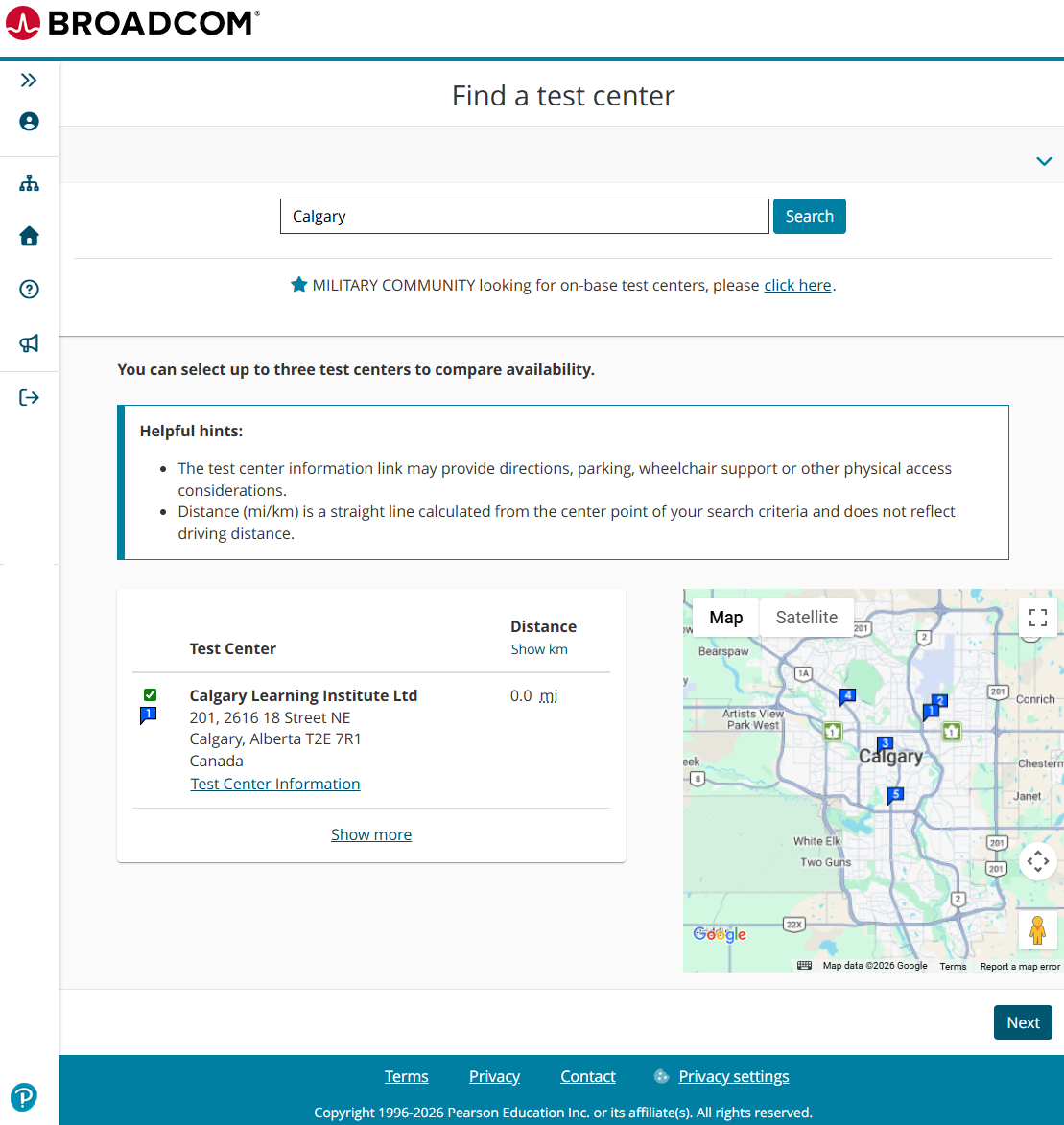
- Search for a nearby testing center, select it, and click Next.
If you are taking an exam at a conference, you will need to search for the conference-specific location.
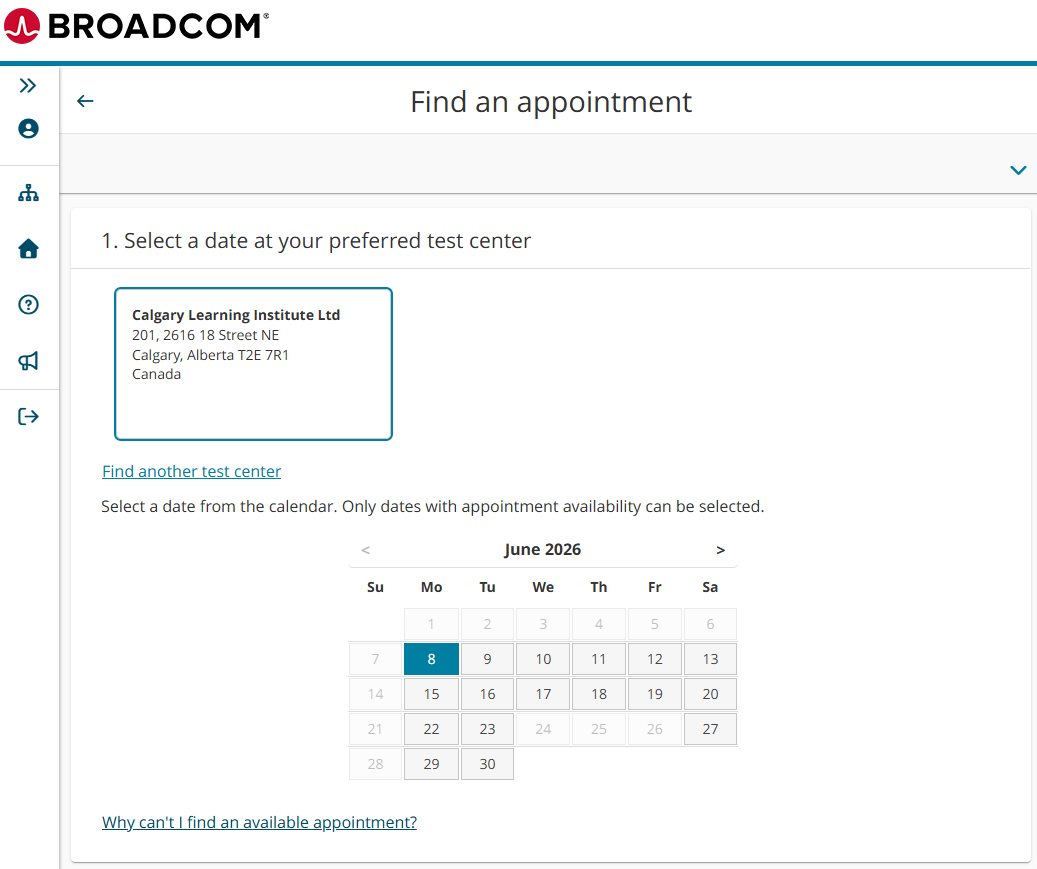
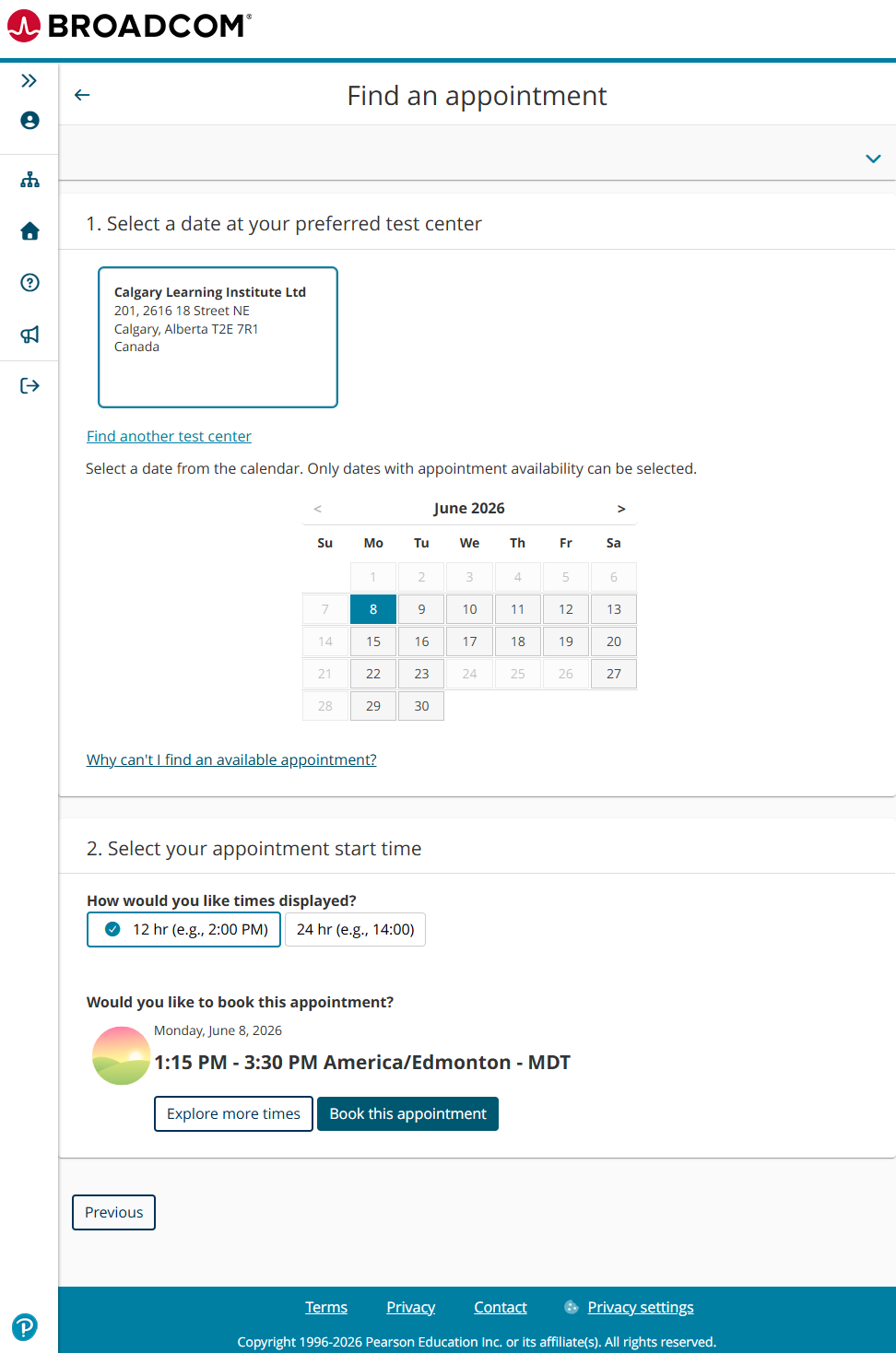
- Select the date you want to take the VMware exam.
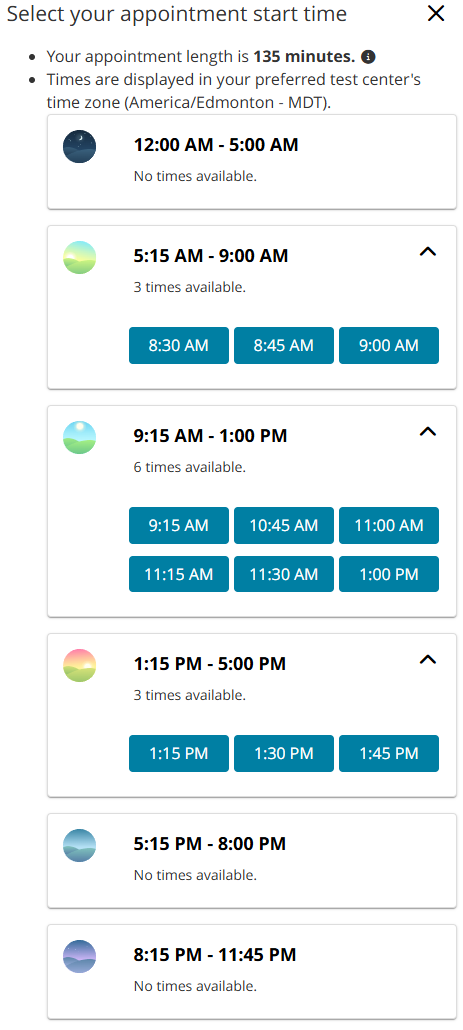
- The exam booking system will default to showing you the soonest available time slot. If that time slot doesn’t work for you, click on Explore more times.
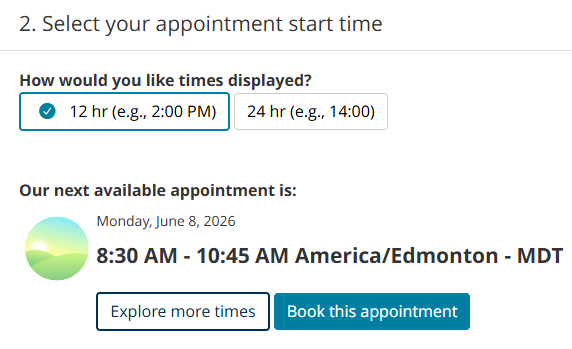
- Select a time that works for you.
- Once you have selected the date and time, click Book this appointment.
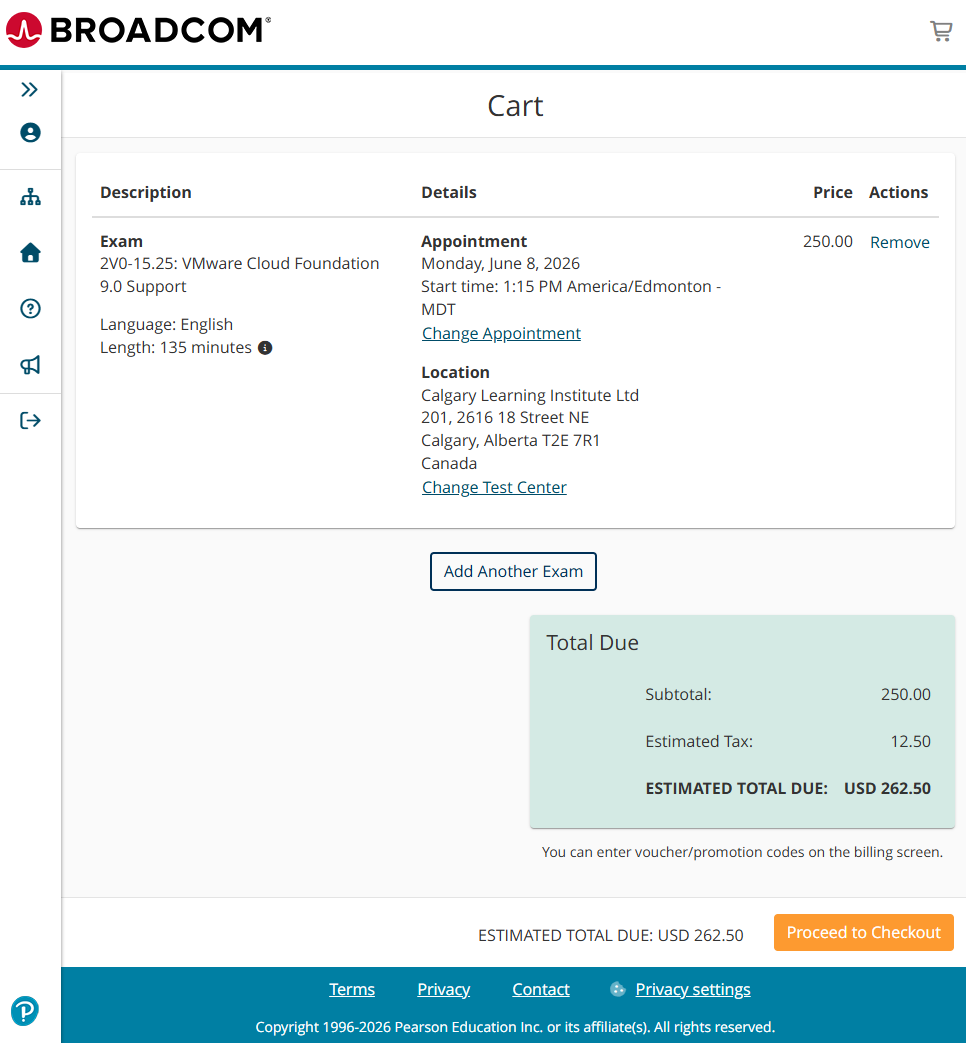
- Review the exam and appointment selection details in your cart and click Proceed to Checkout.
Voucher and Promo Codes
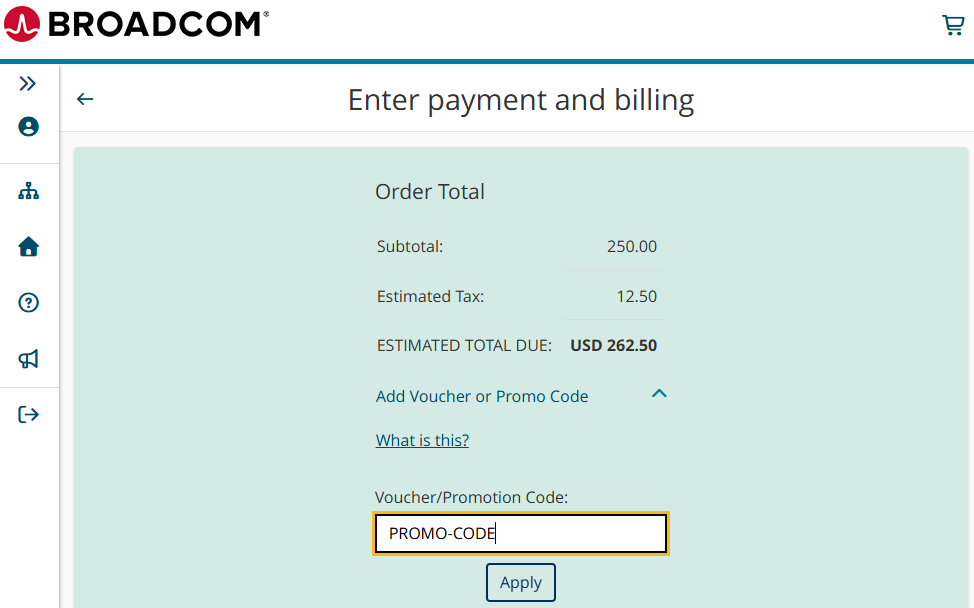
- Click on Add Voucher or Promo Code, enter the code, and click Apply.
VMUG Advantage
If you have VMUG Advantage, you can get a code for 50% off an exam.
VMware Explore Conference
If you are attending a VMware Explore conference, you can get a code for 100% off an exam.
VMUG Connect Conference
If you are attending a VMUG Connect conference and have VMUG Advantage, you can get a code for 100% off an exam. If you don’t have VMUG Advantage, you can get a code for 50% off an exam.
Payment
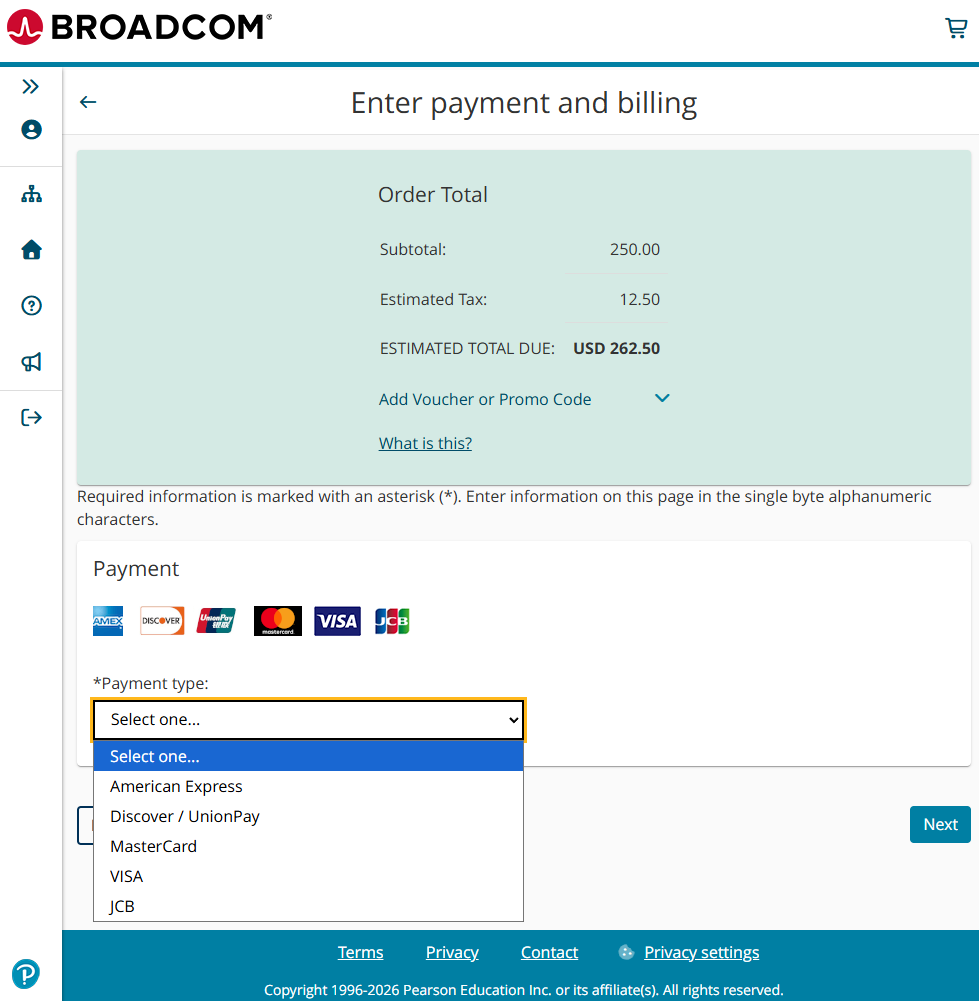
- If payment is required, select a payment type, enter your payment details, and then click Next.
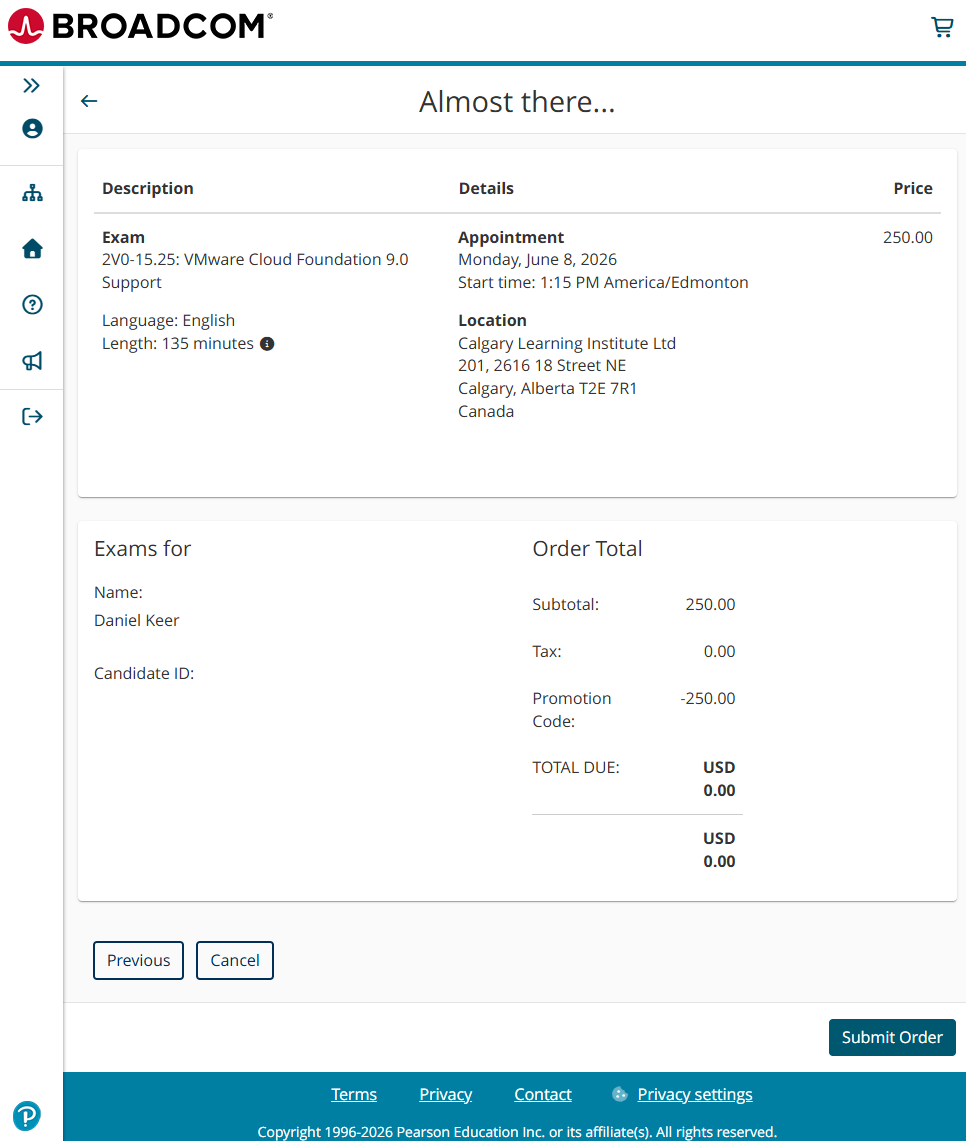
- Review your exam order. If everything looks correct, click Submit Order.
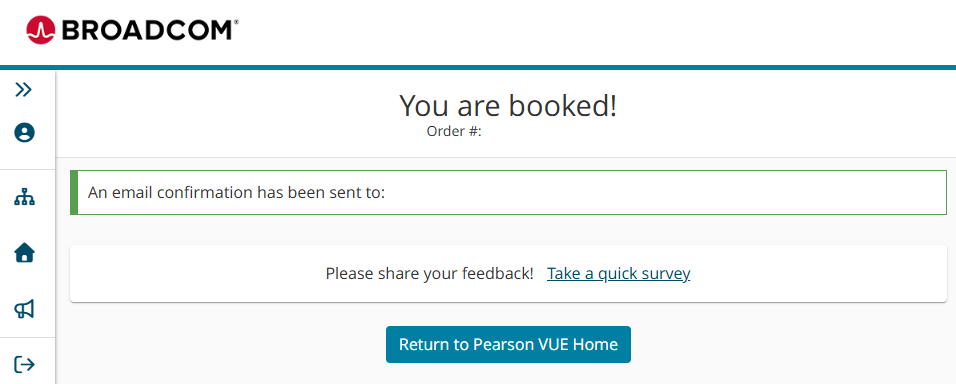
- You will now see a booking confirmation page confirming that your exam is booked.
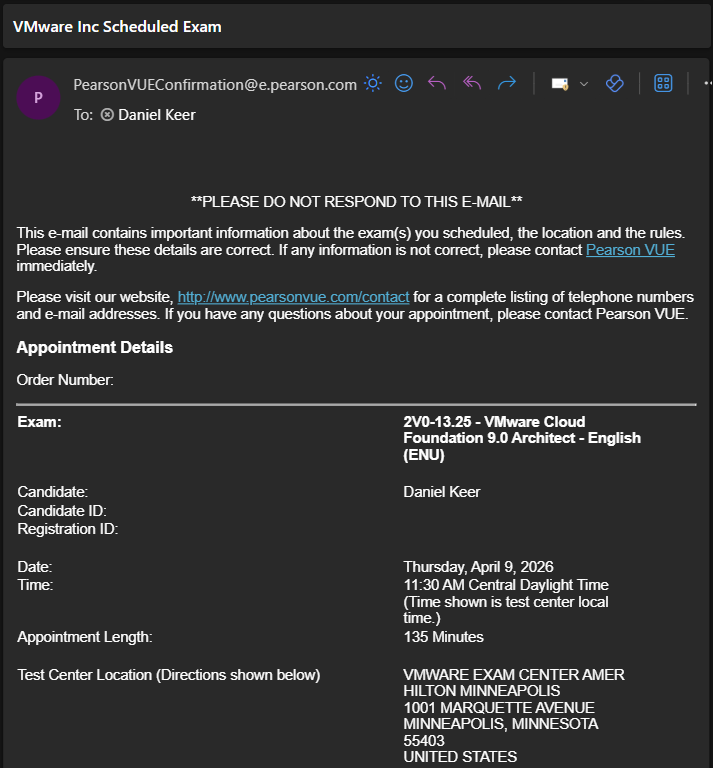
- You will also receive an email from Pearson VUE confirming that your exam has been booked.
That’s all it takes to book a VMware exam. Good luck with your exam!
If you are taking the VCP-VCF Administrator exam, my blog post, Passing VCP-VCF Admin Exam, covers what I did to pass.
If you are interested in VMware Explore, here is the VMware Explore page.
If you want to purchase VMUG Advantage, here is the VMUG page about it.
If you are interested in VMUG Connect, here is the VMUG Connect page.


One thought on “Schedule VMware Exam”