I Went to VMware Explore 2026
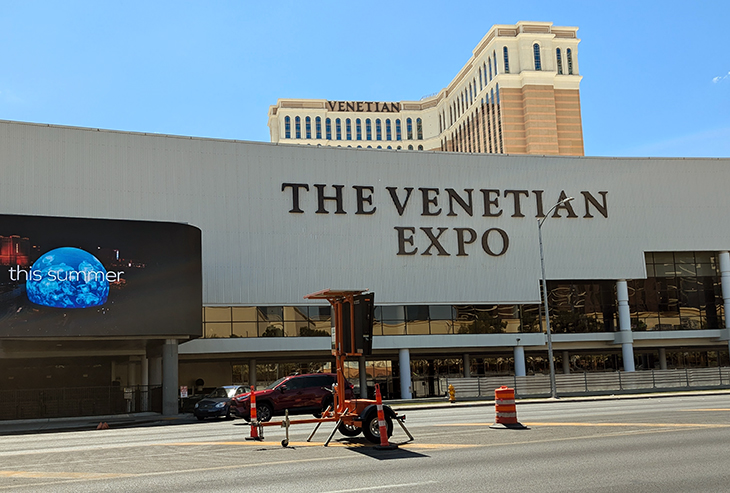
This year I attended VMware Explore 2026 in Las Vegas, Nevada, USA, from August 31st to September 3rd at the Venetian Expo.
If you aren’t familiar with VMware Explore, it is a conference hosted by Broadcom about everything VMware. VMware Explore in Las Vegas is the main event, but there is a smaller version held in different cities. The smaller version is called VMware Explore on Tour.
This was my second time attending VMware Explore. The first time I attended was in 2024. You can read about my first experience in my blog post, I Went to VMware Explore 2024.
In this post, I will detail my experience at VMware Explore 2026 in Las Vegas.
Day 0
My VMware Explore 2026 adventure began on Sunday, August 30th, with a travel day. My travel day was a shared one as I was traveling with my friend Stephen Wagner. Our trip to VMware Explore started with a direct flight from Calgary, Alberta, Canada, to Las Vegas, Nevada, USA.
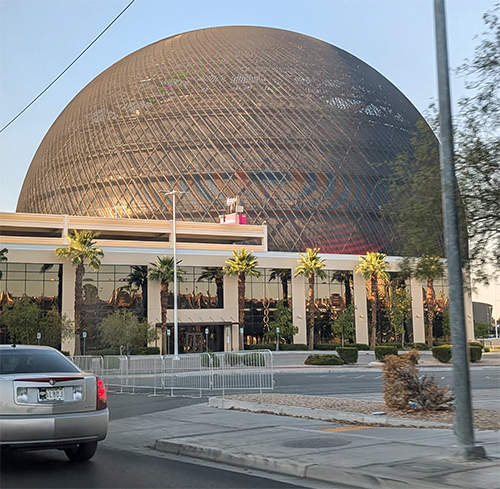
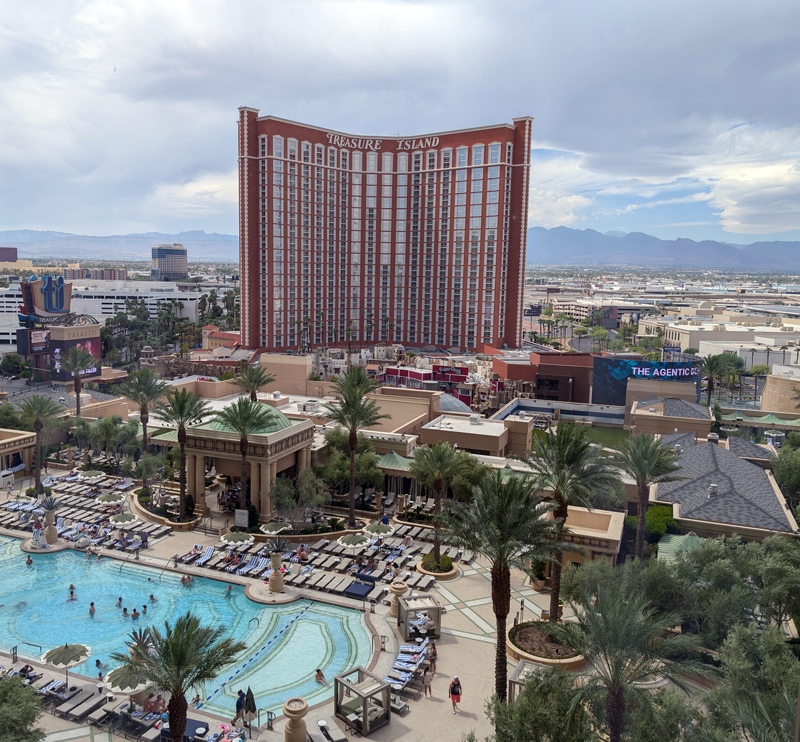
Once we arrived in Las Vegas, I got checked into the Palazzo. This time, my room was on the 9th floor (in 2024, it was on the 35th floor). The view from my hotel room was pretty good. I could actually see the people at the pool. Sadly, I could not see the Vegas Sphere from my room.
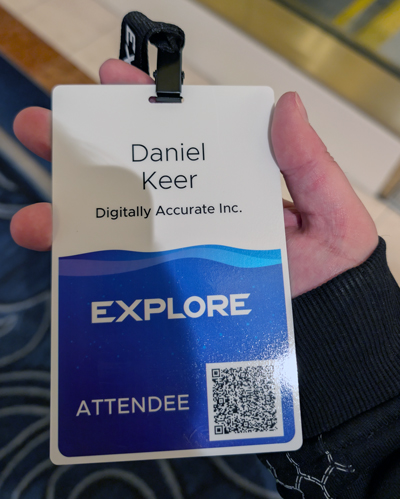
Next, it was time to check in to VMware Explore. This time I had a better sense of where things were and knew that Venetian Expo floor 2 is not floor 2 of the Palazzo, which is the Grand Canal Shoppes. I found registration quickly and checked in.
After registration, I met up with some friends and hung out. Later that evening, I attended a VMUG event called VMUG Warm-Up Party as a Service (WUPaaS) Community Meetup, where I chatted with other VMUG members and reconnected with many friends I hadn’t seen in a while.
Day 1
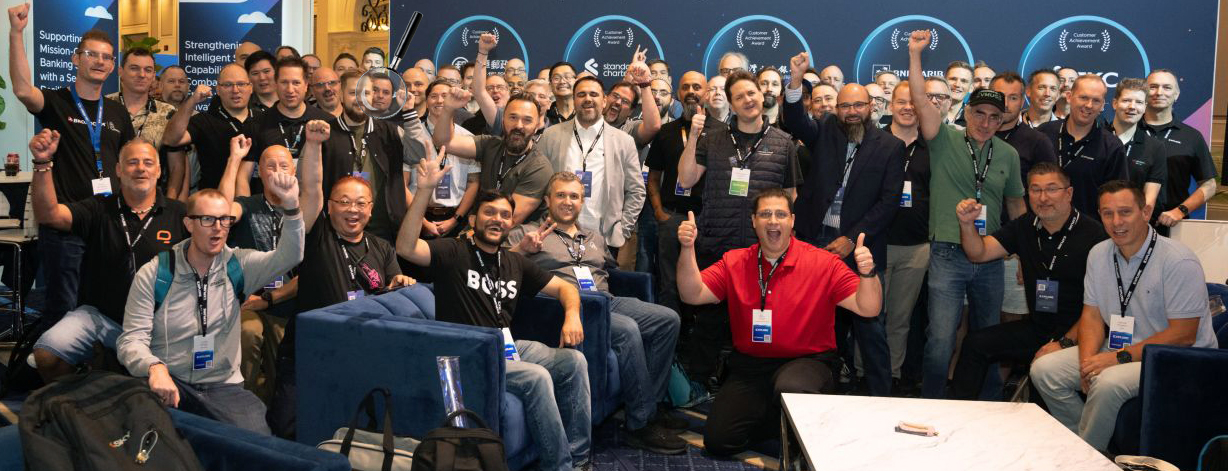
Day 1 began normally with breakfast, then I headed to the VMware Explore conference space. I had received an email from the vExpert program inviting me to interview with the VMware marketing team to get my take on VMware Explore. I completed that, and shortly after, there was the vExpert meetup. All of the vExperts posed for a giant group photo.
After the vExpert meetup, it was time for the session VMware Cloud Foundation Certification 2026: Tips, Tricks, and Guidance from the Global Community [CMTYQT1317LV], which was hosted by my friends Dave Bradley (aka Chicago Dave) and Kristof Asaert. It was also unofficially hosted by me.
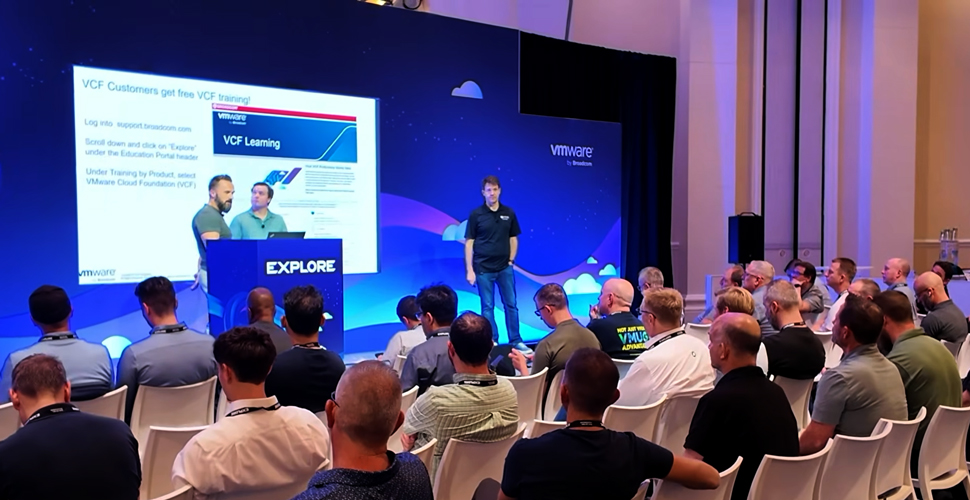
Due to software limitations, Broadcom could not add me as a third presenter, but that did not stop the three of us from presenting together. We planned to show up and see what happened, sharing a microphone if needed. To our surprise, they provided lapel microphones to all three of us.
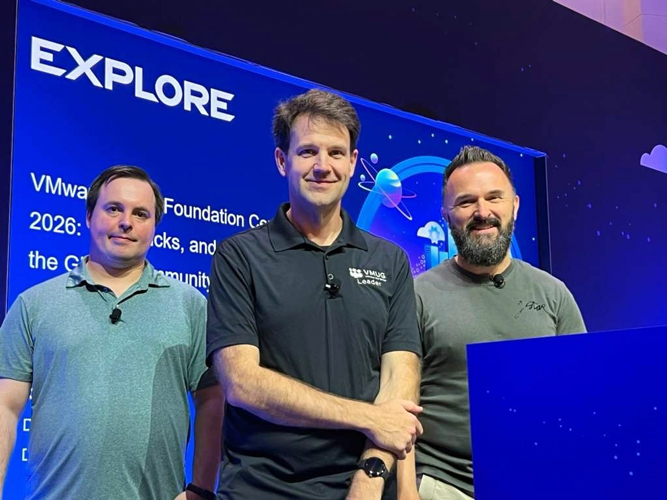
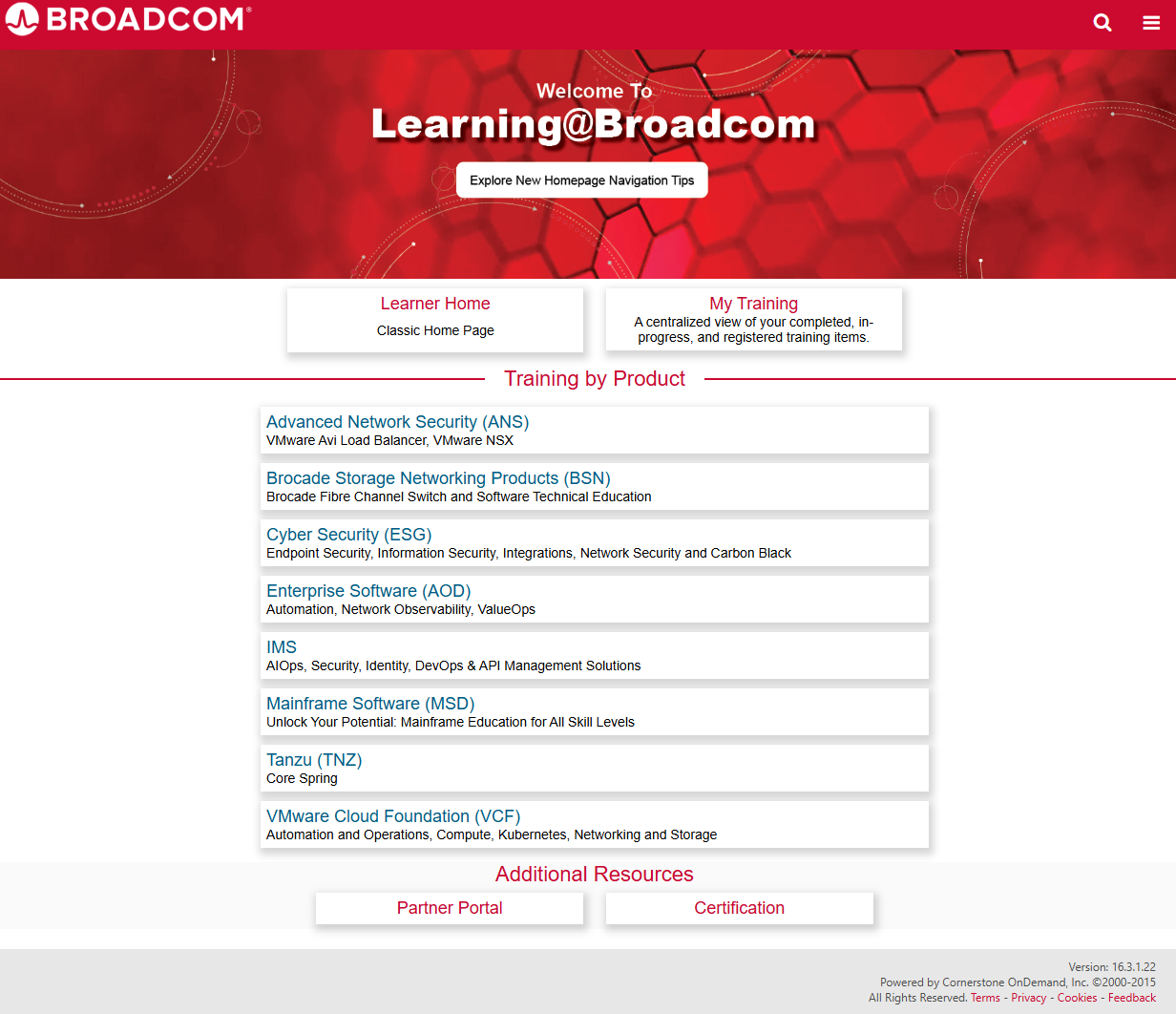
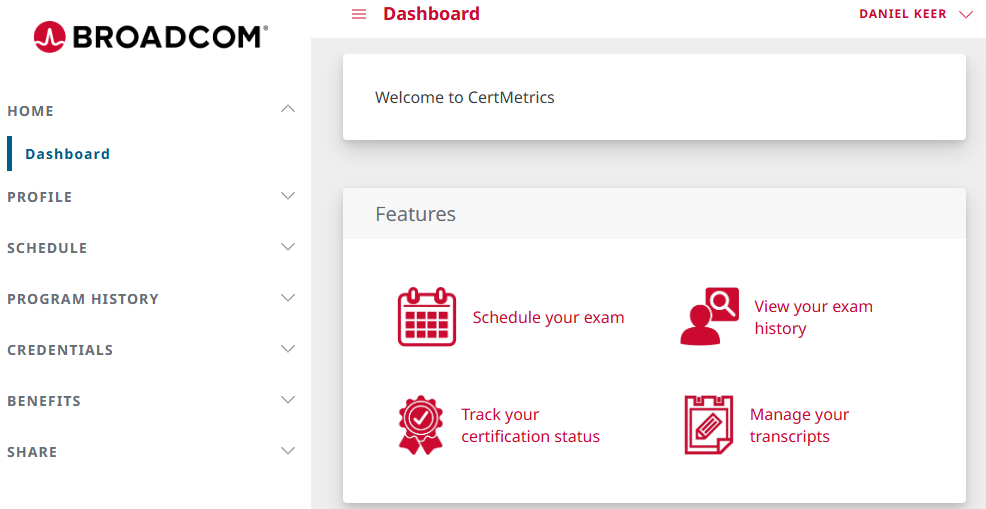
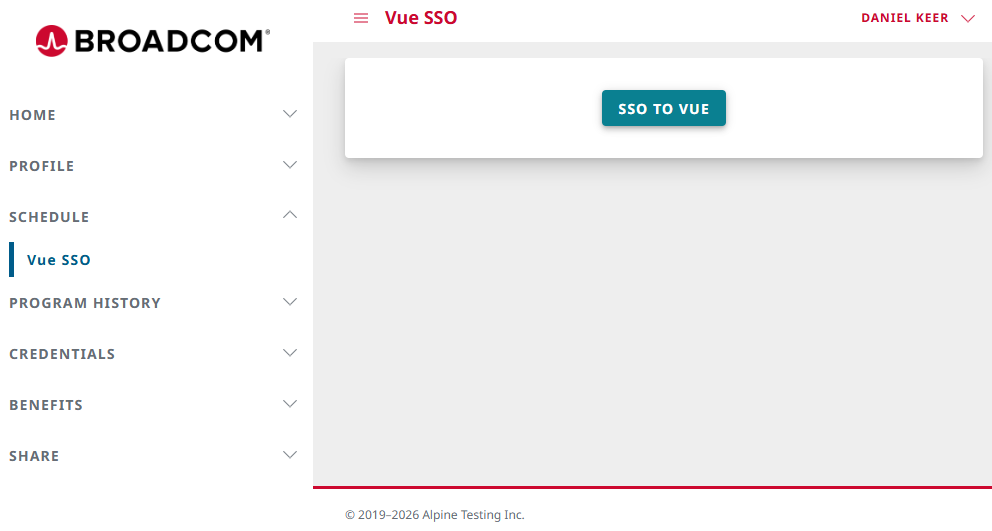
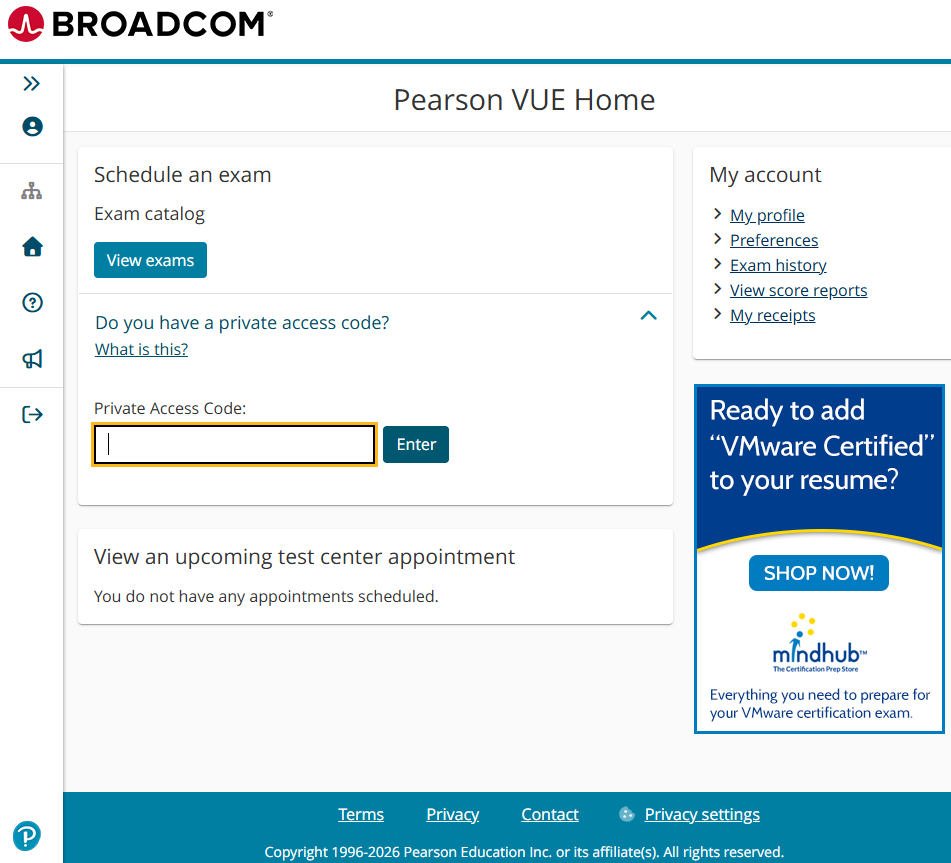
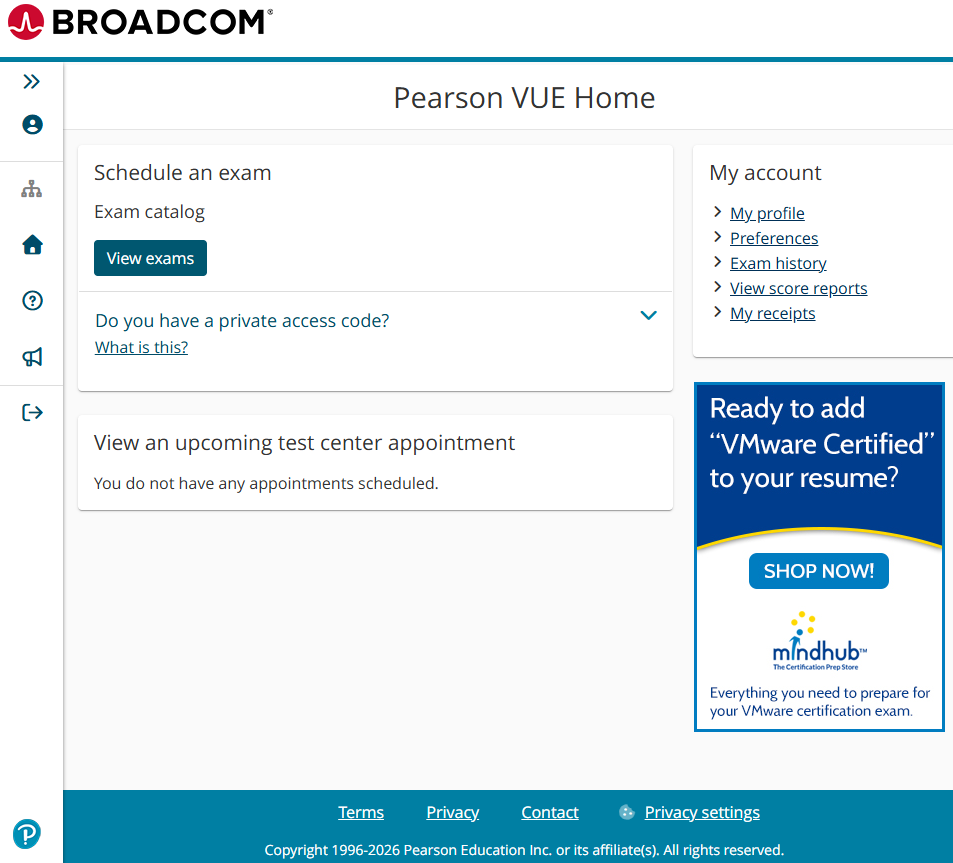
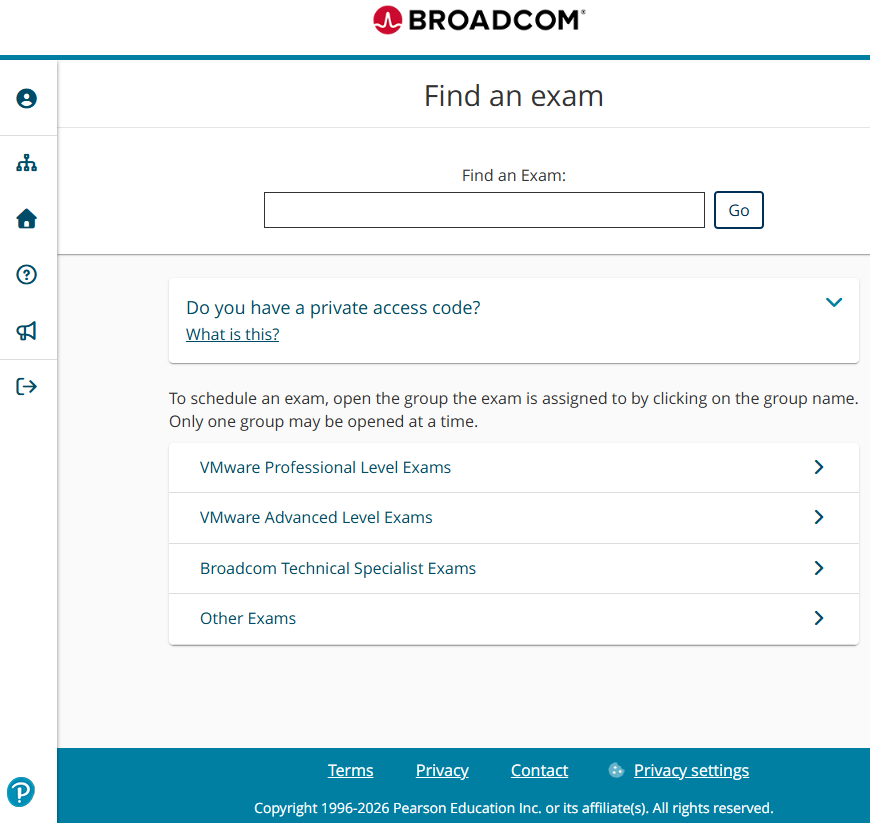
Our presentation was about what the three of us have done to earn various VCP (VMware Certified Professional) certificates, along with tips and tricks everyone can use. We encouraged others to get VMware certifications because it’s free at the conference.
…