Skip to content
theDXT
  • Home
  • IT
  • Scripts
  • GitHub
  • LinkedIn
  • X (Twitter)
  • Search Icon
Intune Dynamic Device Groups

Intune Dynamic Device Groups

April 30, 2023

Intune aka Microsoft Endpoint Manager can be extremely powerful but as it always goes with great power comes great responsibility.

To make sure I’m only targeting the devices I want, I like to make a few dynamic device groups that I’ll use for various Intune policy targeting.

The dynamic device groups I create are:

  • Windows AAD Joined for all the Windows devices joined to Azure AD.
  • Windows Hybrid AAD Joined for all the Windows devices that are hybrid joined to Azure AD.
  • Windows AAD Registered for all the Windows devices that are registered to Azure AD this is typically BYOD (Bring Your Own Device).
  • Windows Personal for all the personal Windows devices.

By creating these groups I can correctly target my Intune policies to always have the intended outcome.

Here are the dynamic membership rules I use for the dynamic device groups.

…

Read More Read More

Lenovo Remote Physical Presence

Lenovo Remote Physical Presence

April 23, 2023

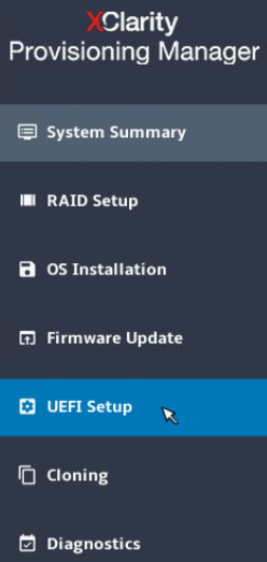
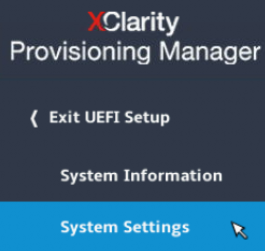
On Lenovo servers the default configuration has a physical presence policy enabled. When a physical presence policy is enabled it prevents you from doing a few tasks on the system either in BIOS or IPMI. Lenovo calls their IPMI XClarity Controller (XCC).

With an enabled physical presence policy your only options to do some of those task is to either physically go move a jumper on the motherboard or to make some tweaks in XCC or BIOS to assert your physical presence even if you are remote.

Here’s how to do it in IPMI or BIOS.

…

Read More Read More

Upgrading Duo Authentication for Windows Logon

Upgrading Duo Authentication for Windows Logon

April 16, 2023

Update

The script below still works. However, the MSI installer for Duo Win Logon does not include the new Microsoft Visual C++ 2022 Redistributable dependency. For a safer upgrade, I created a new PowerShell script that uses the EXE installer for Duo Win Logon, which includes the dependency. My new post Install or Upgrade Duo Authentication for Windows Logon contains all the details about the new script.

Duo Authentication for Windows Logon and RDP is great tool that I like to use to add MFA to Windows systems specifically servers, as it could help prevent lateral movement in the network.

When you only have a few systems running Duo Authentication for Windows Logon and RDP upgrading it is short and painless. When you have many systems it can be a bit of a painful process as the only method seems to be to do it manually.

Naturally to solve this I wrote a PowerShell script to do the work.

PowerShell Script

The PowerShell script will check if Duo Authentication for Windows Logon is installed. If no Duo Authentication for Windows Logon install is found it will just exit.

…

Read More Read More

ESXi Config Restore Bug

ESXi Config Restore Bug

March 25, 2023

While I was looking into various ways to restore an ESXi config backup I came across a bug.

If you read VMware’s documentation about how to restore an ESXi config backup (you can find that here) you will see that it is full of references saying the build numbers must match.

The bug is that you can restore an ESXi config backup even if the build numbers don’t match. Which according to the VMware documentation should not be possible.

Even though it is possible to restore an ESXi config backup when the build numbers don’t match, I do not recommend doing this as there has to be a reason why VMware says that the build numbers must match.

In my testing I was able to replicate the bug in ESXi 7 and ESXi 8. I even went all the way back to ESXi 6.7 which had some interesting findings. I didn’t fully test everything in ESXi 6.7 as general support has ended on that version.

Here are my findings and how to replicate the bug.

Generating Backup Files

In order to test everything as much as possible I wanted to have a few ESXi config backup files. This is how I generated the ESXi config backup files that I used in my testing.

  • Fresh install of ESXi 7 Update 2e Build Number 19290878.
  • Took an ESXi config backup from ESXi 7 Update 2e Build Number 19290878.
  • Fresh install of ESXi 7 Update 3d Build Number 19482537.
  • Took an ESXi config backup from ESXi 7 Update 3d Build Number 19482537.
  • Fresh install ESXi 7 Update 3k Build Number 21313628.
  • Took an ESXi config backup from ESXi 7 Update 3k Build Number 21313628.

Restoring from ESXi 7 Update 3d to ESXi 7 Update 3k

Once ESXi 7 Update 3k Build Number 21313628 was installed I tried to restore an ESXi config backup that was taken from ESXi 7 Update 3d Build Number 19482537.

When I do the restore using the vim-cmd hostsvc/firmware/restore_config method it works.

No errors when restoring ESXi 7 U3d to an install of ESXi 7 U3k using the restore_config method

Due to the fact that the restore worked I then reinstalled ESXi 7 Update 3k Build Number 21313628 again.

…

Read More Read More

ESXi Build Number without vCenter

ESXi Build Number without vCenter

March 20, 2023

Knowing your ESXi Build Number can be very useful. It’s really easy to do with vCenter. Without vCenter it’s not as straight forward. Here are a few ways to get your build number when you don’t have vCenter.

Console

If you have access to the console of the ESXi host via IPMI or iLO or iDRAC or physical access, you can get your ESXi build number right from there, you don’t even need to login.

Help Menu

You can also get your ESXi build number right from the Help menu in the Web UI.

  • Login to the Web UI of your ESXi host
  • Click on Help > About

You will now get a screen that show you your ESXi build number.

It should look something like this

In this example we know that my ESXi build number is 19482537.

SSH

  • Enable SSH on your ESXi Host by right clicking on the host and selecting Services > Enable Secure Shell
  • Login to your ESXi host with SSH
  • Enter the following command vmware -v

You will get an output that looks something like this

VMware ESXi 7.0.3 build-19482537

In this example we know that my ESXi build number is 19482537.

ESXi Config Backup File

You can also get your ESXi build number from an ESXi config backup file, which can be helpful if you want to know which ESXi build number was installed when a backup was taken.

To do this we will need something that can open a tgz archive. I like to use 7-Zip.

…

Read More Read More

Cisco Aironet Won’t Connect to Wireless LAN Controller

Cisco Aironet Won’t Connect to Wireless LAN Controller

March 16, 2023

I ran into an issue where some older Cisco Aironet APs (Access Points) stopped connecting to a Cisco WLC (Wireless LAN Controller). No config changes had been made and some of the Cisco Aironet APs would connect and some wouldn’t. All of them were the same model, the Cisco Aironet APs were able to ping the Cisco WLC and vice versa.

What happened is the Cisco MIC (Manufacture Installed Certificate) expired and the default setup of a Cisco WLC is to reject any Cisco Aironet AP with an expired MIC.

It looks like this could impacts every Cisco WLC when used with older Cisco Aironet APs that have an expired Cisco MIC. Cisco has a Field Notice about this issue, you can read it here FN63942.

Any Cisco Aironet AP that was manufactured from July 18, 2005 until 2017 will have a Cisco MIC that expires 10 years after the manufacture date. There seems to be no way to replace or renew that Cisco MIC, this will keep being an issue that could randomly show up until 2027 when all of them should be broken.

The reason some of my Cisco Aironet APs worked and some didn’t is because they were manufactured at different times even though they have the same model number.

The fix is super quick we just need to tell the Cisco WLC to ignore expired Cisco MICs.

…

Read More Read More

Cisco UCS Upgrade with Firmware Auto Install

Cisco UCS Upgrade with Firmware Auto Install

March 10, 2023

Recently I needed to upgrade a Cisco Unified Computing System (UCS) system and while Cisco does have documentation about it. The process can be scary and could use more screenshots. Here is my step by step guide on how to upgrade a Cisco UCS via the Firmware Auto Install with the Cisco UCS Manager.

Fully planning your Cisco UCS upgrade is very important. There are a lot of things that need to be checked to make sure the upgrade is a success and that everything is compatible. In the past I’ve needed to upgrade my ESXi to as high as they can go based on the VMware and Cisco Compatibility Matrix and then upgrade the Cisco UCS. Then go back and upgrade ESXi again and then upgrade Cisco UCS again.

Quick Cheat Sheet

  • Resolve any faults in UCS Manager
  • Plan your Upgrade path
  • Backup the configuration
  • Run UCS Manager Health and Pre-Upgrade Check Tool
  • Download Firmware Software Bundles
  • Upload Firmware Software Bundles
  • Verify Maintenance Policy
  • Verify Fabric Interconnects
  • Verify Hardware
  • Disable Call Home
  • Infrastructure Firmware Upgrade
  • Server Firmware Upgrade
…

Read More Read More

Update Teams Machine Wide Installer

Update Teams Machine Wide Installer

February 15, 2023

Recently I’ve ran into an issue with Microsoft Teams where the user sees a blocking message that says “Teams needs an update”. The user needs to action it before they can use Microsoft Teams again. Typically the user can just click on Update Teams which will take them to a download page for Microsoft Teams, they also need to pick the correct version of Microsoft Teams because now there are two of them.

Let’s have some faith in the user and say they do download the correct version, now they need to run the downloaded file and then it will update Microsoft Teams for them and finally they can use Microsoft Teams again.

That whole process isn’t a good user experience and that’s way too many steps. It’s worse if the user is in a rush because let’s say the system with the outdated version of Microsoft Teams is a meeting room computer and they are trying to load Microsoft Teams for their meeting.

There has to be a way to prevent this and a way to reliably fix the Teams needs an update problem. Here’s what I found in this rabbit hole along with the solutions I found.

…

Read More Read More

Cloudflare Tunnel with Docker

Cloudflare Tunnel with Docker

October 16, 2022

There’s been a few times where I needed to setup access to an internal web application but I couldn’t put it on 443 or 80 because something else was using those ports and a reverse proxy would break one of the applications. A solution to this is Cloudflare Tunnel.

Cloudflare Tunnel used to be called Warp when it was in beta and was eventually renamed to Argo Tunnel. When Cloudflare made Argo Tunnel free they renamed it to Cloudflare Tunnel. The magic of Cloudflare Tunnel is handled by a small but powerful client that is known as cloudflared.

What makes a Cloudflare Tunnel awesome is the fact that you can use it to host an application externally without opening any ports on your firewall. It does this by creating an outbound only tunnel directly to Cloudflare.

For my situation I needed to setup access to an internal web application but I didn’t want to do another port forward to make it work. My solution was Cloudflare Tunnel with Docker.

The way I set it up is slight different than what Cloudflare’s documentation says as I wanted to use the Zero Trust dashboard and Docker but also have it in a Docker Compose file, as cloudflared seems to get updated at least once a month and I wanted it to be easy enough to recreate. Here’s how I did it and how everything works.

…

Read More Read More

Upgrade Palo Alto Firewall HA Pair (Active/Passive)

Upgrade Palo Alto Firewall HA Pair (Active/Passive)

October 4, 2022

Palo Alto has some great documentation about how to do basically everything. Sometimes it’s a bit buried. These are my short and long cheat sheets for upgrading a Palo Alto Networks firewall in an Active/Passive High Availability Pair.

If you want to preform the upgrade using CLI only please see my post Upgrade Palo Alto HA Pair (Active/Passive) with CLI for more details.

Quick Cheat Sheet

  • Confirm local firewall admin access
  • Confirm management network access
  • Confirm upgrade path
  • Review release notes
  • Review Upgrade/Downgrade Considerations
  • Complete upgrade checklist
  • Download content updates
  • Turn off HA preemptive election if on
  • Export running config and tech support files on each firewall
  • Download the main version and preferred version of PAN-OS
  • Make the Primary firewall the Passive firewall
  • Upgrade the Primary firewall
  • Make the Primary firewall the Active firewall
  • Upgrade the Secondary firewall
  • Confirm all works
  • Turn on HA preemptive election if it was originally on

Long Cheat Sheet

Upgrade path and sanity checks

  • Check your upgrade path with Palo Alto’s Documentation Here is the upgrade path to PAN-OS 10.2
  • Check what the preferred releases are for your upgrade path. You can do that here. (You will need a Palo Alto support account to view the link)
  • You always need to do every PAN-OS update as in you can’t jump from 8.1 to 9.1 you need to do 8.1 then 9.0 then 9.1
  • Review the Upgrade/Downgrade Considerations. Here are the Upgrade/Downgrade Considerations for PAN-OS 10.2.
  • Review and complete the PAN-OS Upgrade Checklist. Here is the Upgrade Checklist for PAN-OS 10.2.
  • Review the release notes for the version you are upgrading to for each version along your upgrade path. Here are the release notes for PAN-OS 10.2.
  • Confirm you have a working local firewall admin access
  • Make sure you can access the firewalls via their management IPs

For my example, FW01 is the Primary firewall and currently Active firewall and FW02 is the Secondary firewall and currently Passive firewall and they are both running PAN-OS 10.1 version 10.1.6-h6 which is the current preferred release for that version. We will be upgrading them to PAN-OS 10.2 version 10.2.2-h2 which is the current preferred release for that version.

…

Read More Read More

Posts navigation

OLDER POSTS
NEWER POSTS

About Me

Daniel Keer

Project Lead, Senior Consultant at Digitally Accurate Inc.

Awards and Certificates
VMware vExpert ⭐⭐⭐⭐
Omnissa Tech Insider ⭐⭐⭐

Consulting

Stuck on something? Reach out to Digitally Accurate Inc. and we can provide expert IT consulting to help you move forward.

  • Add Administrators to Omnissa Horizon
  • Schedule VMware Exam
  • Deploy Claude Desktop on Non-Persistent VDI
  • I Went to BSides Calgary 2026
  • Install Omnissa DEM Application Profiler

Recent Posts

  • Add Administrators to Omnissa Horizon
  • Schedule VMware Exam
  • Deploy Claude Desktop on Non-Persistent VDI
  • I Went to BSides Calgary 2026
  • Install Omnissa DEM Application Profiler
  • I Went to VMUG Connect Minneapolis 2026
  • Microsoft Entra ID External MFA
  • Palo Alto Change Master Key with HA (Active/Passive)
  • Deploy Sophos Firewall on VMware vCenter
  • Sophos Firewall Initial Setup

Tags

2014 Calgary Certificates Christmas EUC event Firewall Fix holiday How To Microsoft Microsoft 365 Mouthy & Keerious Networking podcast Power Loss PowerShell review Script Spoiler Free twelve days of christmas VEDA VEDA 2015 video vlog Vlog Every Day in April VMware Windows youtube yyc

© 2026   Copyright. All Rights Reserved.