Windows Server 2025 Changes
Microsoft Windows Server 2025 has just reached general availability. I decided to install it and see what’s changed compared to Windows Server 2022.
Right off the bat, the installer loading screen is slightly different.
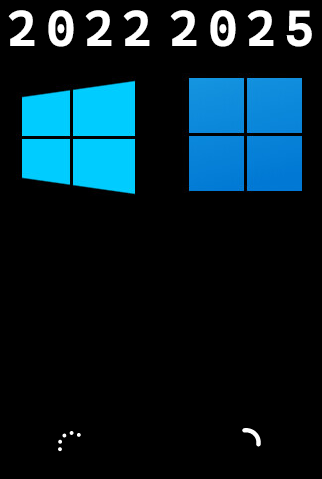
With Windows Server 2025, there are two setups the new setup UI, which is the default, and the previous setup UI, which I will call the old setup UI, as it is very much like the Windows setup UI we are all used to.
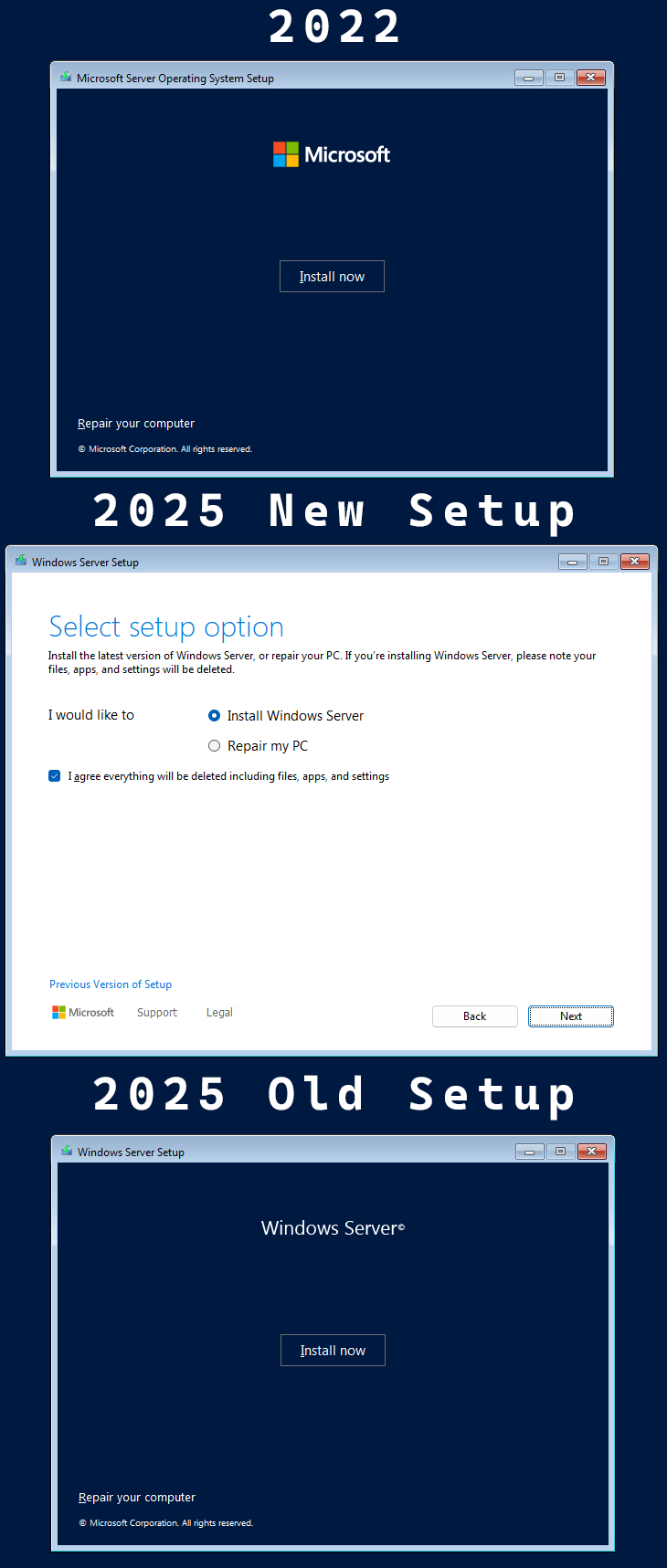
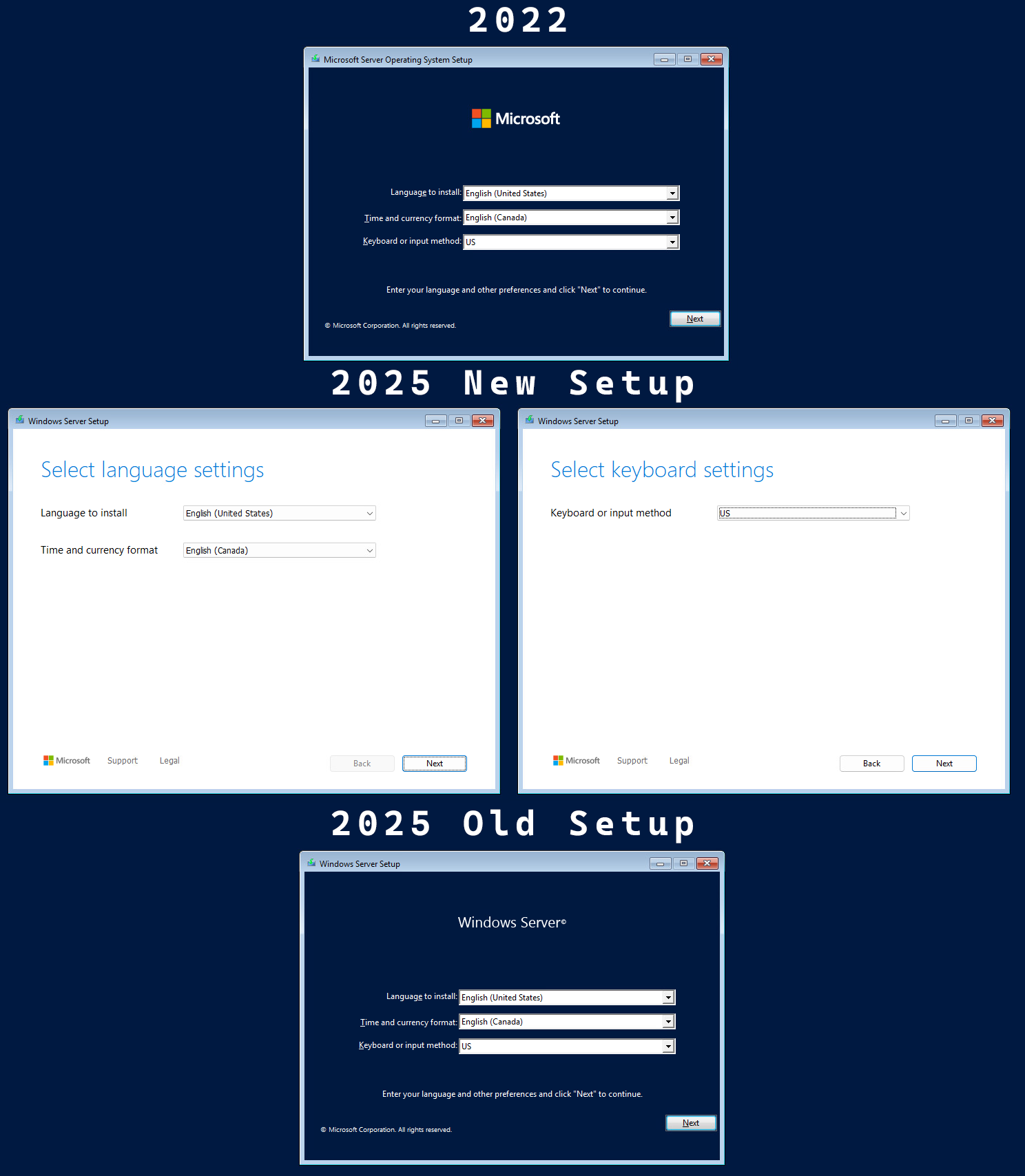
In this post, I will compare the install screens from Windows Server 2022 with the Windows Server 2025 new setup UI and the Windows Server 2025 old setup UI to see what’s different, along with the initial changes I noticed once Windows Server 2025 was installed.
With the Windows Server 2022 setup UI, the first screen is the language, time format, and keyboard selection. In the Windows Server 2025 new setup UI, the whole screen has been redesigned, and the language selection is its own screen, followed by the keyboard settings. Using Windows Server 2025 with the old setup UI is essentially the same as the Windows Server 2022 setup UI.
The next screen is the install or repair screen. With the new setup UI on Windows Server 2025, the repair option is much more prominently featured, along with a new required option to select I agree everything will be deleted including files, apps, and settings. This screen also allows you to switch back to the old setup UI.