Skip to content
theDXT
  • Home
  • IT
  • Scripts
  • GitHub
  • LinkedIn
  • X (Twitter)
  • Search Icon
Install Omnissa DEM Application Profiler

Install Omnissa DEM Application Profiler

May 23, 2026

The Omnissa DEM (Dynamic Environment Manager) application profiler is a tool you can use to determine what you need to capture to make sure the user’s application settings and data are saved and roam with the user.

In this post, I will show you step by step how to install the Omnissa DEM Application Profiler.

Prerequisites

  • A Windows VM running Windows 10 or 11 Professional or Enterprise edition.

If you plan to capture an application that will run on a terminal server, you should install Windows Server 2016 or newer to capture everything correctly.

The Process

  • Download the Omnissa Dynamic Environment Manager from Omnissa Customer Connect.
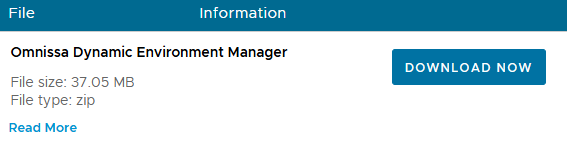
  • Extract the Omnissa DEM Application Profiler MSI from the Optional Components folder in the Omnissa DEM zip file.

It’s common for the Omnissa DEM Application Profiler installer version to not match the DEM version you are using. Just make sure you use the one included with the DEM version you are using.
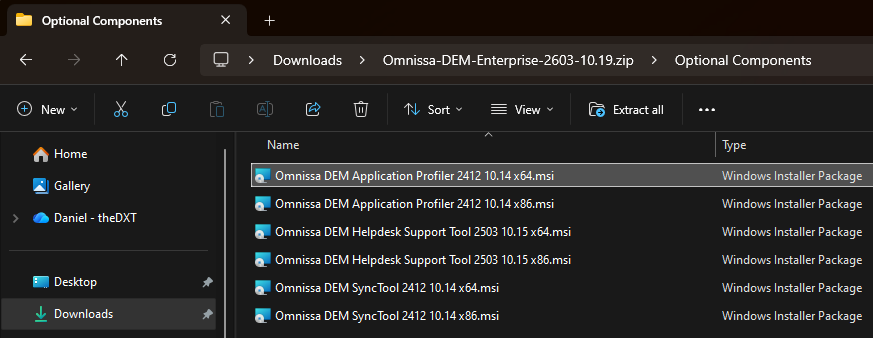
  • Connect to your Windows VM.
  • Run the Omnissa DEM Application Profiler Setup as an Administrator.
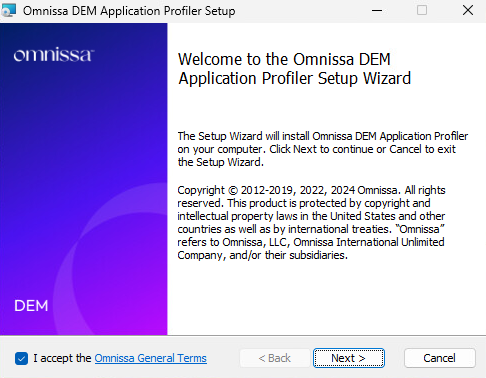
  • If you agree to the Omnissa General Terms, select I accept and click Next.
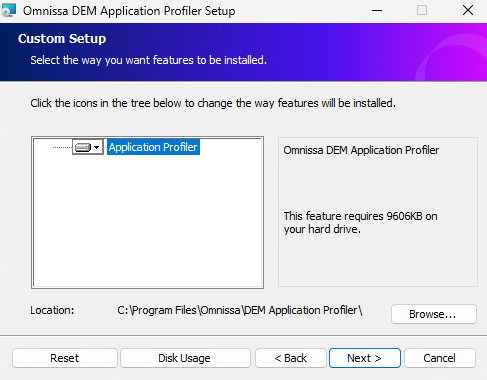
  • On the Custom Setup screen, make any necessary changes and click Next.
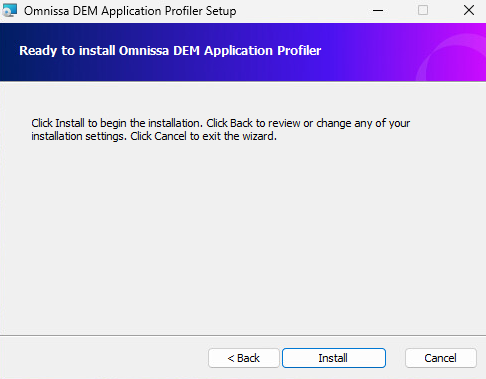
  • Click Install to start the installation.
  • Wait while the setup wizard completes the installation of the Omnissa DEM Application Profiler.
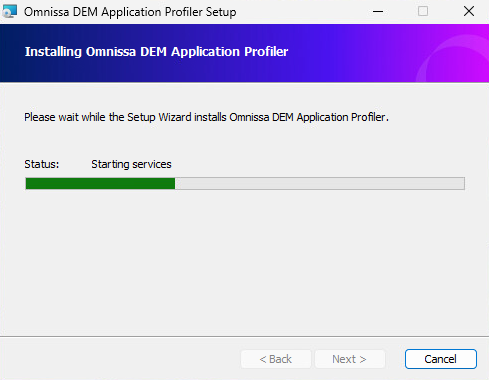
  • Click Finish to complete the installation and close the setup wizard.
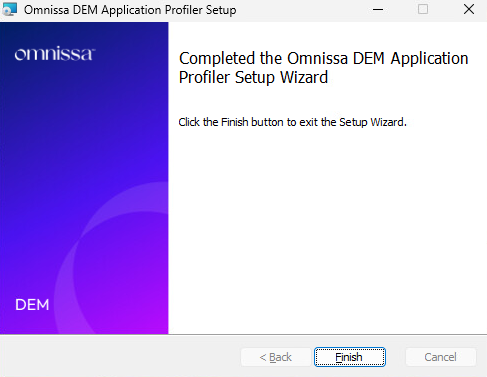
Typically, when it’s time to profile an application, a snapshot is created on the Omnissa DEM Application Profiler VM before the application is installed giving you a clean slate to revert to after you’ve completed profiling your application.

That’s all it takes to install the Omnissa DEM Application Profiler.

If you want to read more about the Omnissa DEM Application Profiler installation, here is the Omnissa documentation.
Related posts:

Install Omnissa Horizon Connection Server Certificate Omnissa Unified Access Gateway Certificate Install Configure Omnissa UAG with Omnissa Horizon Omnissa Horizon Client Default Server

IT
EUC, How To, Install, Omnissa, Omnissa DEM

Post navigation

PREVIOUS
I Went to VMUG Connect Minneapolis 2026

Leave a Reply Cancel reply

Your email address will not be published. Required fields are marked *

About Me

Daniel Keer

Project Lead, Senior Consultant at Digitally Accurate Inc.

Awards and Certificates
VMware vExpert ⭐⭐⭐⭐
Omnissa Tech Insider ⭐⭐⭐

Consulting

Stuck on something? Reach out to Digitally Accurate Inc. and we can provide expert IT consulting to help you move forward.

  • Install Omnissa DEM Application Profiler
  • I Went to VMUG Connect Minneapolis 2026
  • Microsoft Entra ID External MFA
  • Palo Alto Change Master Key with HA (Active/Passive)
  • Deploy Sophos Firewall on VMware vCenter

Recent Posts

  • Install Omnissa DEM Application Profiler
  • I Went to VMUG Connect Minneapolis 2026
  • Microsoft Entra ID External MFA
  • Palo Alto Change Master Key with HA (Active/Passive)
  • Deploy Sophos Firewall on VMware vCenter
  • Sophos Firewall Initial Setup
  • Sophos Firewall Interface Mapping on vSphere
  • Sophos Firewall Remove GuestAP Interface
  • Palo Alto Configure Master Key with HA (Active/Passive)
  • Palo Alto Config Backup

Tags

2014 Calgary Certificates Christmas EUC event Firewall Fix holiday How To Microsoft Microsoft 365 Mouthy & Keerious Networking podcast Power Loss PowerShell review Script Spoiler Free twelve days of christmas VEDA VEDA 2015 video vlog Vlog Every Day in April VMware Windows youtube yyc

© 2026   Copyright. All Rights Reserved.