VMware Tools on Windows Server Core
I’m a fan of using Microsoft Windows Server Core for as many things as possible when it makes sense. In this post, I’ll cover step-by-step how to install VMware Tools on Windows Server Core via the GUI and PowerShell.
The GUI Way
- From ESXi or vCenter mount VMware tools to the VM.
- Login to the Windows Server Core VM.
- Change to the D drive (or whichever drive your disk drive is on your install)
- Enter the following command to being the install
.\setup64.exe

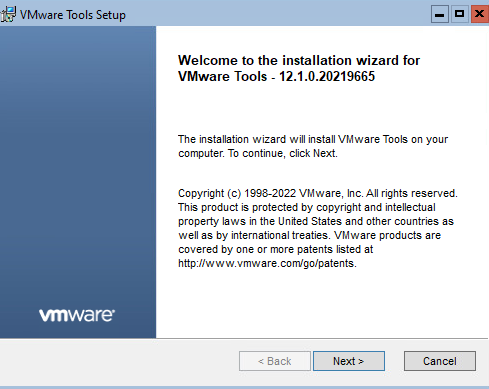
Sometimes the VMware tools install screen hides behind the command line window.
- Click Next
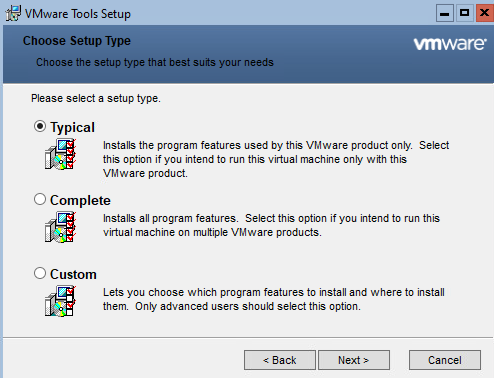
- Select Typical and click Next.
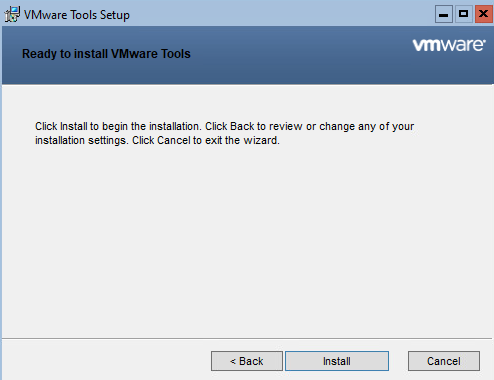
- Click Install.