Configure Omnissa UAG with Omnissa Horizon
In this post, I will show you step by step how to configure the Omnissa UAG (Unified Access Gateway) to work with Omnissa Horizon (formerly VMware Horizon).
Prerequisites
- Horizon connection server installed.
If you need to learn how, my post Install Horizon Connection Server details all the steps.
- Horizon connection server with a certificate installed.
- Horizon connection server certificate thumbprint.
If you need to learn how, my post Install Omnissa Horizon Connection Server Certificate details all the steps.
- UAG deployed.
If you need to learn how, my post Deploy Omnissa UAG on VMware vCenter details all the steps.
The Process
- Log in to the UAG.
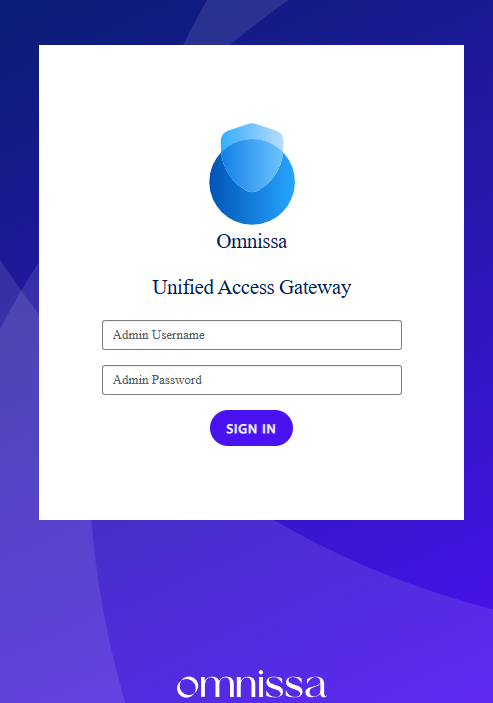
- Select Configure Manually.
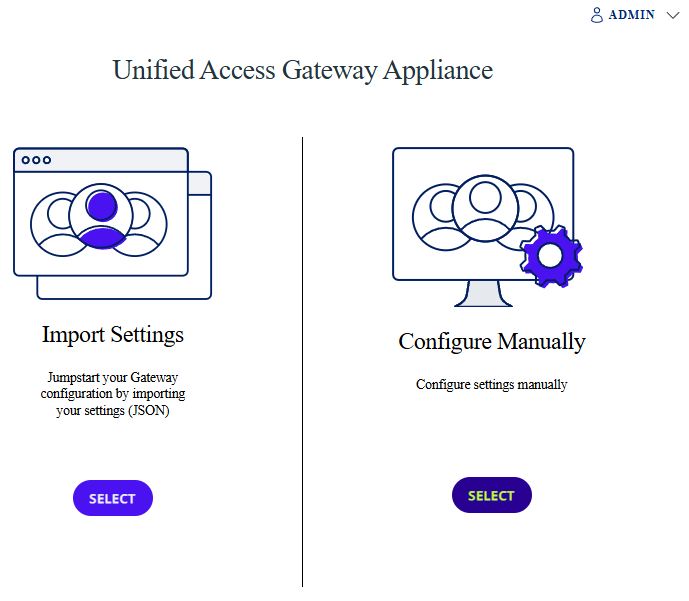
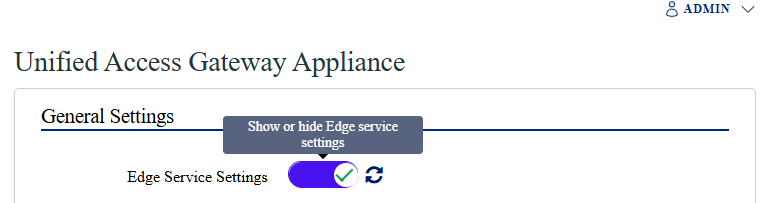
- Click the Edge Service Settings toggle to view the settings.
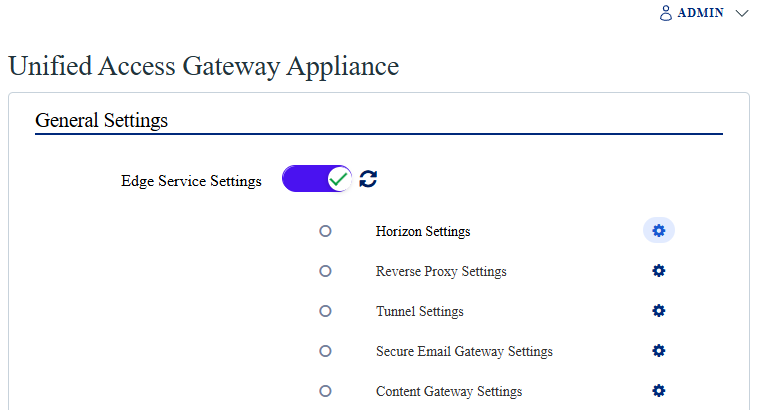
- Click the gear icon next to Horizon Settings.
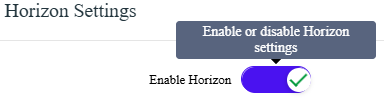
- Click the toggle to Enable Horizon to view the Horizon settings.
- Next, we need to configure the Horizon settings.
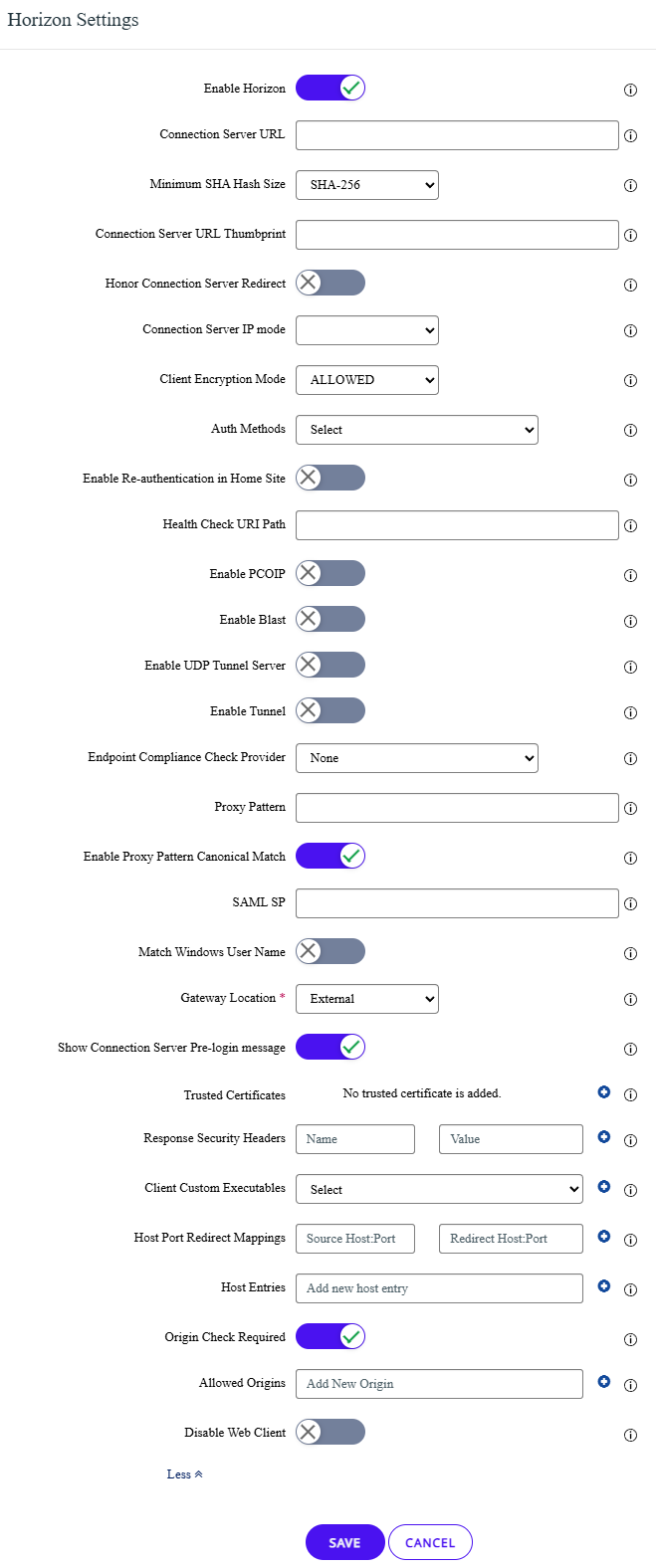
There are many settings on the UAG that we don’t need to configure.
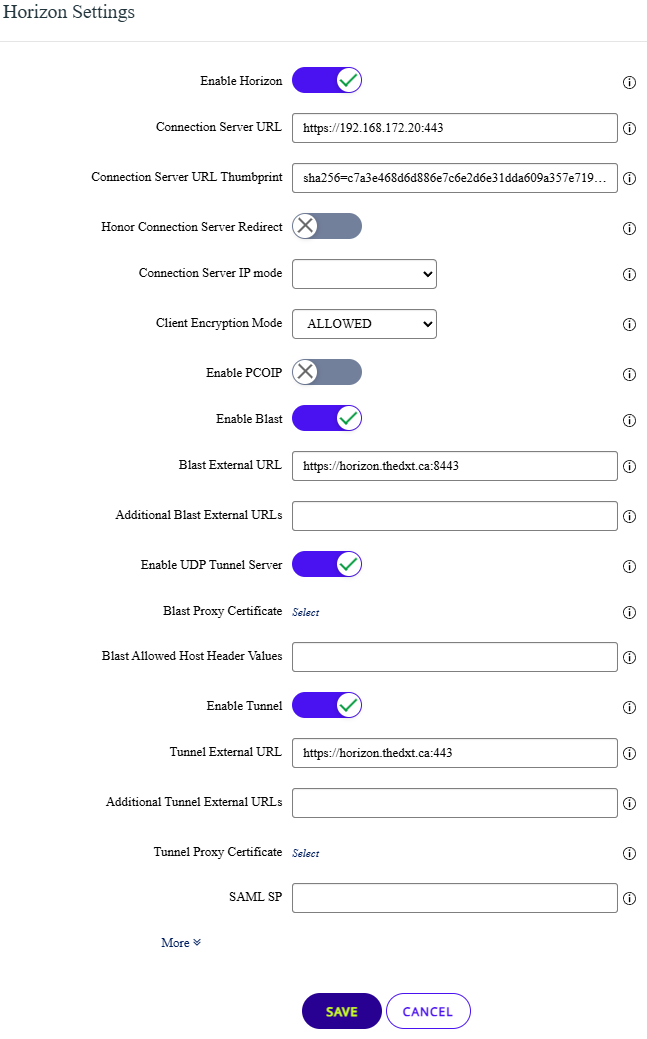
- For Connection Server URL, enter the URL of the connection server, including the protocol and port.
If your domain ends with .local, it is recommended to use the IP instead of the FQDN.

In my example, my domain is dxt.local, so I will use the IP of my Horizon connection server. I will enter https://192.168.172.20:443.
- For Connection Server URL Thumbprint, enter the thumbprint of the certificate used by your connection server. It will need to start with the algorithm.
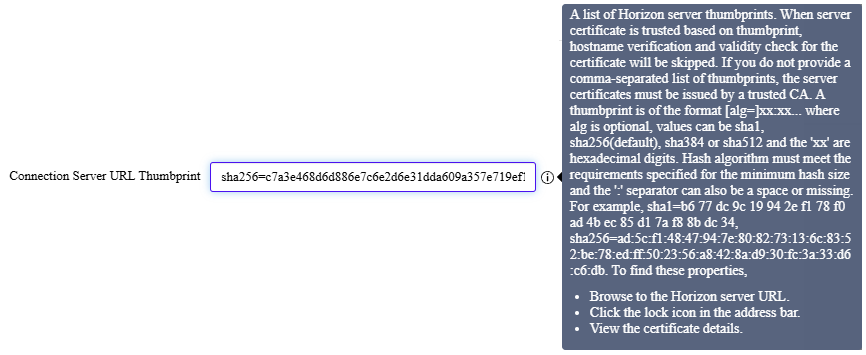
In my example, the certificate algorithm I will use is SHA256, and the hash is c7a3e468d6d886e7c6e2d6e31dda609a357e719ef1. I will enter sha256=c7a3e468d6d886e7c6e2d6e31dda609a357e719ef1.
- Click on the Enable Blast toggle.
Blast is Horizon’s preferred remote connection method.
- For Blast External URL, enter the external URL you will use for Horizon, along with the port number. The default ports for TCP and UDP are 8443.
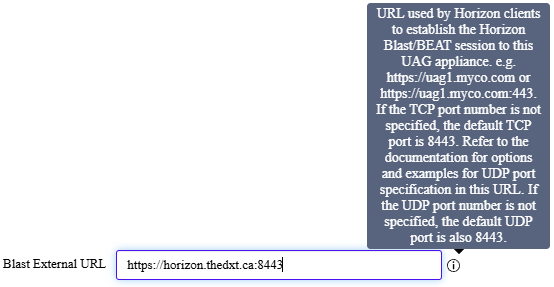
In my example, I will enter https://horizon.thedxt.ca:8443.
- Click on the toggle for Enable UDP Tunnel Server.
The UDP tunnel is used for poor connections.
- Click on the toggle for Enable Tunnel.
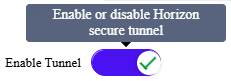
The tunnel is used for RDP, USB, and multimedia redirection (MMR).
- For Tunnel External URL, enter the external URL to be used for Horizon, along with the port number. The default is TCP port 443.
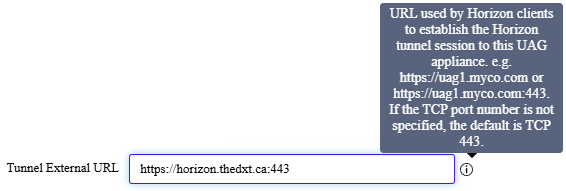
In my example, I will enter https://horizon.thedxt.ca:443.
- Review all the settings you entered and click Save.
- Wait a few moments for the configuration to take effect.
- Click on the arrow next to Horizon Settings to expand everything. Use the refresh icon to refresh the status.
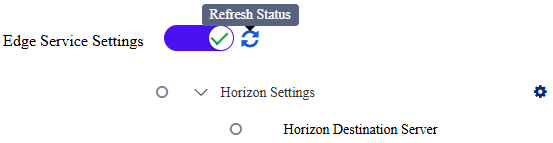
It’s normal for Blast to take a bit longer than the others to come up.
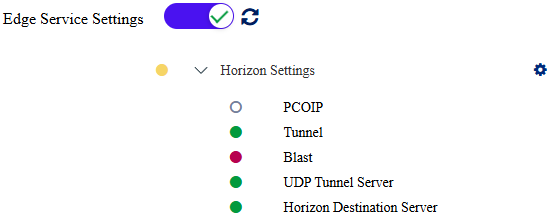
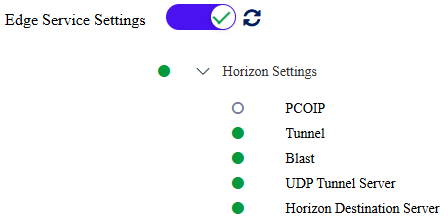
- Confirm that all the Horizon settings you configured are green.
- Install your SSL certificate.
For more details on installing a certificate on the UAG, see my blog post, Omnissa Unified Access Gateway Certificate Install.
- Connect to your Horizon Connection Server.
- Log in to the Horizon admin console.
- Click on Settings > Servers.
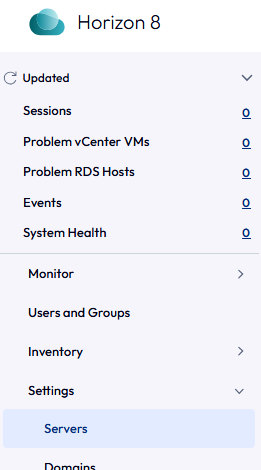
- Click on Gateways.

- Click on Register.

- Enter the UAG hostname and click ok.
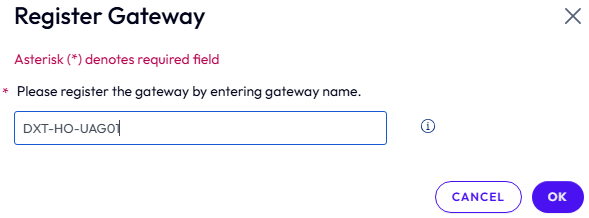
In my example, the hostname is DXT-HO-UAG01. I will enter that.
- Once the UAG receives a connection, all the information will be populated.
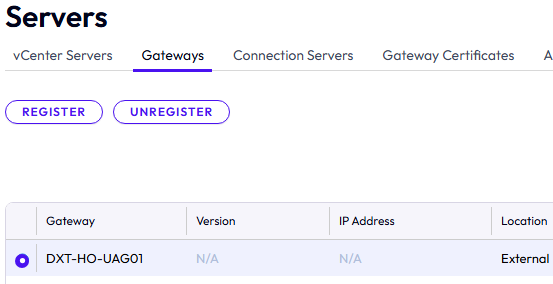
- Configure the
locked.propertiesfile on your Horizon connection server as needed.
For more information about configuring the locked.properties file for Omnissa Horizon, my blog post Configure locked.properties for Omnissa Horizon goes into detail.
For more information on configuring the Omnissa UAG (Unified Access Gateway) to work with Omnissa Horizon, here is the Omnissa documentation.