Skip to content
theDXT
  • Home
  • IT
  • Scripts
  • GitHub
  • LinkedIn
  • X (Twitter)
  • Search Icon
Log PuTTY Output

Log PuTTY Output

October 7, 2023

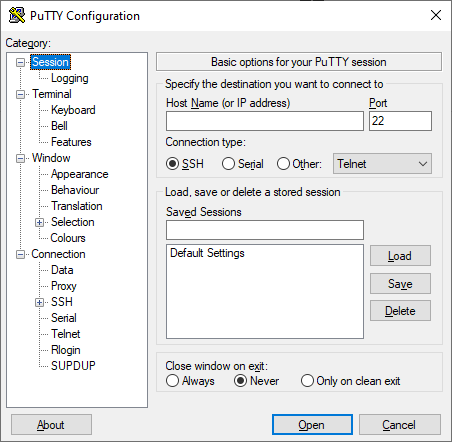
I use PuTTY a lot and sometimes I want to log my changes as I make them or I want a quick and dirty way to get a config file off a device. In this post, I will show step-by-step how to log the PuTTY output to a log file.

  • Open PuTTY
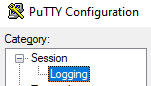
  • Click on Session > Logging
Selecting Logging
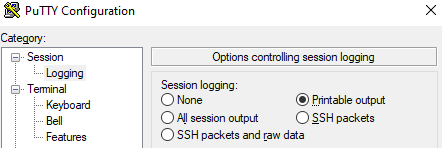
  • Select Printable output
Selecting Printable output
  • Select the location where you want the log file to be saved. I’m going to save mine in C:\temp
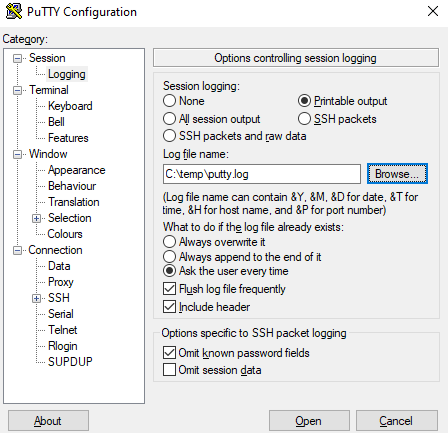
Set the save location for the log file
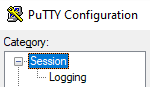
  • Click on Session
Selecting Session
  • Connect to the host and do what you need to do.
Connect to the host
  • When you close your PuTTY session window the printable output is written to the log file.

That’s all it takes to log the PuTTY printable output to a log file.

I did get curious about what happens if you use All session output vs Printable output. Here’s what the main differences are that I found.

Below is with the Printable output option

PuTTY Printable output log file

Below is with the All session output option

PuTTY All session output log file with strange

As you can see with the All session output option it can result in strange characters in the log file however it does log everything so it could be useful in some cases.

If you want to read more about the logging options in PuTTY you can do so by reading the PuTTY documentation here.


Related posts:

Palo Alto Config Set Commands ESXi Config Restore ESXi Config Backup Convert PFX Certificate

IT
How To, Logs, PuTTY

Post navigation

PREVIOUS
Intune Deploy Default Taskbar
NEXT
PGP

One thought on “Log PuTTY Output”

  1. Pingback: Palo Alto Config Set Commands - theDXT

Leave a Reply Cancel reply

Your email address will not be published. Required fields are marked *

About Me

Daniel Keer

Project Lead, Senior Consultant at Digitally Accurate Inc.

Awards and Certificates
VMware vExpert ⭐⭐⭐
Omnissa Tech Insider ⭐⭐⭐

Consulting

Stuck on something? Reach out to Digitally Accurate Inc. and we can provide expert IT consulting to help you move forward.

  • ESX Regenerate Self-Signed Certificate
  • Veeam Backup & Replication 13 Windows Install
  • Enable Windows 10 Extended Security Updates
  • slmgr.vbs
  • CyberChef
© 2026   Copyright. All Rights Reserved.