
Deploy Horizon Edge Gateway on VMware vSphere
If you have an Omnissa Horizon subscription, you should deploy the Horizon Edge gateway appliance to license your Omnissa Horizon setup.
The Horizon Edge Gateway for vSphere is a VM that you deploy on your VMware vSphere environment. In addition to automatically licensing your Horizon setup, the Horizon Edge gateway also serves as a connector to the Horizon Control Plane hosted by Omnissa, enabling Omnissa and you to monitor your Horizon setup for issues. In older versions of Horizon, the Edge Gateway was called the Cloud Connector.
In this post, I will show you step by step how to deploy the Omnissa Horizon Edge Gateway on VMware vSphere.
Prerequisites
- Static IP for the Horizon Edge Gateway appliance.
- FQDN for the Horizon Edge Gateway appliance with forward and reverse DNS records.
- Enough resources in vSphere for the Edge Gateway VM.
- The Edge Gateway will need
- 8 vCPU
- 16GB RAM
- 40GB disk
- The Edge Gateway will need
- A Root password for the Horizon Edge Gateway appliance.
- An Admin password for the Horizon Edge Gateway appliance.
- Service Account configured as an admin in Horizon.
If you need to add the service account as an admin to Horizon, my blog post, Add Administrators to Omnissa Horizon covers how to do so.
The Process
- Login to Omnissa Connect https://connect.omnissa.com/.
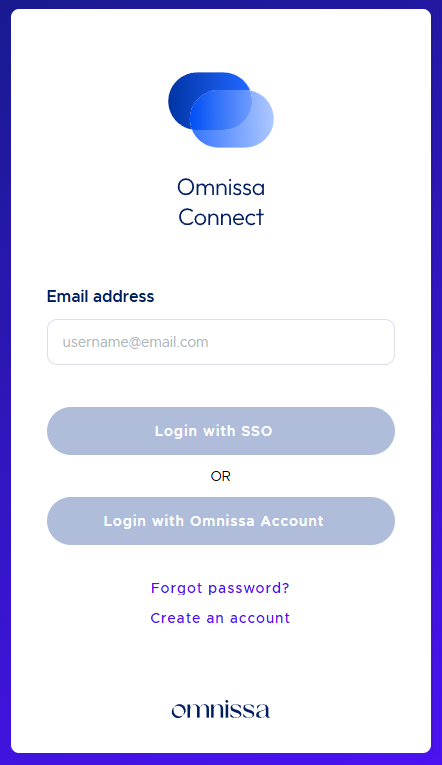
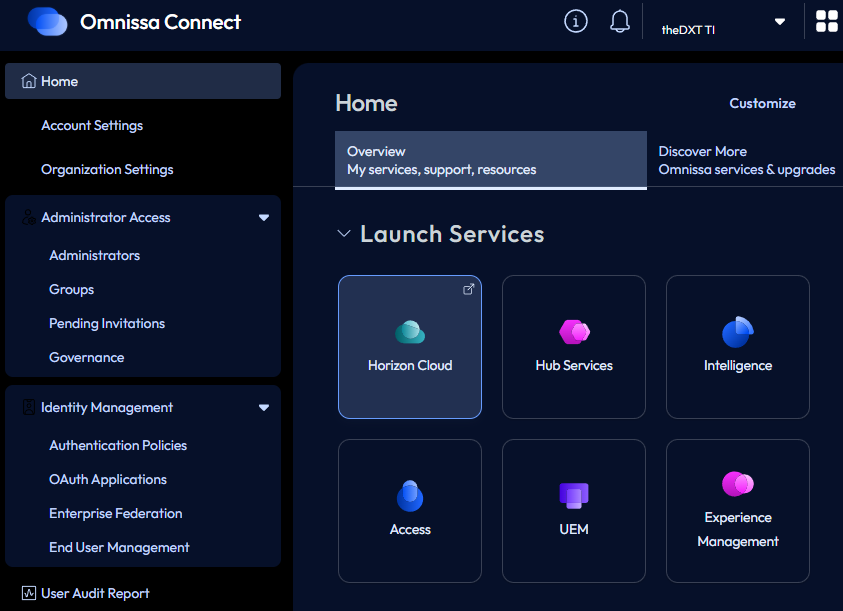
- Under the Launch Services section, click Horizon Cloud.
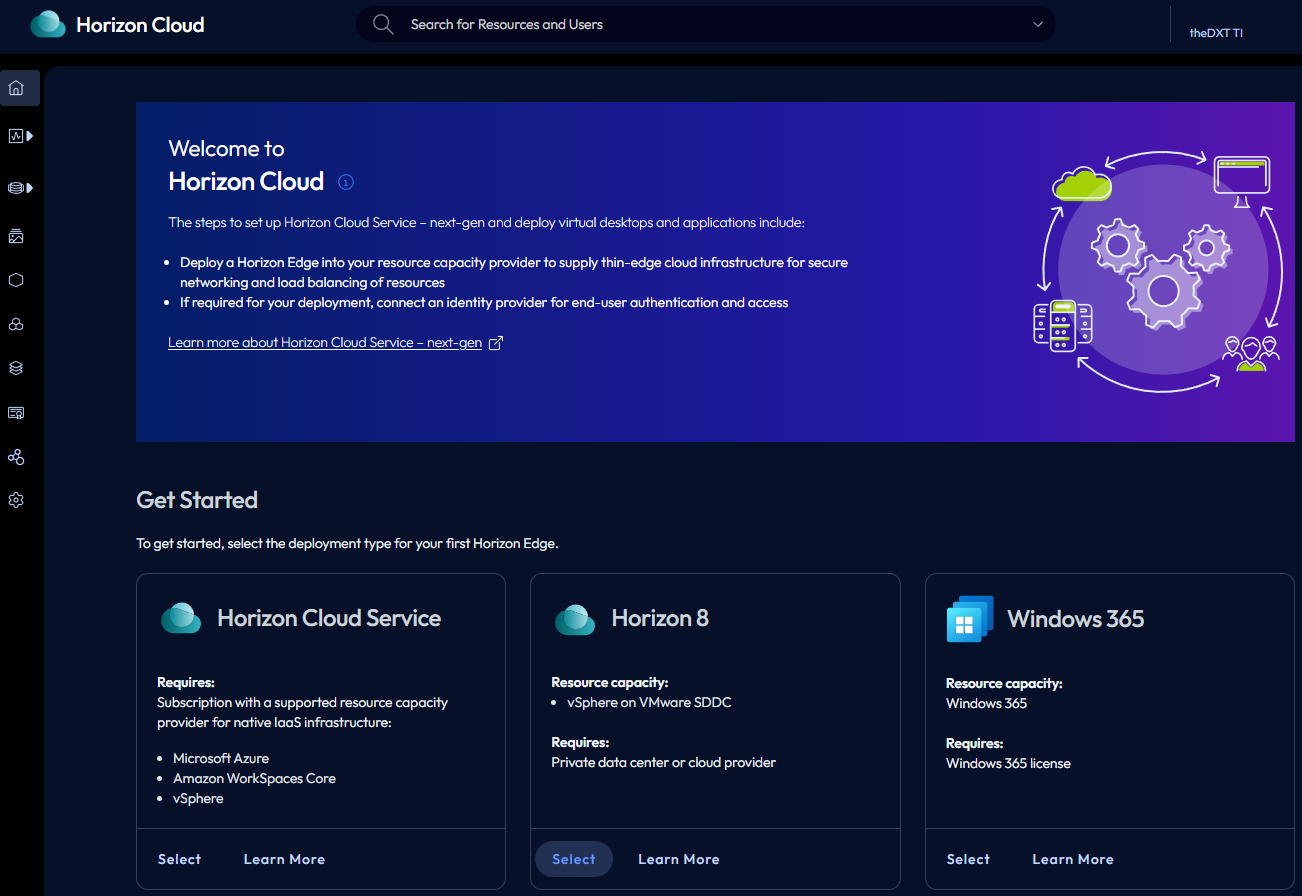
- In the Get Started section, in the Horizon 8 tile, click Select.
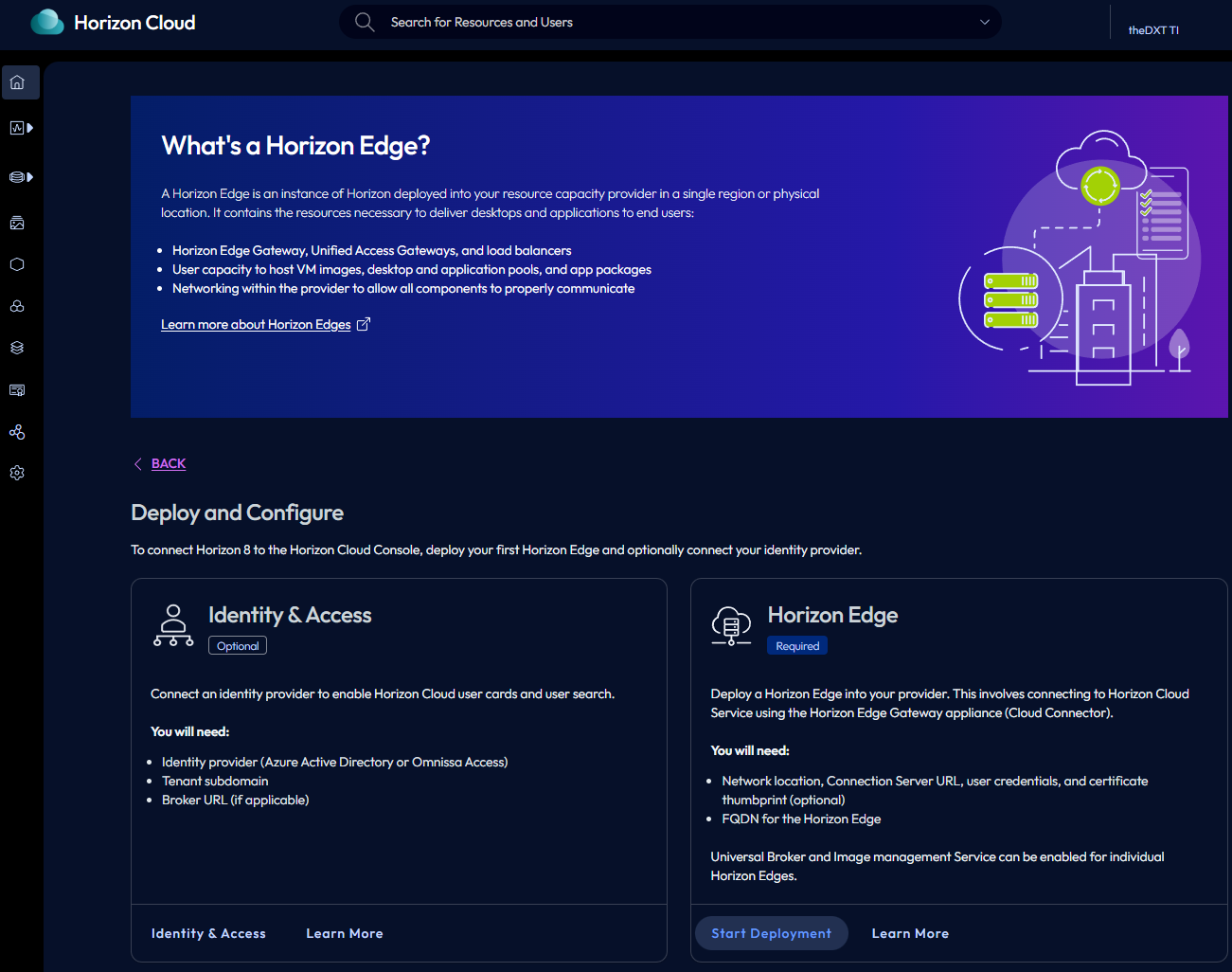
- In the Horizon Edge tile, click Start Deployment.
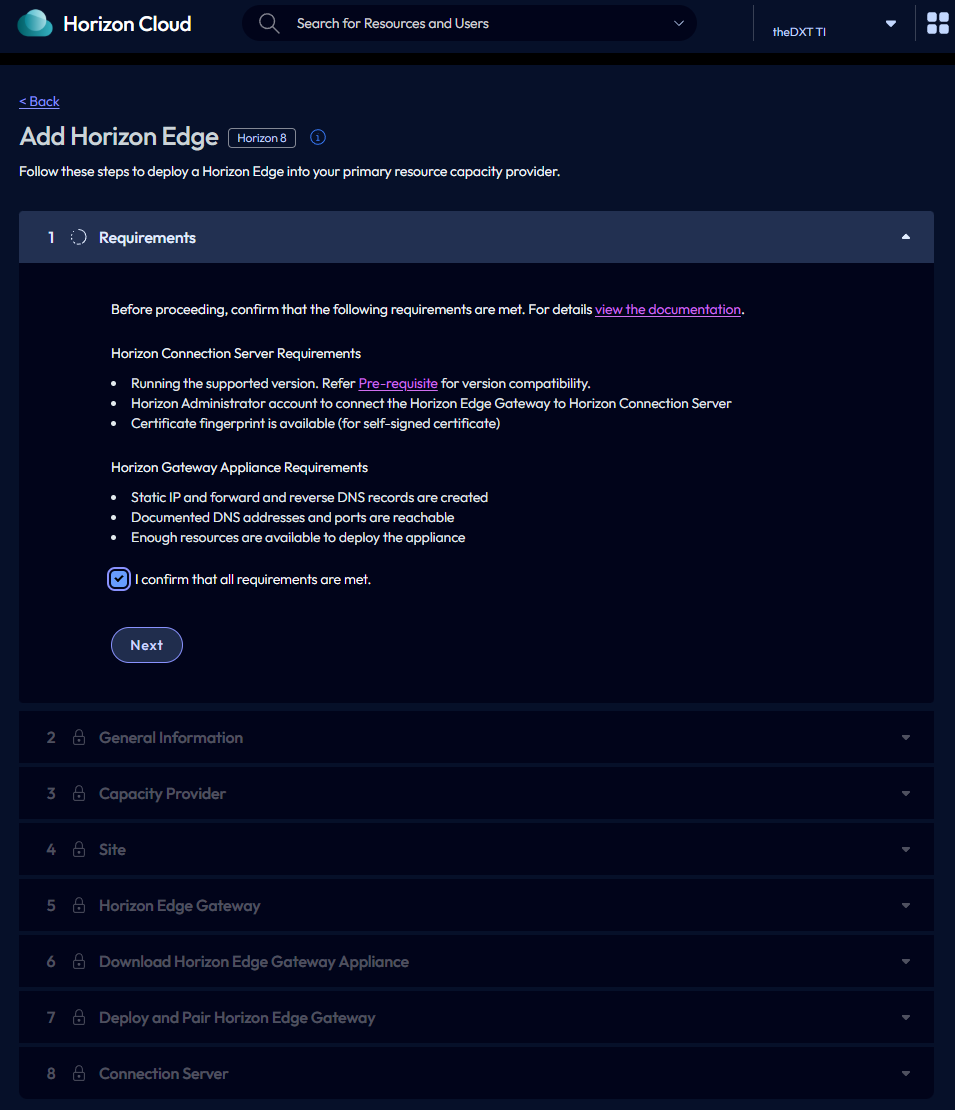
- Review the requirements. If you are ready to go, select I confirm that all requirements are met and click Next.
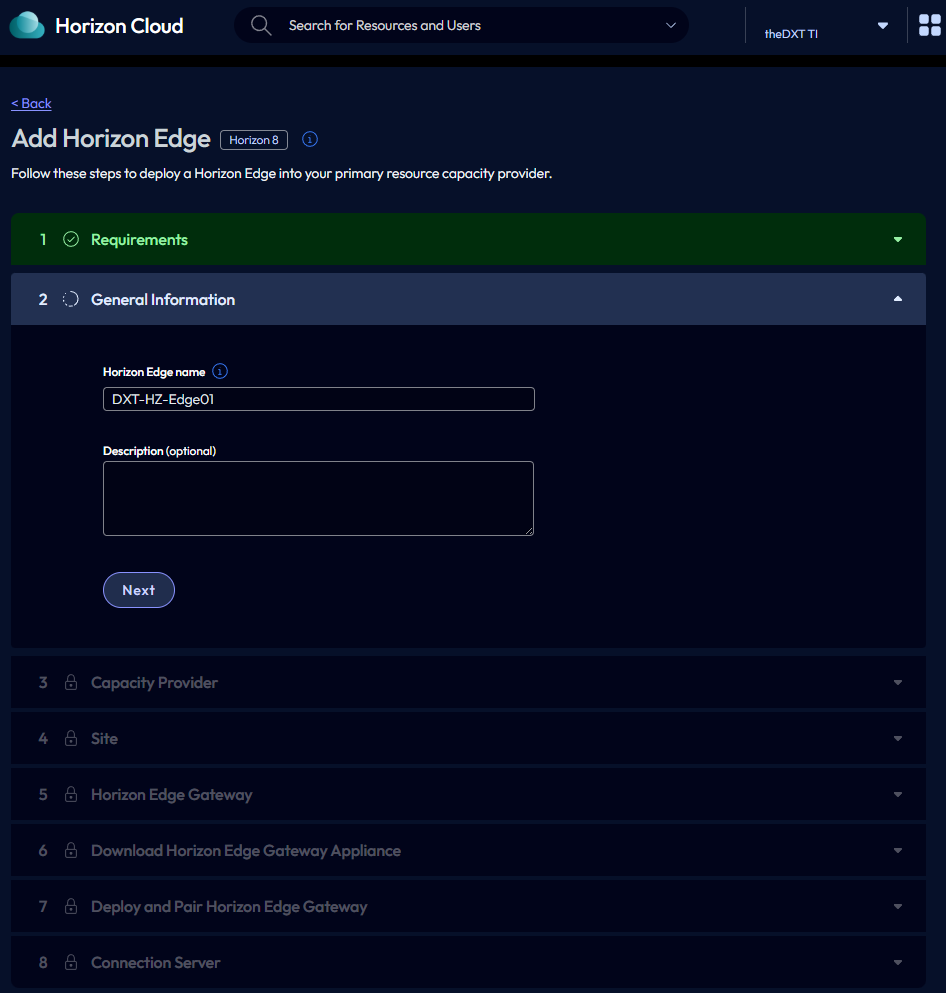
- Enter a name for your Horizon Edge and click Next.
In my example, I will name mine DXT-HZ-Edge01.
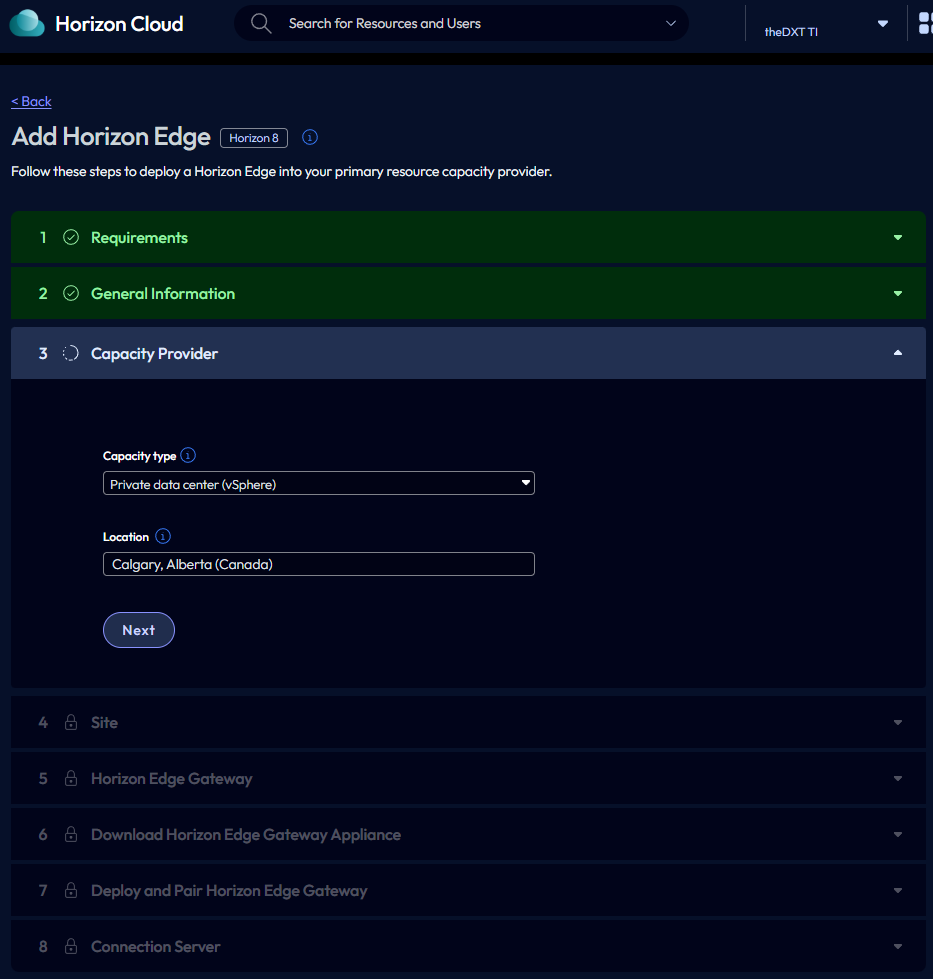
- For the Capacity type, select Private data center (vSphere).
- Enter the location of your Horizon setup and then click Next.
In my example, I will select Calgary, Alberta (Canada).
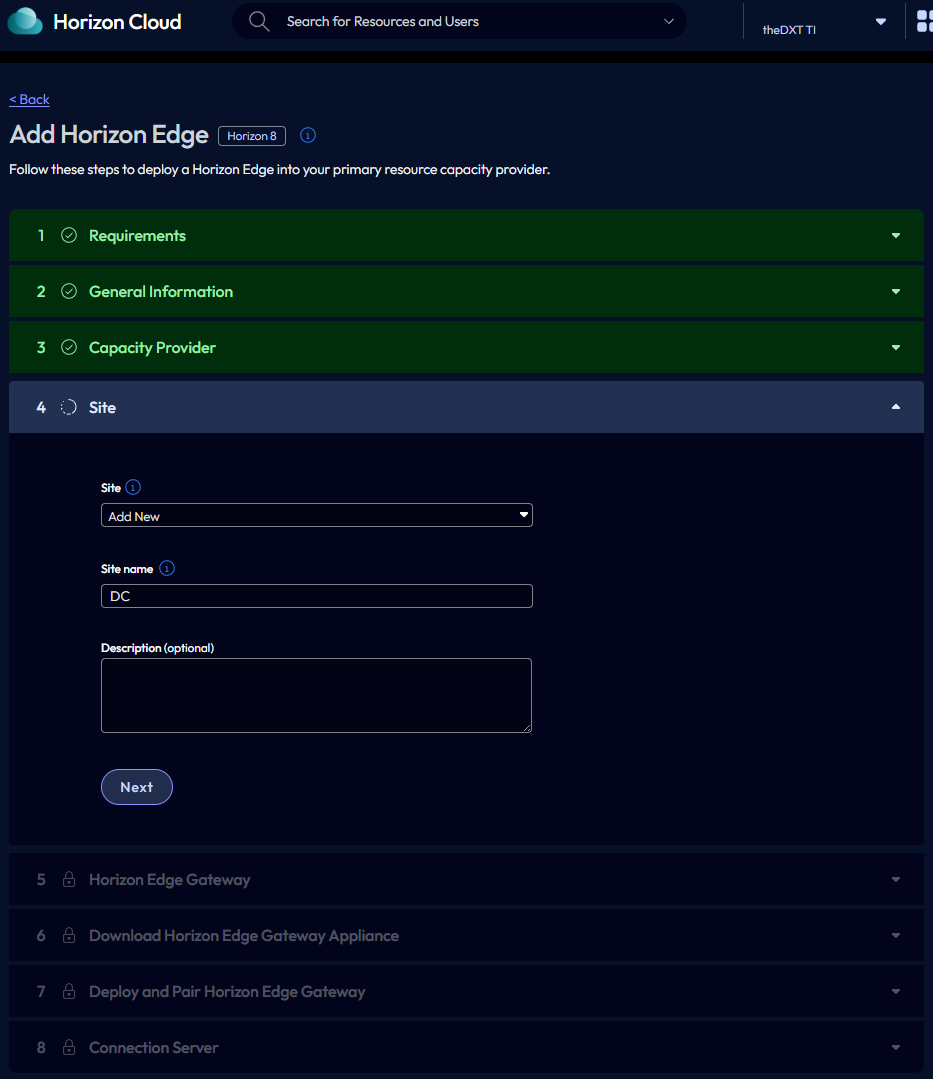
- Enter a site name and click Next.
In my example, I set the site name to DC.
- Enter the FQDN you set up for your Horizon Edge gateway, then click Next.
In my example, I will use DXT-HZ-Edge01.dxt.local.
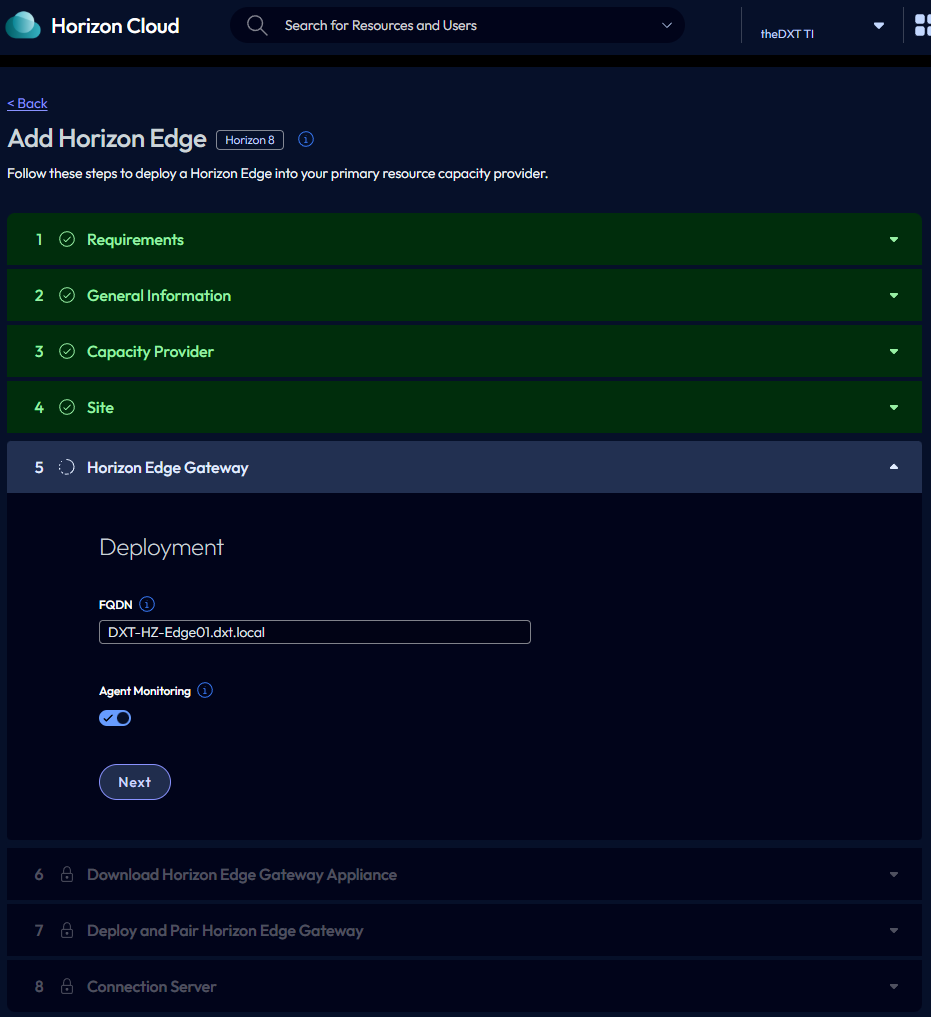
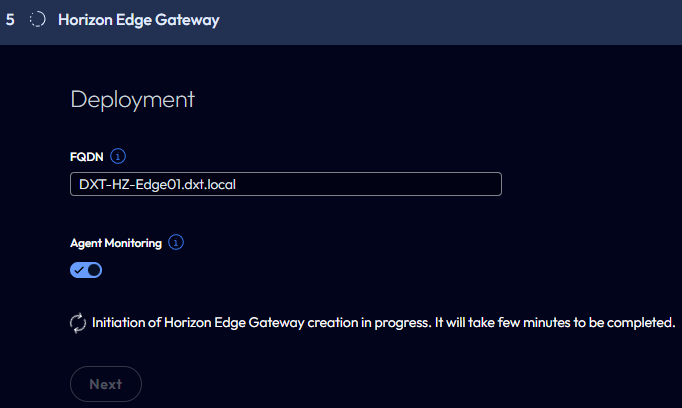
- Wait while Horizon Edge Gateway is created.
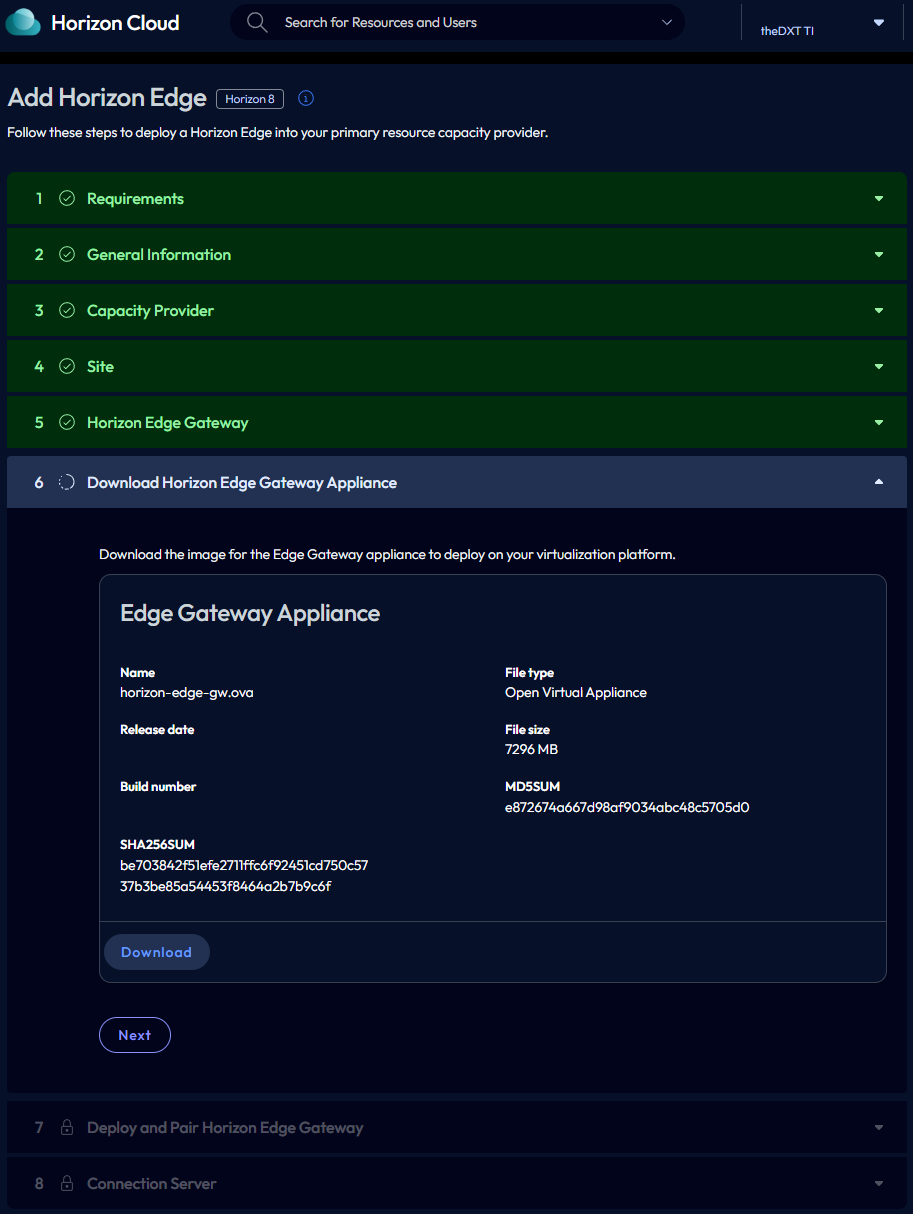
- Click Download to download the OVA for your Horizon Edge Gateway. Once you have downloaded the OVA for the Edge Gateway, click Next.
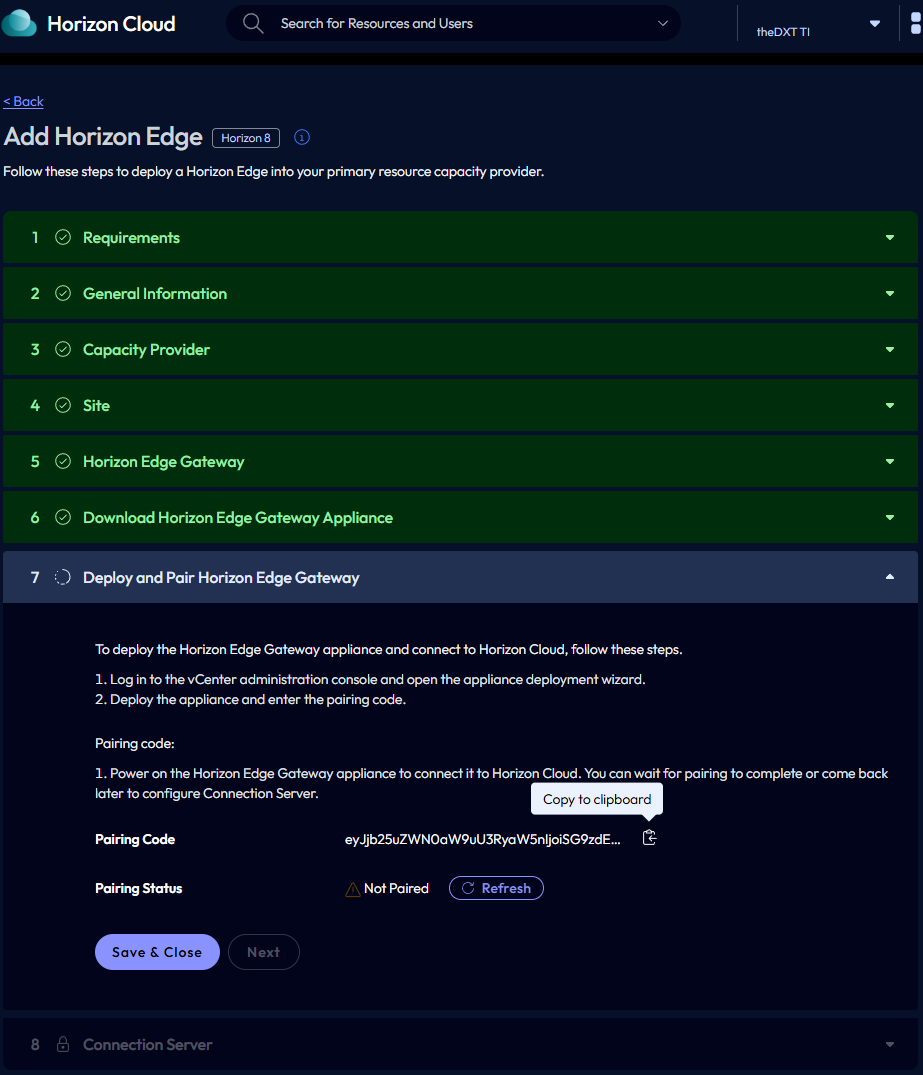
- Copy the Pairing Code.
- Login to VMware vSphere.
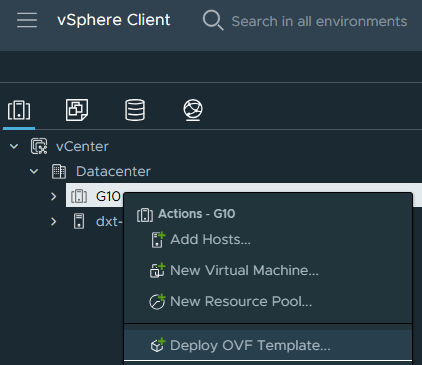
- Right-click the cluster or host you want to deploy the Horizon Edge Gateway to, and click on Deploy OVF Template.
- Select Local file, click Upload Files, select the Horizon Edge Gateway OVA you downloaded, then click Next.
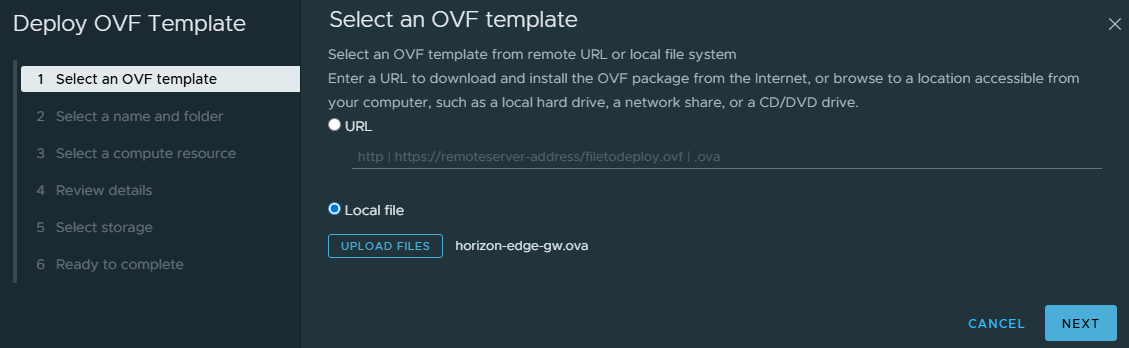
If your vCenter has internet access, you can also copy the OVA URL and select the URL option.
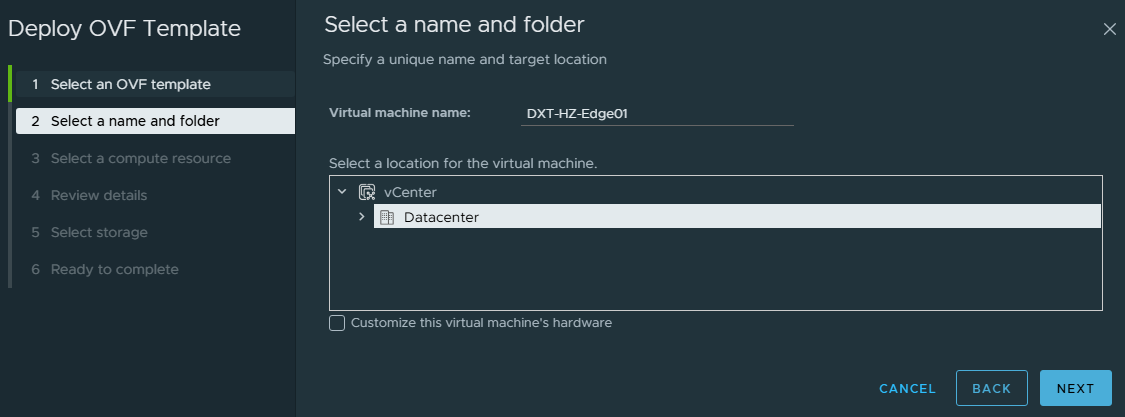
- Enter a name for the Horizon Edge Gateway VM that will be displayed in vCenter, select where you want the VM deployed, and click Next.
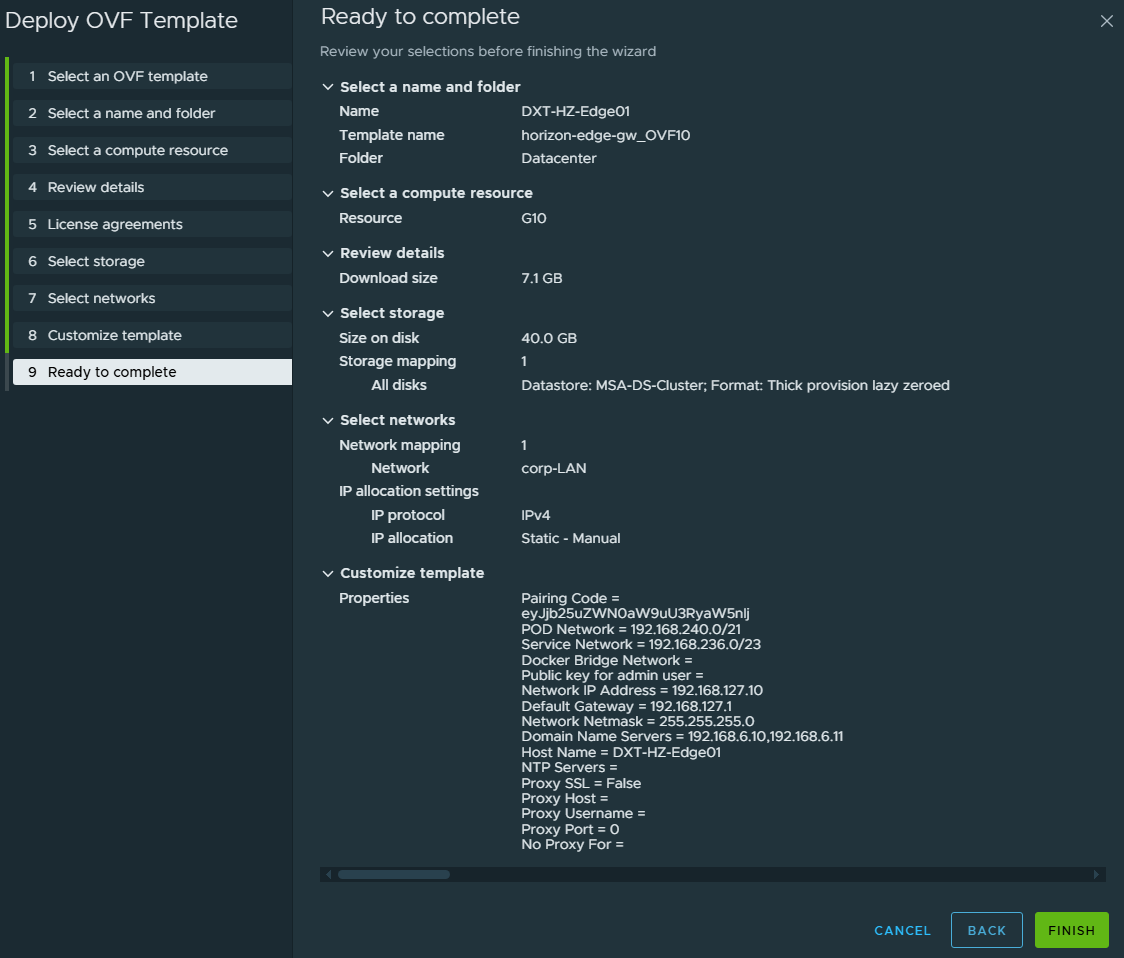
In my example, I will use the name DXT-HZ-Edge01 and select the location named Datacenter.
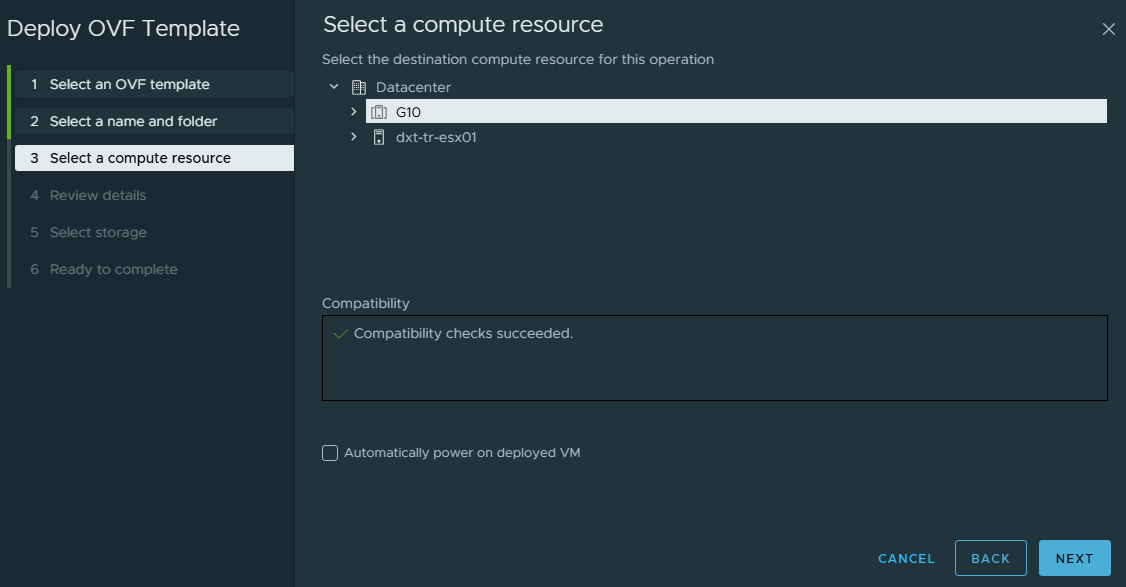
- Select the cluster or host where you want the Horizon Edge Gateway to run, then click Next.
In my example, I will select the G10 cluster.
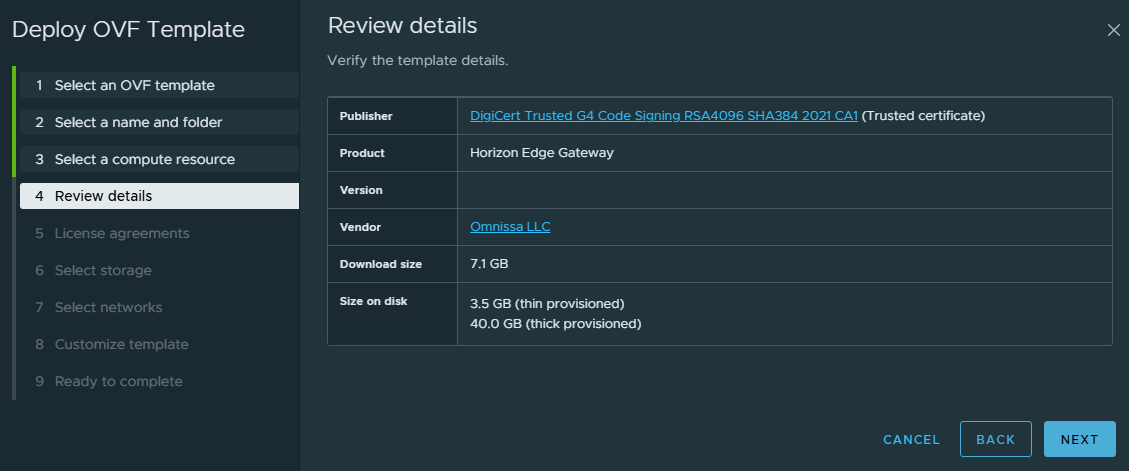
- Review the details and click Next.
You may get a certificate not trusted warning message. You can click ignore, or resolve this warning by following the steps in my blog post, VMware vCenter OVA Certificate Trust.
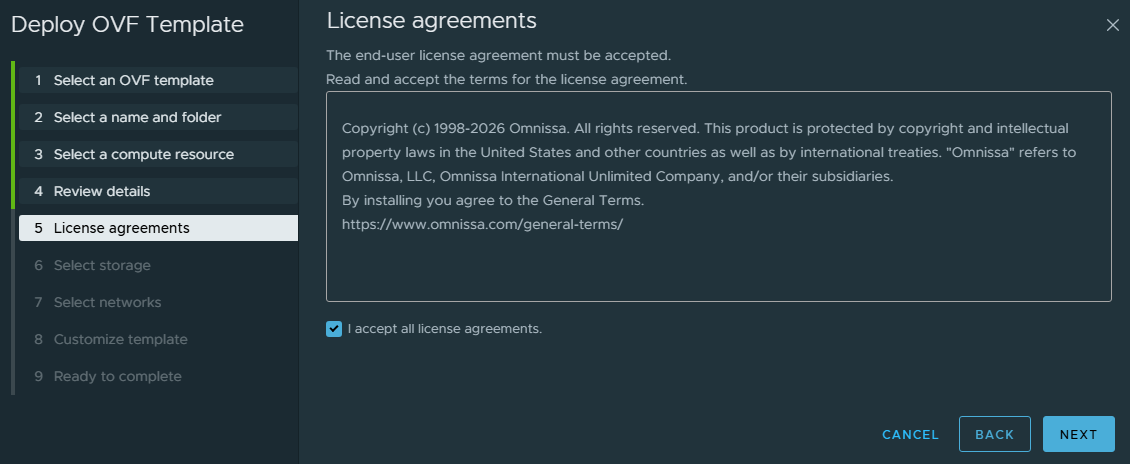
- Review the license agreements. If you agree, select I accept all license agreements and click Next.
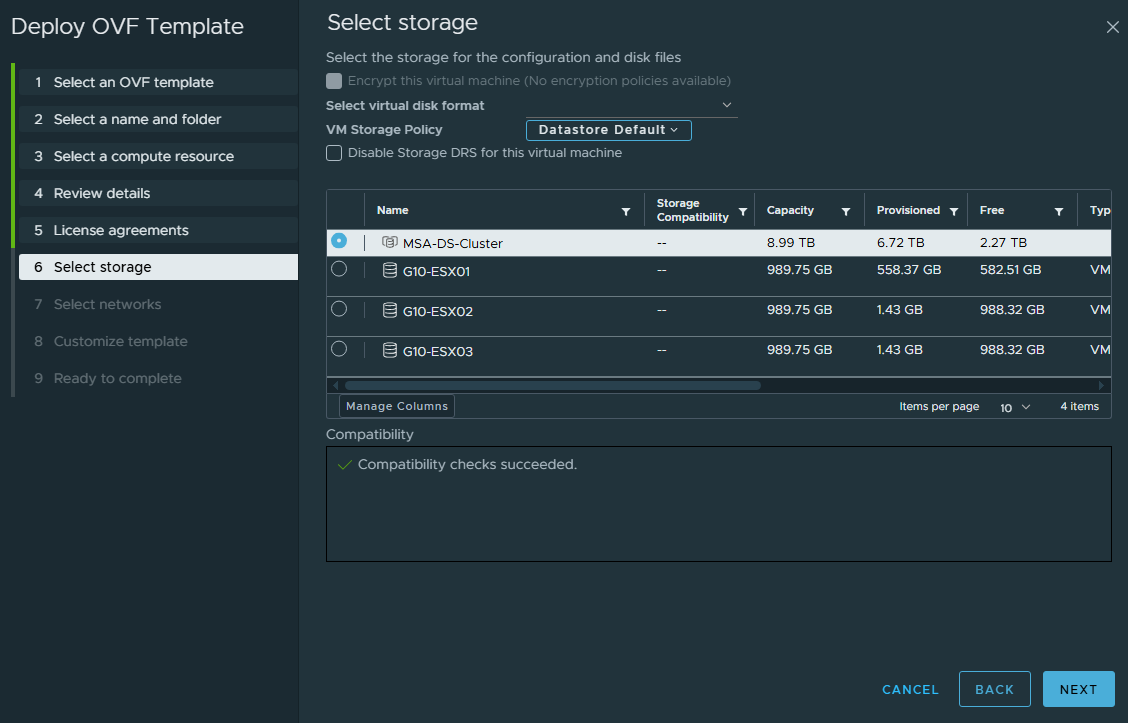
- Select where you want the Horizon Edge Gateway configuration and disk files stored, then click Next.
In my example, I will select the storage MSA-DS-Cluster.
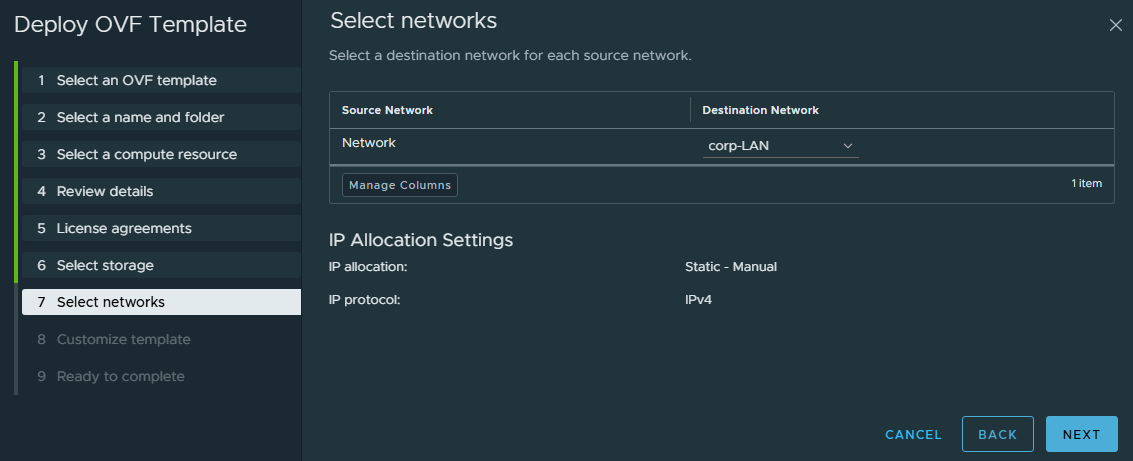
- Select the network to use, then click Next.
In my example, I will select corp-LAN.
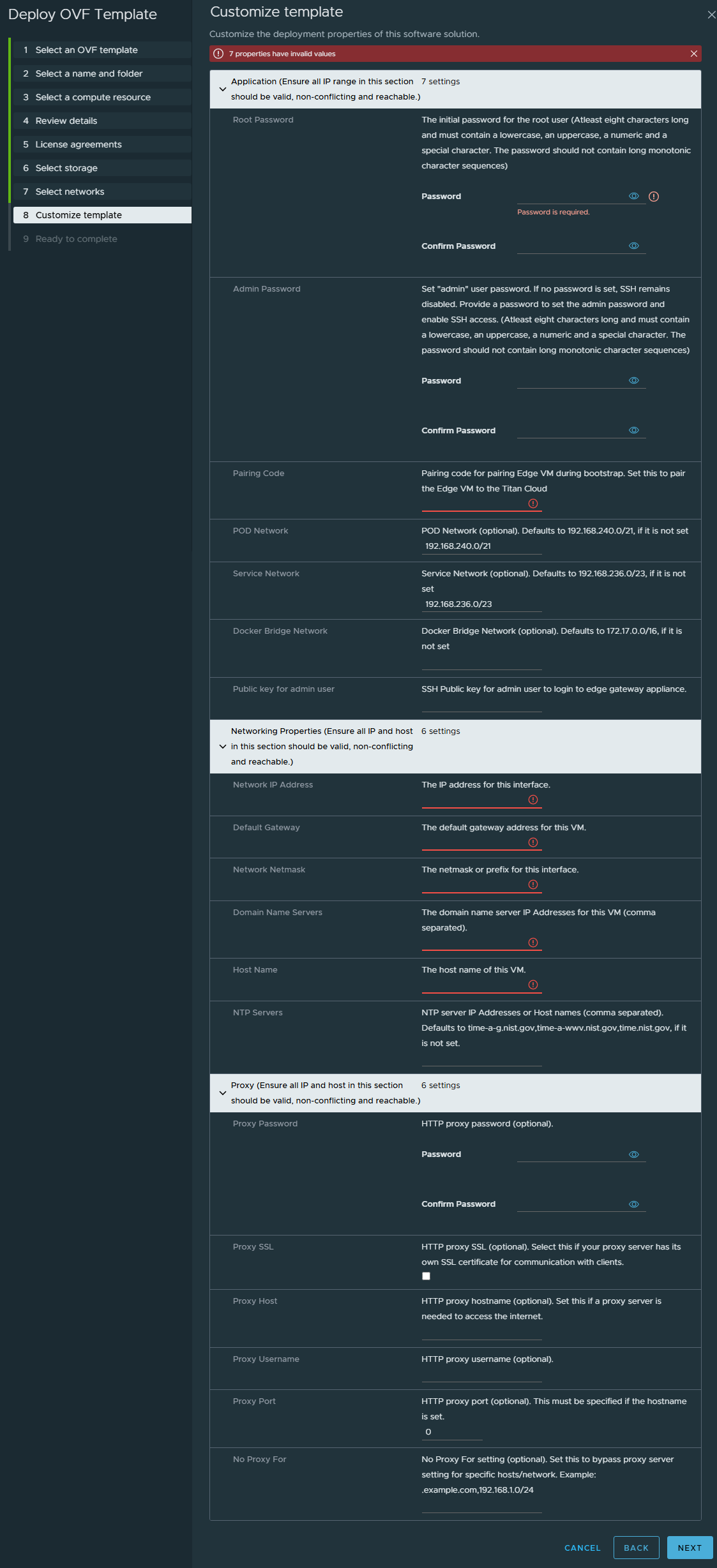
- Now we need to configure the Horizon Edge Gateway settings.
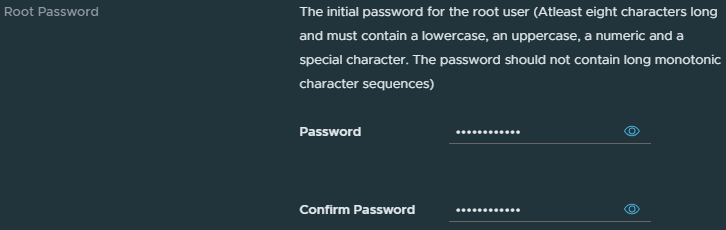
- For Root Password, enter the password you want to use for the root user.
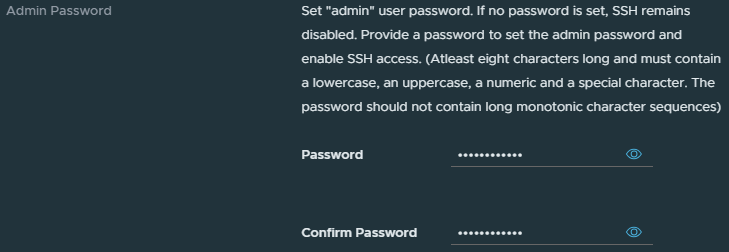
- For Admin Password, enter the password you want to use for the admin user.
Setting a password for the admin user will enable SSH access.
- Enter the Pairing Code you copied from Horizon Cloud earlier.

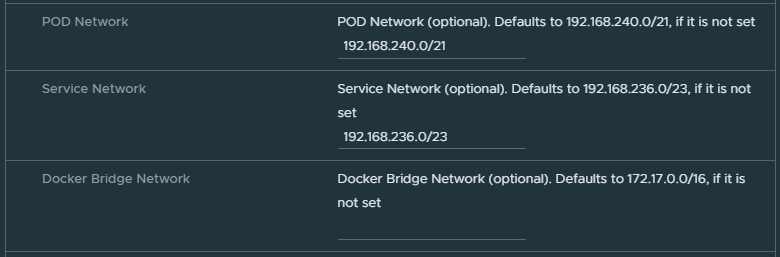
- Change the POD, Service, Docker Bridge networks if needed.
Typically, the POD, Service, and Docker Bridge networks are left with their default values, as they are only used internally on the Horizon Edge gateway VM.
- Enter the IP for the Horizon Edge Gateway.
In my example, I will use 192.168.127.10.

- Enter the IP of the network’s default gateway.
In my example, I will use 192.168.127.1.

- Enter the subnet mask or network prefix for the network.
In my example, I will enter 255.255.255.0.

- Enter the hostname of the Horizon Edge Gateway.
In my example, I will enter DXT-HZ-Edge01.

- Enter your NTP servers.
In my example, I will leave it blank to use the default.

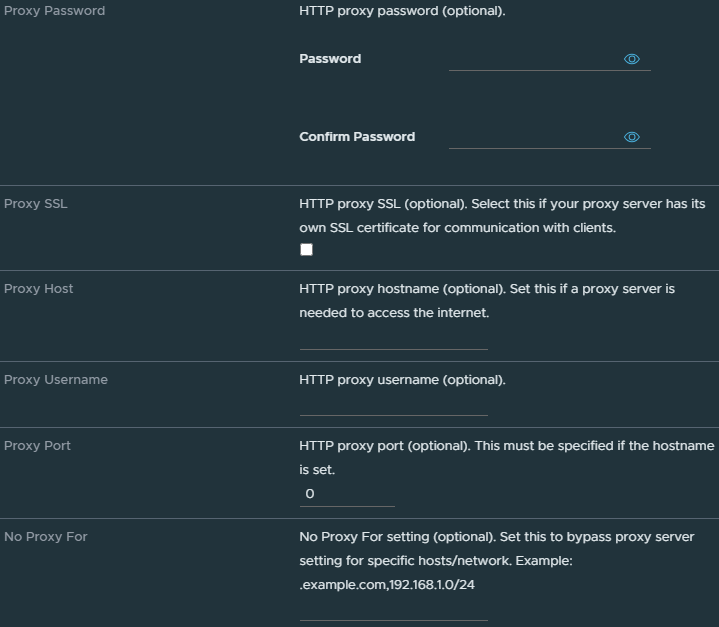
- Enter any Proxy settings if needed.
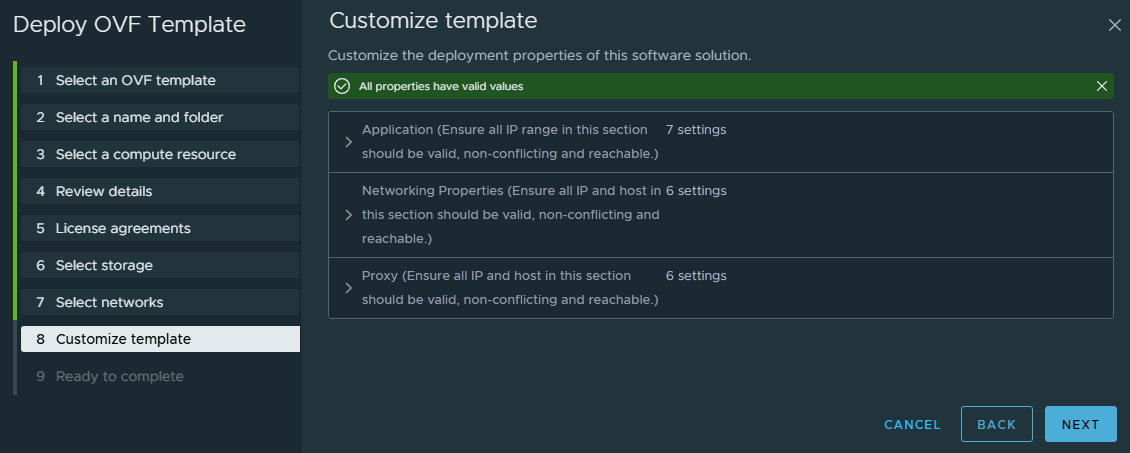
- Once you have completed configuring all the options, click Next.
- Review everything you’ve configured and click Finish.
- Wait while vCenter deploys the Horizon Edge Gateway.

- Once vCenter has completed deploying the Horizon Edge Gateway, locate the VM in vCenter and Power On the Horizon Edge Gateway.
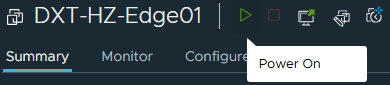
- Wait while the Horizon Edge Gateway boots up and fully comes online.
It’s normal for the first boot up to take a few minutes.
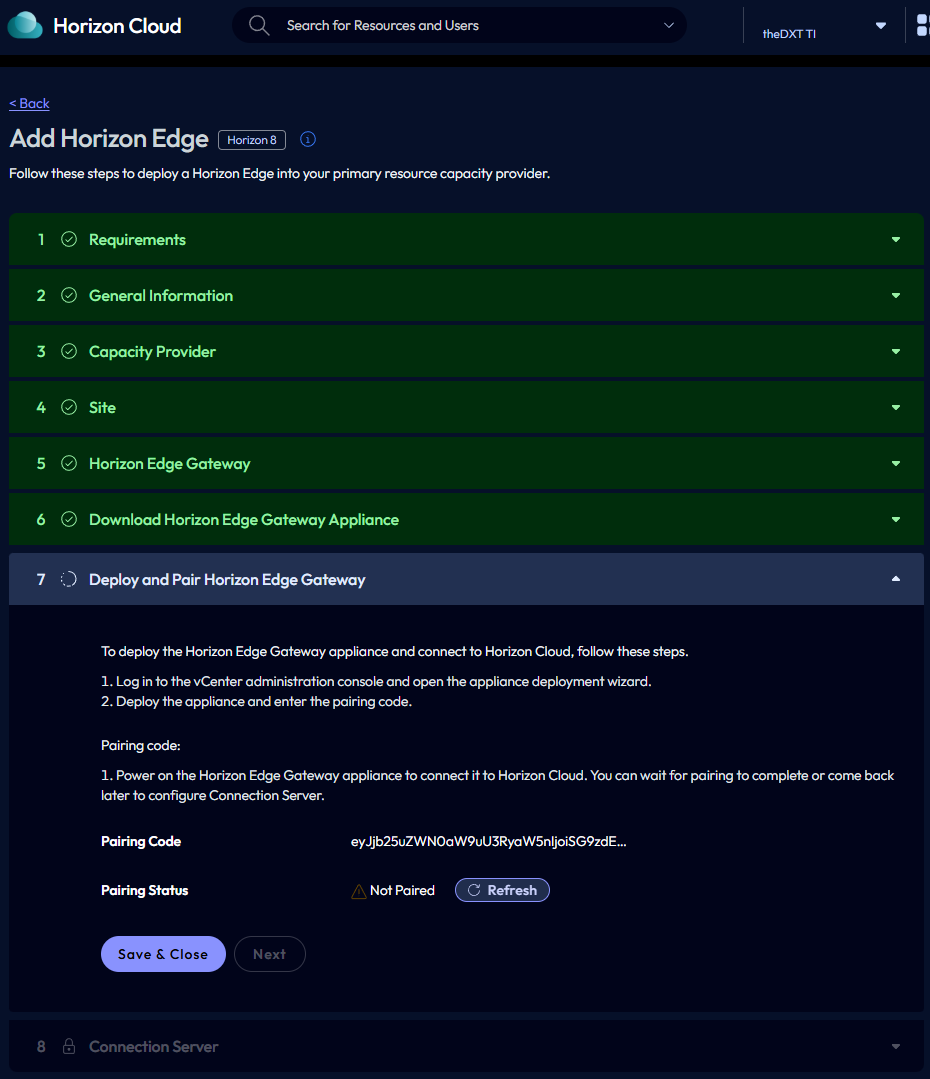
- In Horizon Cloud, next to the Pairing Status, click Refresh.
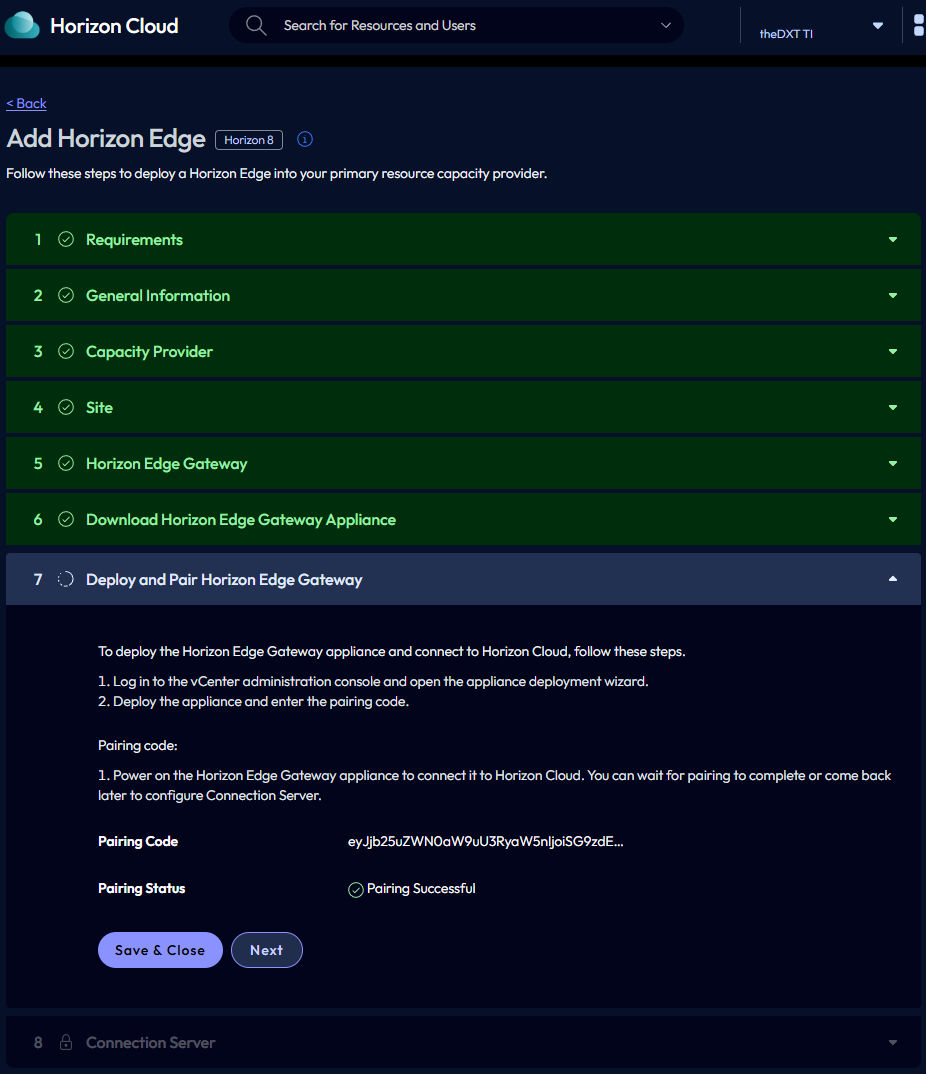
- Once the Pairing Status changes to Pairing Successful, click Next.
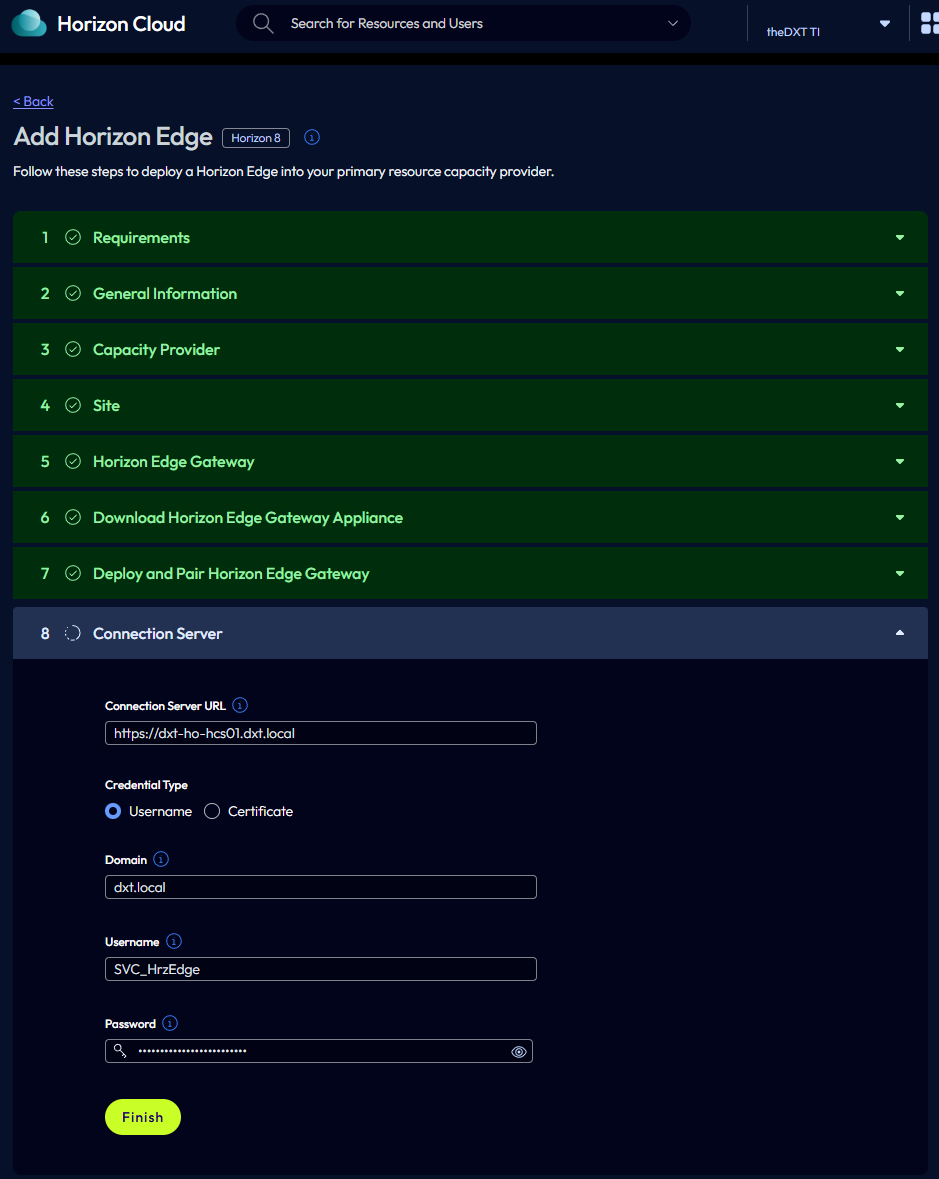
- Enter the Horizon Connection Server URL.
In my example, I will enter https://dxt-ho-hcs01.dxt.local.
- For the Credential Type, select Username.
- Enter your domain.
In my example, I will enter dxt.local.
- Enter the service account username and password and click Finish.
The service account needs to be an admin in your Horizon setup. If you aren’t sure how to configure the service account as an admin in Horizon, my blog post, Add Administrators to Omnissa Horizon covers how to do so.
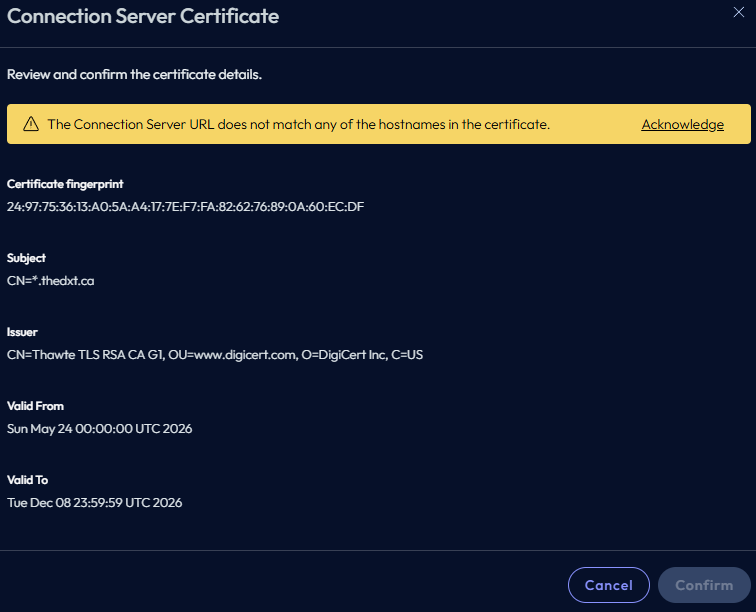
- Click Acknowledge to acknowledge the certificate on your Horizon Connection Server.
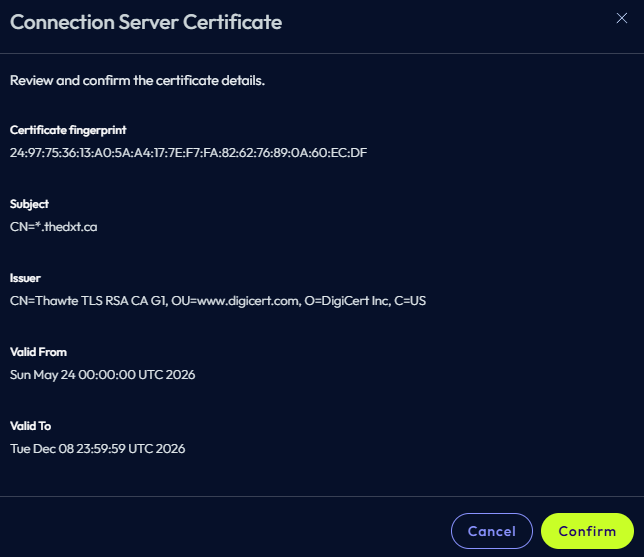
- Click Confirm to confirm your Horizon Connection Server certificate.
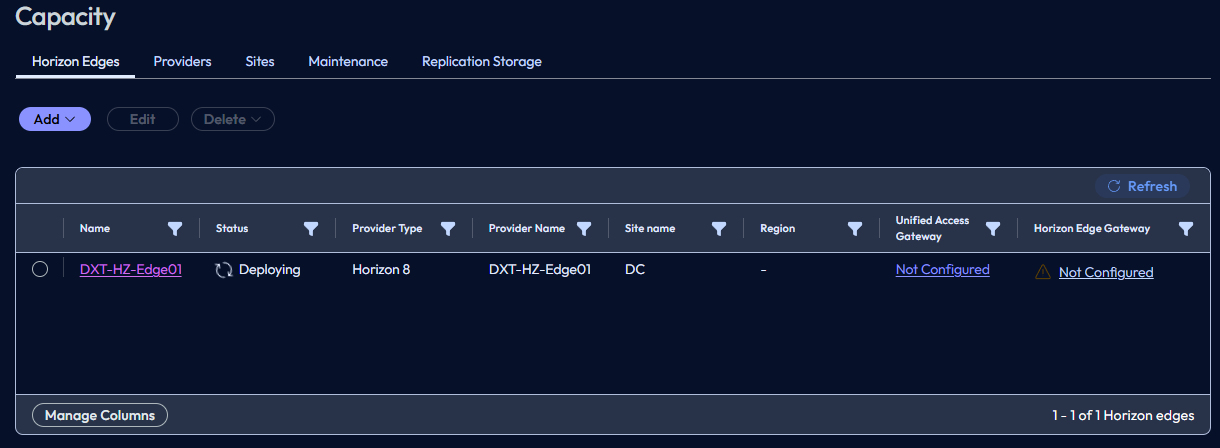
- Wait while Horizon Cloud finishes deploying the Horizon Edge. Click Refresh to check on the progress.
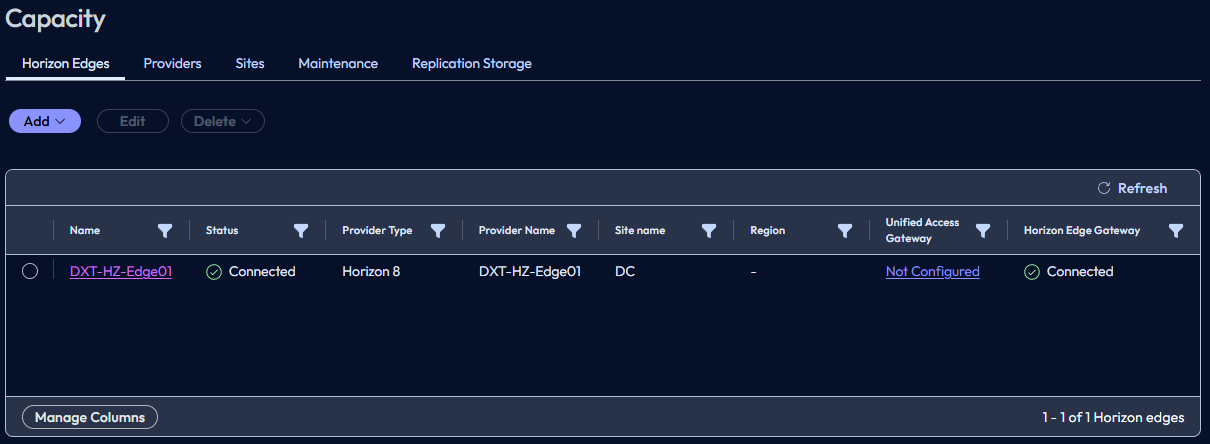
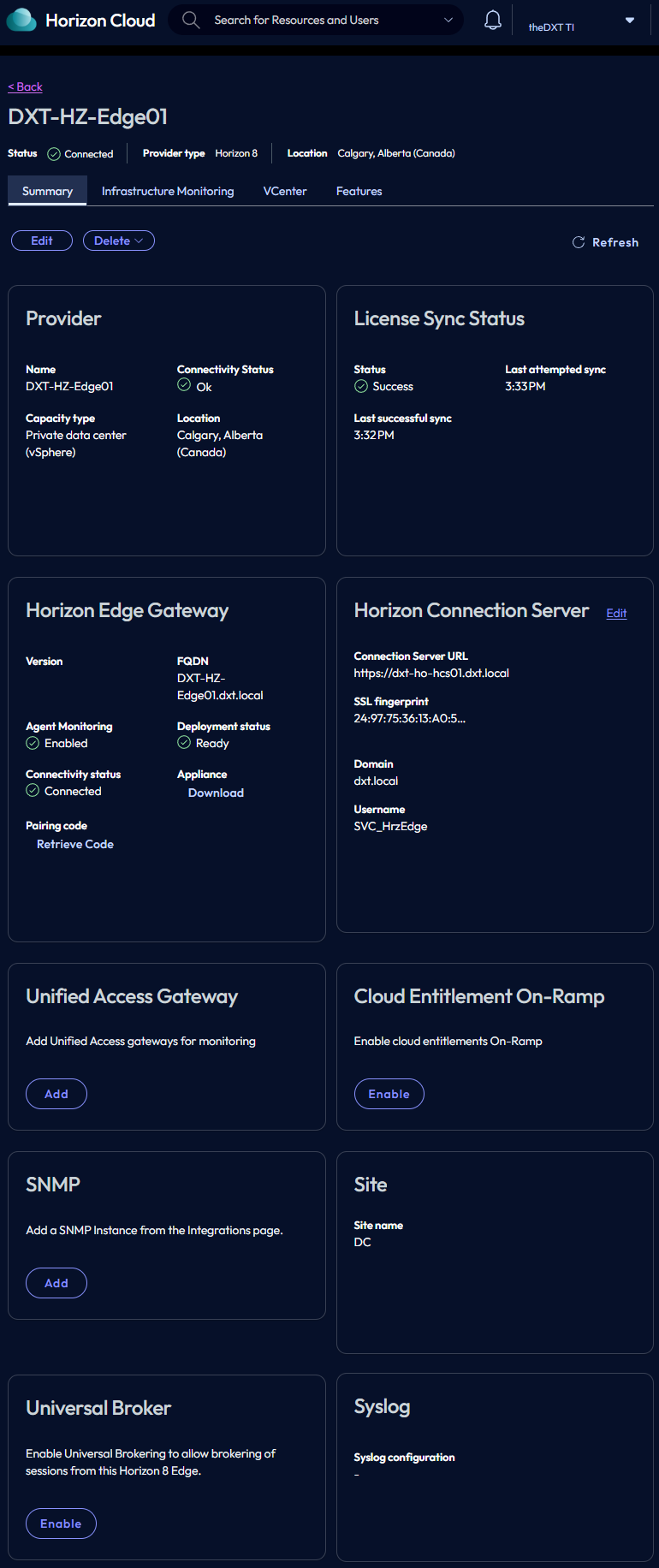
- Once the Horizon Edge and the Horizon Edge Gateway display Connected, click on your Horizon Edge name.
- Check the License Sync Status to confirm that Horizon Cloud is sending your licenses via the Horizon Edge Gateway to your Horizon connection server.
- Login to the Horizon admin console.
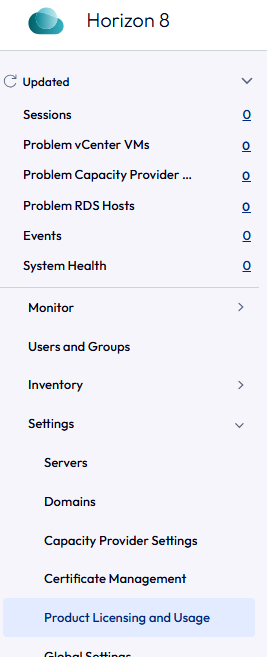
- Click on Settings > Product Licensing and Usage.
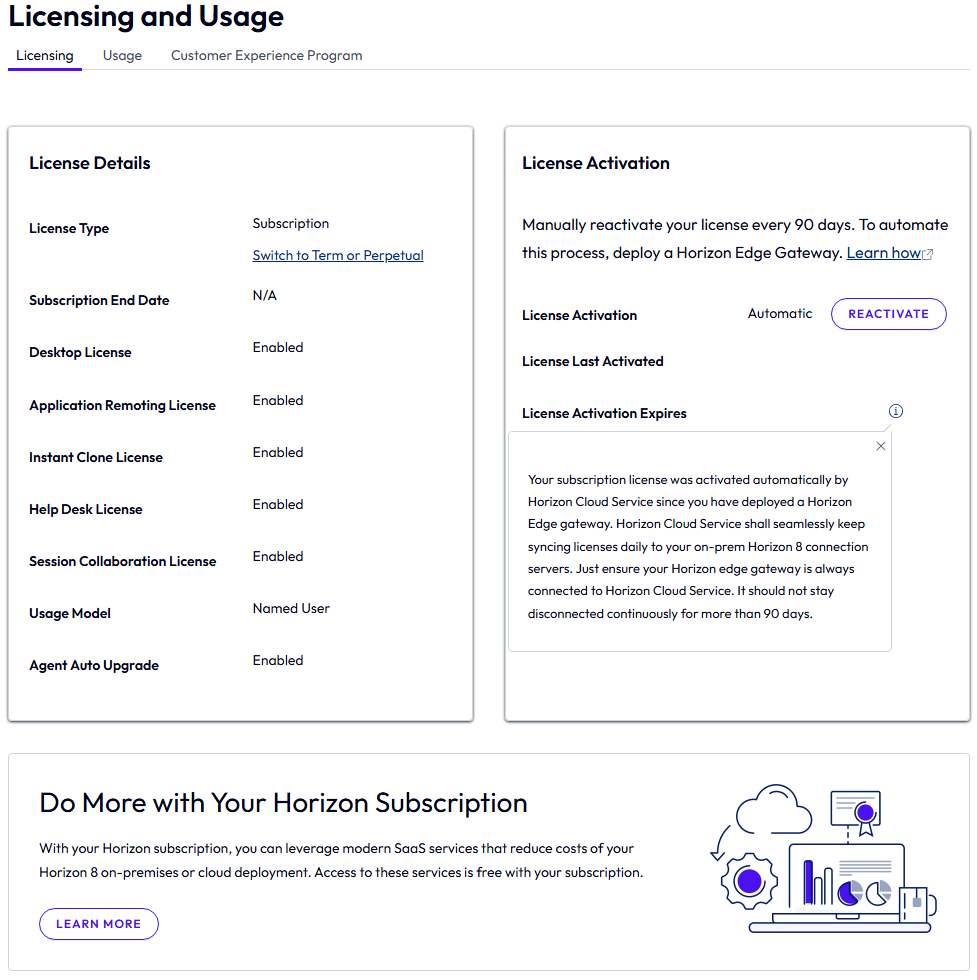
- On the Licensing tab, confirm that your license is visible and that License Activation is set to Automatic.
The Horizon Edge gateway syncs your licenses daily. If the Horizon Edge gateway is unable to sync your licenses, you have 90 days from the date your license was last activated to address the issue.
That’s all it takes to deploy the Horizon Edge gateway on VMware vSphere and license your Horizon setup.
If you want to read more about deploying the Omnissa Horizon Edge gateway, here is the Omnissa documentation.