
Microsoft Entra ID Conditional Access What If
An underrated feature of Entra ID Conditional Access is the What If tool. The Conditional Access What If tool can help you troubleshoot or design Conditional Access policies.
Typically, when building a Conditional Access policy, you target a test user and then expand testing using report-only mode. Testing can be difficult if the workflow is complex or uncommon. Fortunately, the Conditional Access What If tool lets you simulate logins and policy impacts to test or troubleshoot without logging in multiple times or waiting for changes to propagate and the Entra sign-in logs to populate.
In this post, I will show you step by step how to use the Conditional Access What If tool.
The Process
- Login to the Microsoft Entra admin center.
- Click on Entra ID > Conditional Access.
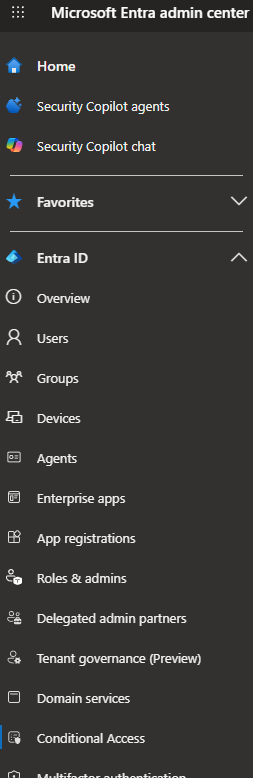
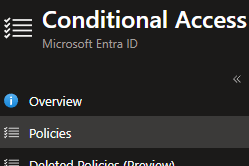
- Click on Policies.
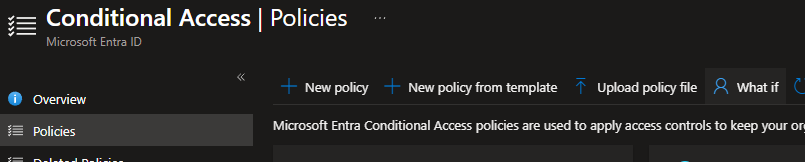
- Click on What if.
- Now we need to configure all the settings for the What If tool.
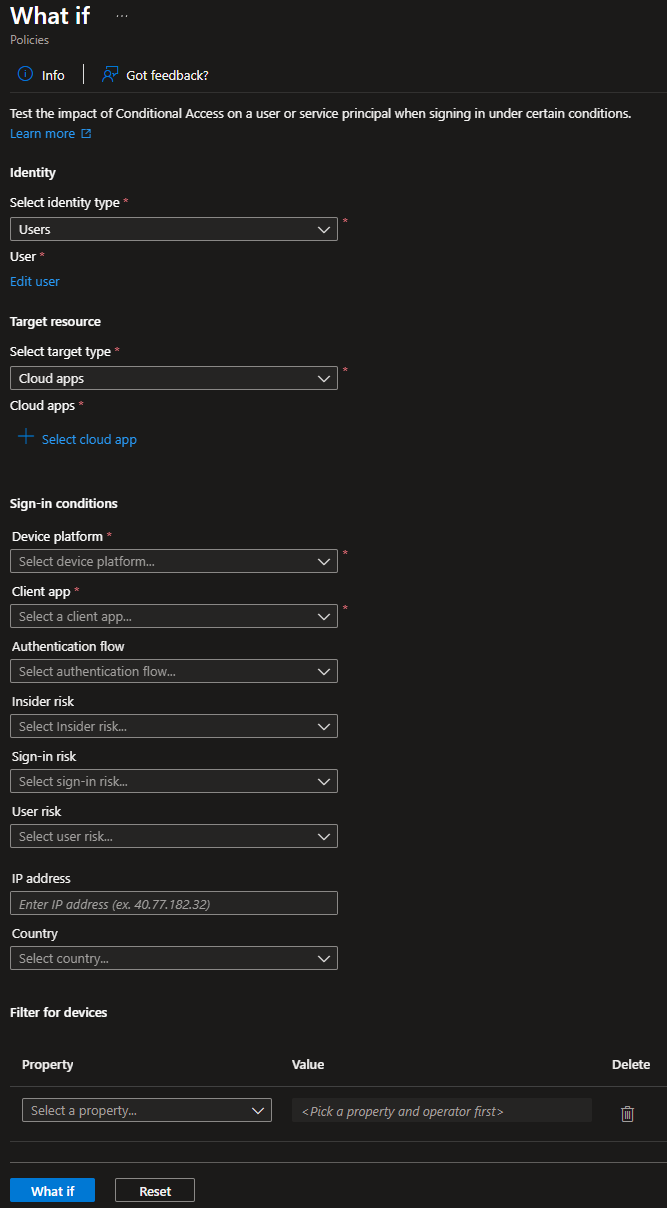
- For identity type, select whether to test Users, Guest or external users, Workload identities, or Agent identities.
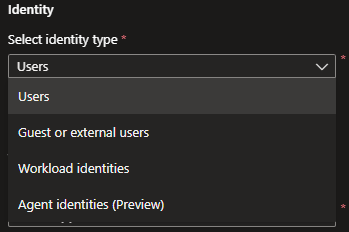
In my example, I will select Users.
- Select the identity to simulate a login for.
Depending on which identity type you selected, your options will differ.
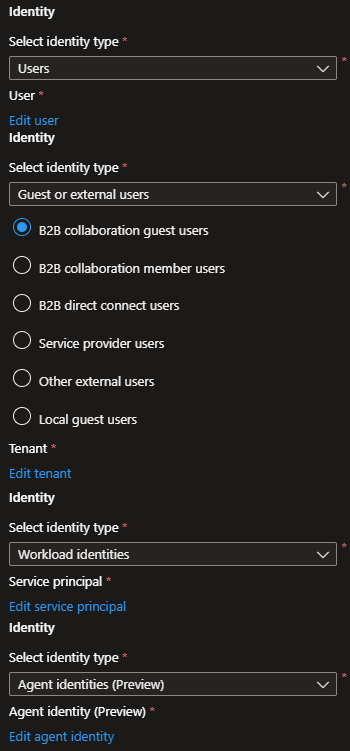
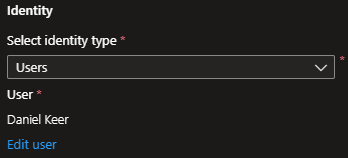
In my example, I will select my user account.
- For target resource, select what you want to test: Cloud apps, User actions, or Authentication context.
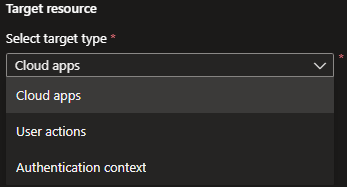
Depending on which target resource you selected, your options will differ.
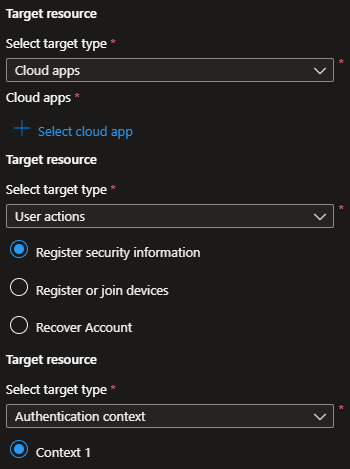
In my example, I will select Cloud apps.
- Select the cloud app resource you want to simulate a login to.
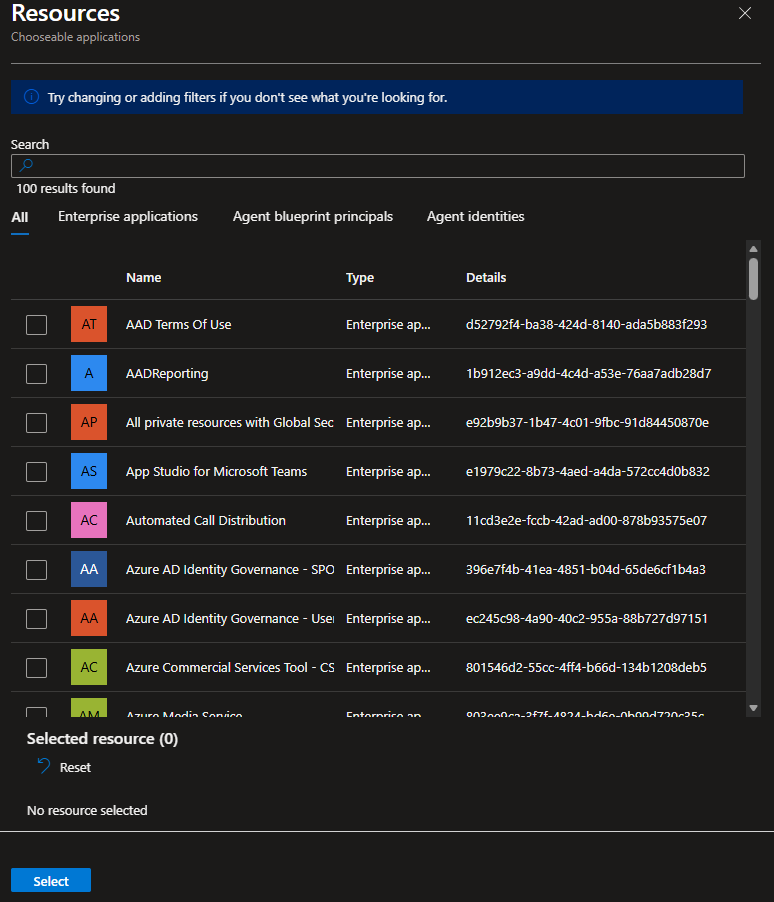
If you have a Conditional Access policy targeting Office 365 or Microsoft Admin Portals, these are application groups. Unfortunately, we can’t select groups in the What If tool.

- For the Office 365 application group, some of the included applications are the following:
- Office 365 Exchange Online App ID
00000002-0000-0ff1-ce00-000000000000 - Office 365 SharePoint Online App ID
00000003-0000-0ff1-ce00-000000000000 - Microsoft Office 365 Portal App ID
00000006-0000-0ff1-ce00-000000000000
- Office 365 Exchange Online App ID
A full list of all the applications included in the Office 365 group is available from Microsoft here.
- For the Microsoft Admin Portals application group, some of the included applications are the following:
- Azure Portal App ID
c44b4083-3bb0-49c1-b47d-974e53cbdf3c - Microsoft Office 365 Portal App ID
00000006-0000-0ff1-ce00-000000000000
- Azure Portal App ID
A full list of all the applications included in the Microsoft Admin Portals group is available from Microsoft here.
In my example, I will select Office 365 Exchange Online.
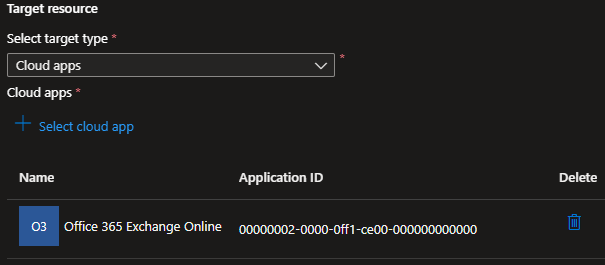
- Select the device platform you want to simulate.
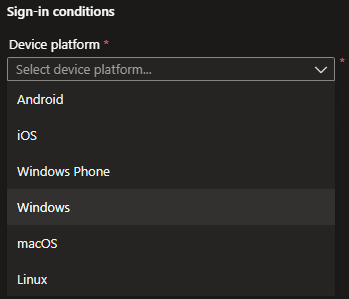
In my example, I will select Windows.
- Select the client app you want to simulate.
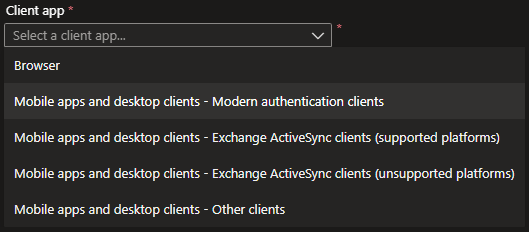
In my example, I will select Mobile apps and desktop clients – Modern authentication clients.
The following sign-in conditions settings are optional.
- Authentication Flow.
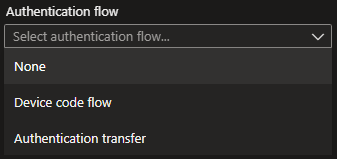
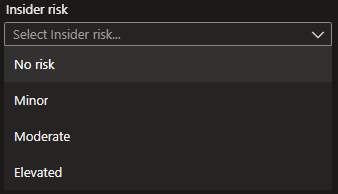
- Insider risk.
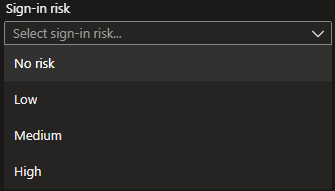
- Sign-in risk.
- User risk.
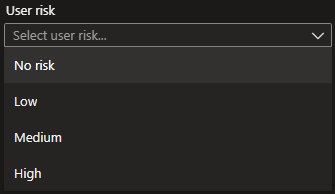
- IP address and Country.
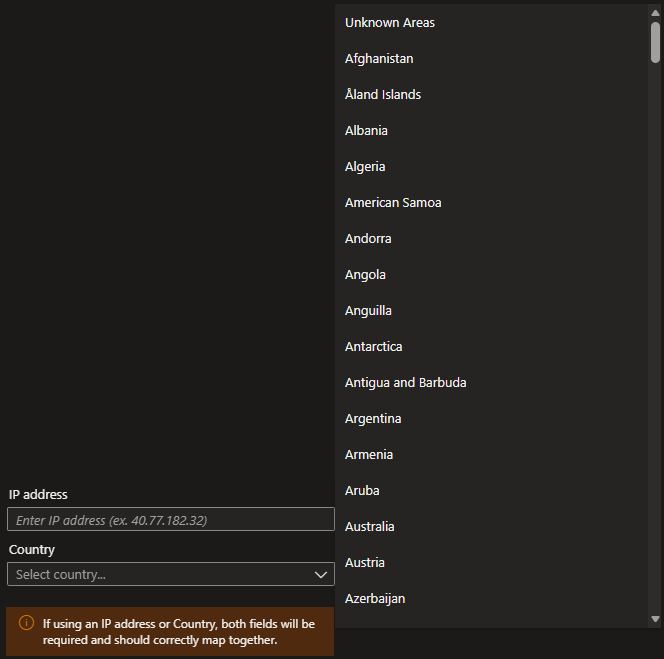
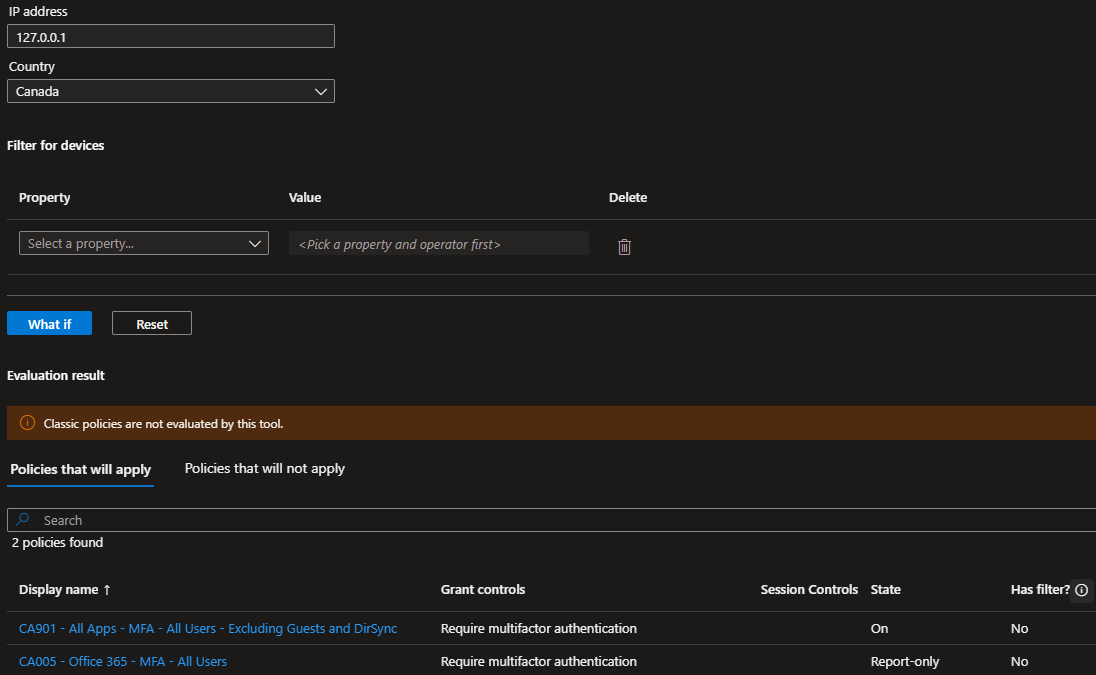
If you want to test a country policy, you don’t need to use a real IP address, you can enter 127.0.0.1 or any random IP address. The IP address really only matters when you are testing or troubleshooting an IP address in a Conditional Access named location.
- Device filters.
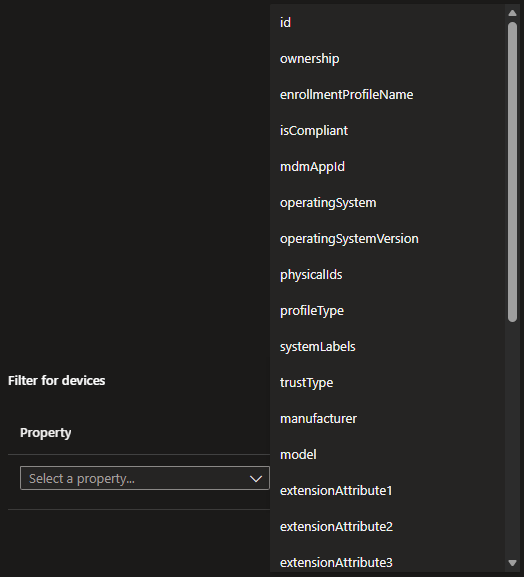
- Once you configure your settings, click on What if to simulate the login and see the results.
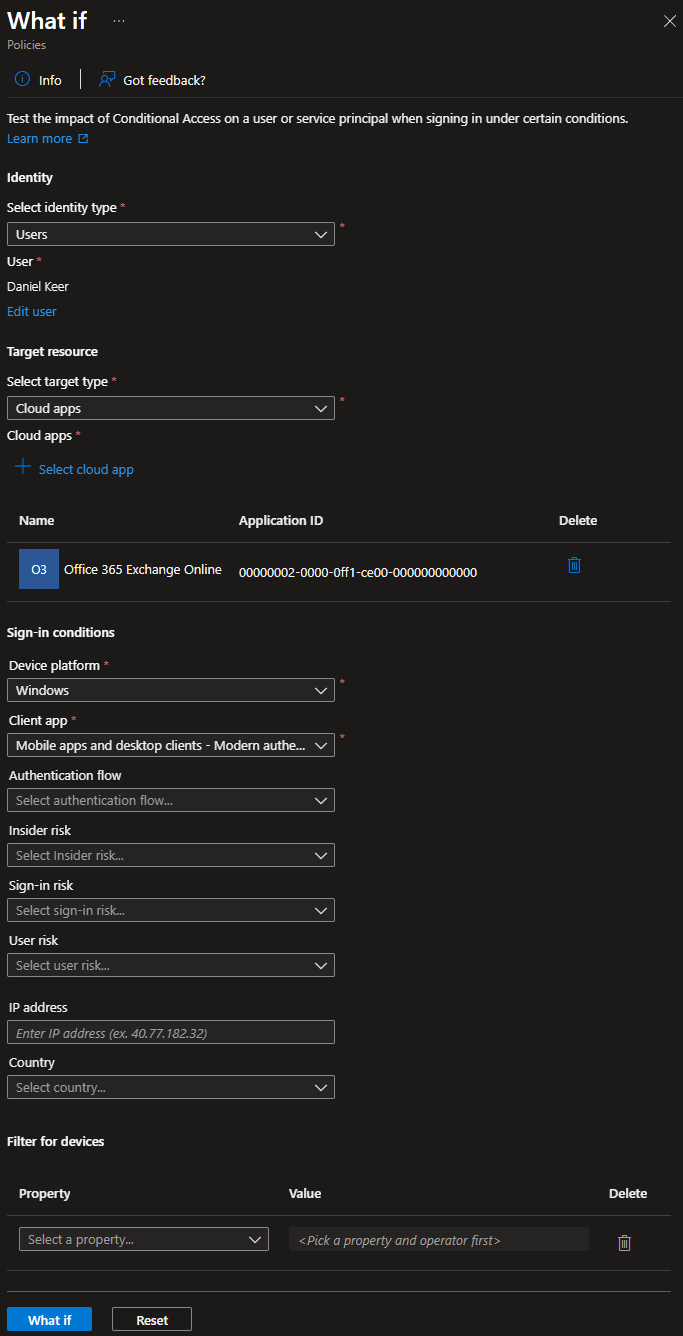
- The Policies that will apply tab will show each policy that applied to the simulated login using the settings you configured.
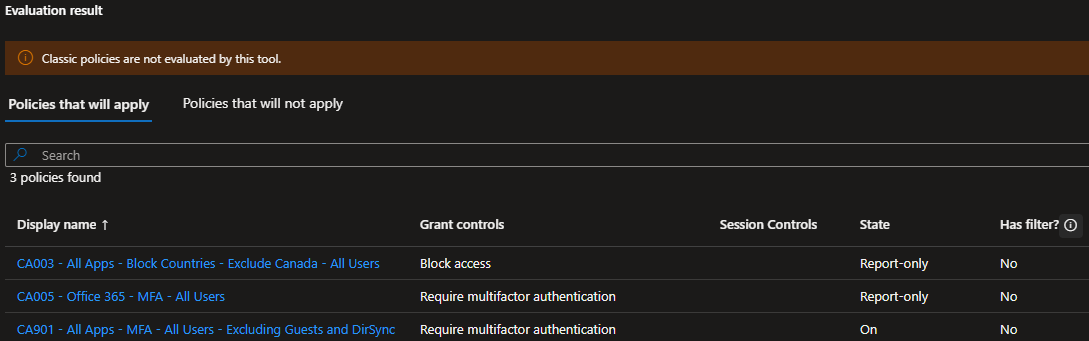
- The Policies that will not apply tab shows each policy that did not apply to that simulated login and explains why.
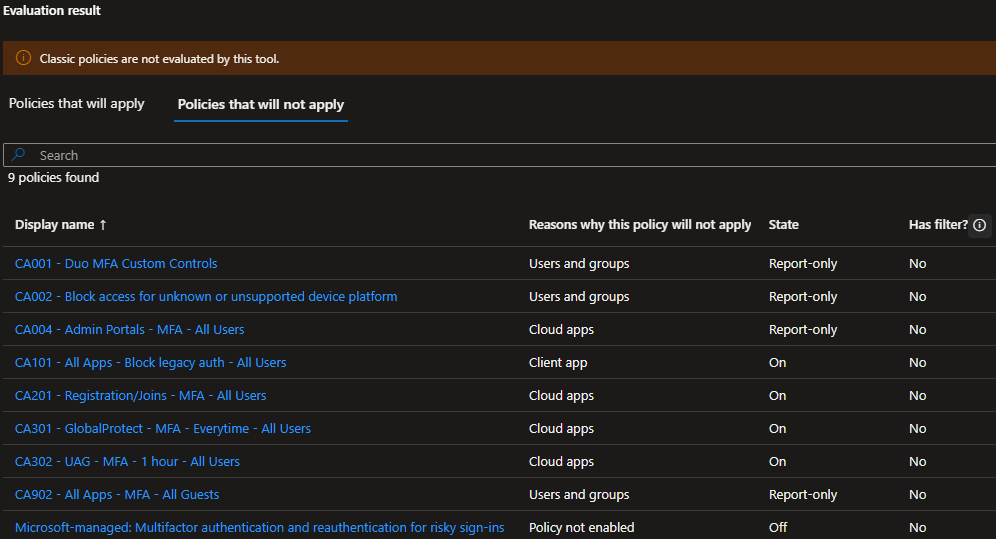
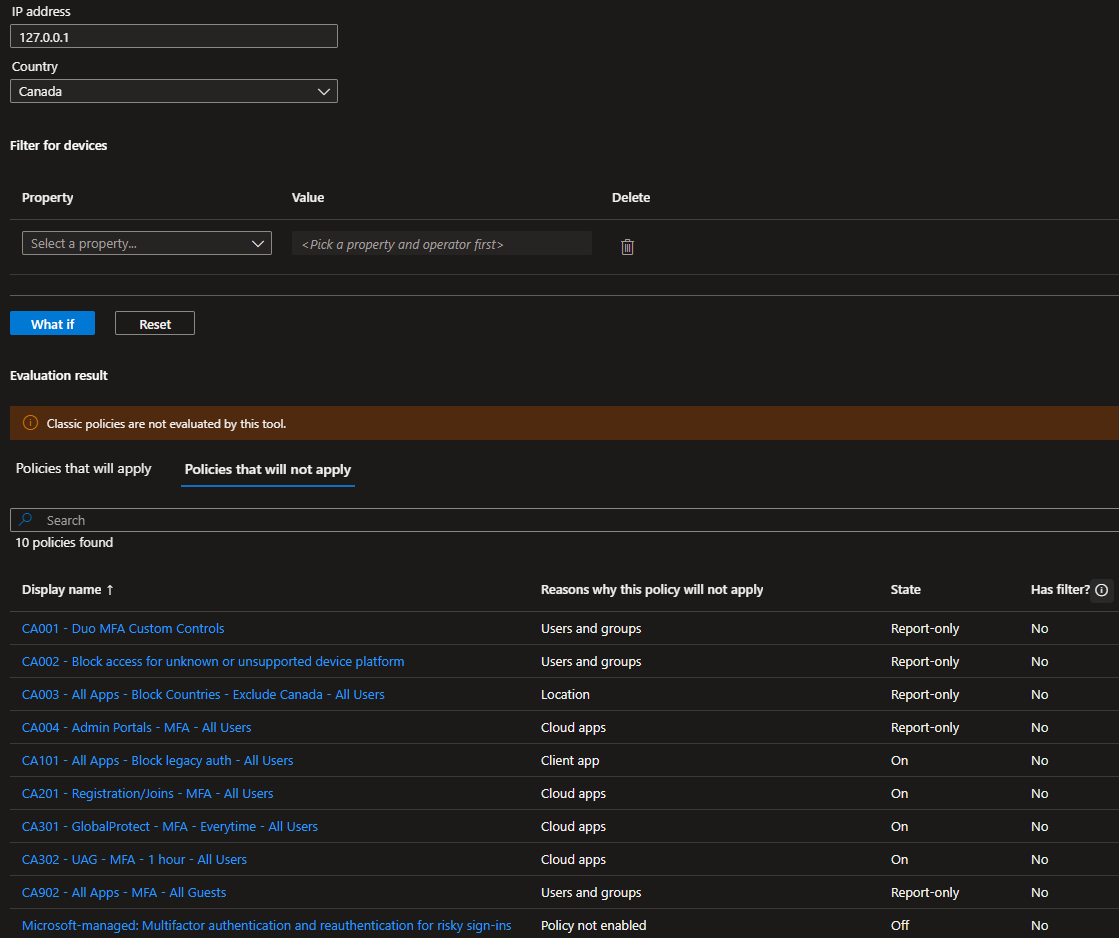
In my example, the policy CA003 – All Apps – Block Countries – Exclude Canada – All Users is applying to my user. If I edit the sign-in conditions to include the IP 127.0.0.1 and the Country Canada, then when I rerun the What If tool, I can see that my account did not hit policy CA003 – All Apps – Block Countries – Exclude Canada – All Users.
If I look at the Policies that will not apply, I can see that the policy CA003 – All Apps – Block Countries – Exclude Canada – All Users did not apply because the location condition is now matched.
That’s all it takes to use the Microsoft Entra ID Conditional Access What If tool to test and troubleshoot Conditional Access policies.
If you want to read more about the Conditional Access What If tool, here is the Microsoft documentation.