
slmgr.vbs
slmgr.vbs is the Windows Software Licensing Management Tool, a Microsoft Visual Basic script that comes with Windows and is a core part of the Windows activation system. The full path is C:\Windows\System32\slmgr.vbs.
You can use slmgr.vbs to troubleshoot, activate, change, and uninstall your Windows activation.
In this post, I will show you how to use slmgr.vbs.
Product Key
Windows commonly uses product keys to activate. A Windows product key consists of 5 blocks of 5 alphanumeric characters, totaling 25 characters.
Typically, the following characters are never in a product key: A, E, I, L, O, S, U, Z, 0, 1.
Most product keys are unique, but that isn’t always the case.
- GVLK (Generic Volume License Key) keys are all the same because Windows won’t fully activate unless it can reach out to a KMS (Key Management Service) host.
- MAK (Multiple Activation Key) are semi unique product keys. When an organization is issued a MAK, the same product key can be used a limited number of times before it stops working.
- Generic Retail Keys (sometimes called RTM Keys) are the same product key and are typically used to upgrade from one Windows edition to the next. After the upgrade, a valid product key is needed.
- AVMA (Automatic Virtual Machine Activation) product keys are all the same because they only activate when running as a guest on a Hyper-V host running an activated version of Windows Server Datacenter.
Application ID
An Application ID is a unique ID for each core component that can be activated with slmgr.vbs.
For example, the Application ID 55c92734-d682-4d71-983e-d6ec3f16059f is for Windows, and 0ff1ce15-a989-479d-af46-f275c6370663 is for Office.
Activation ID
An Activation ID is a unique ID for each component that can be activated. There are a lot of them.
Confirmation ID
A Confirmation ID is typically only provided by Microsoft when activating offline.
Output
By default, slmgr.vbs will output to a new window.

However, if you call slmgr.vbs with cscript instead, you can output everything to the command line.
For example
cscript c:\Windows\System32\slmgr.vbs /ato

Options
ipk
Install Product Key.
- If you use
/ipkwith a product key, it installs or replaces the current product key.
ato
Activate Windows.
- If you use
/ato, it will attempt to activate Windows online.- If you use
/atoand your system has a GVLK, then Windows will try to activate via KMS.
- If you use
- You can also use
/atowith an Activation ID to activate a specific component.
dli
Display License Information.

- If you use
/dli, it will output the current license information. - To view the license information for a specific component, use
/dliwith an Activation ID. - To see all possible license information, use
/dli all.
dlv
Display Detailed License Information. It could also be Display License Verbose. This will display Activation IDs and Application IDs.
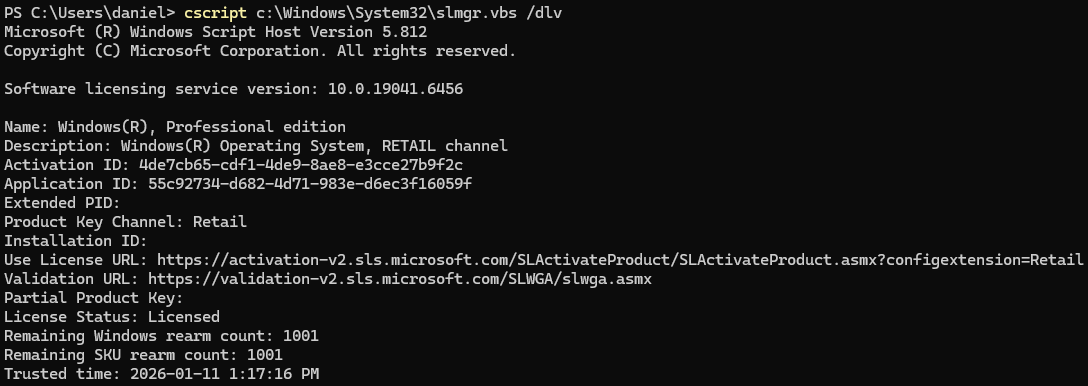
- If you use
/dlv, it will output the current detailed license information. - To view the specific detailed license information for a component, use
/dlvwith an Activation ID. - To see all possible detailed license information, use
/dlv all.
xpr
Display the activation expiry.

- If you use
/xpr, it will output the current activation expiry. - To see the specific activation expiry for a component, use
/xprwith an Activation ID.
cpky
Clear the Product Key from the registry. Needs to be run as an administrator.

- If you use
/cpky, it will clear the product key from the registry.
ilc
Install License file. Needs to be run as an administrator.
- To use
/ilc, you must also provide a license file.
rilc
Reinstall system license files. Needs to be run as an administrator.

- If you use
/rilc, it will reinstall the system license files located in%SystemRoot%\system32\oemand%SystemRoot%\System32\spp\tokens.
rearm
Resets the licensing status. Needs to be run as an administrator.

- If you use
/rearm, the system’s licensing status is reset.
rearm-app
Resets the licensing status for a specific application. Needs to be run as an administrator.

- If you use
/rearm-appwith an Application ID, the application’s licensing status is reset.
rearm-sku
Resets the licensing status for a specific component. Needs to be run as an administrator.

- If you use
/rearm-skuwith an Activation ID, the licensing status for that Activation ID is reset.
upk
Uninstall Product Key. Needs to be run as an administrator.

- If you use
/upk, it will uninstall the current product key. - If you use
/upkwith an Activation ID, it will uninstall the product key for that specific component.
dti
Display Installation ID for offline activation.
- If you use
/dti, it will display the Installation ID for the current license. - If you use
/dtiwith an Activation ID, you can get the Installation ID for that specific component.
atp
Activate a product with a Confirmation ID.
- If you use
/atpwith the Confirmation ID you get from Microsoft, followed by the Activation ID, you can complete an offline activation.
Summary
slmgr.vbs is a very powerful tool for Windows activation. I’ve used it many times to activate and troubleshoot activation issues. There are even more options for slmgr.vbs, but they are specific to KMS and Active Directory-based activation.
For more information about slmgr.vbs here is the Microsoft documentation.




One thought on “slmgr.vbs”