Microsoft 365 Exchange Online 150 MB Message Size
Back in 2015, Microsoft enabled all Microsoft 365 (aka Office 365) Exchange Online tenants the ability to change their message sizes to a maximum size of 150 MB. Originally the default size was 25 MB and previously Microsoft increased that to 35 MB, your tenant will likely be set to one of those values.
The new 150 MB message size limit is not enabled by default you must enable it. In this post, I will detail step-by-step how to change the message size limit in Exchange Online for all existing mailboxes and all new mailboxes.
Prerequisites
- Microsoft 365 Customizations needs to be enabled. If you don’t know how to do that my post Microsoft 365 Enable Organization Customization shows you how.
The Process
- Connect to Exchange Online with PowerShell
- Run the following PowerShell command to see what the current message size limit is
Get-Mailbox -Resultsize Unlimited | Format-List displayname,MaxSendSize,MaxReceiveSize

- Run the following PowerShell command to set all existing mailboxes to 150 MB
Get-Mailbox -Resultsize Unlimited | Set-Mailbox -MaxReceiveSize 150MB -MaxSendSize 150MB

- Confirm the settings are applied by running the following PowerShell command again
Get-Mailbox -Resultsize Unlimited | Format-List displayname,MaxSendSize,MaxReceiveSize

The steps above only change the message size for any existing mailboxes. We also need to change the defaults so that the new message size applies to any new mailboxes that are created.
- Run the following PowerShell command to see what the current default message size is for new mailboxes
Get-MailboxPlan | FL MaxSendSize, MaxReceiveSize, name
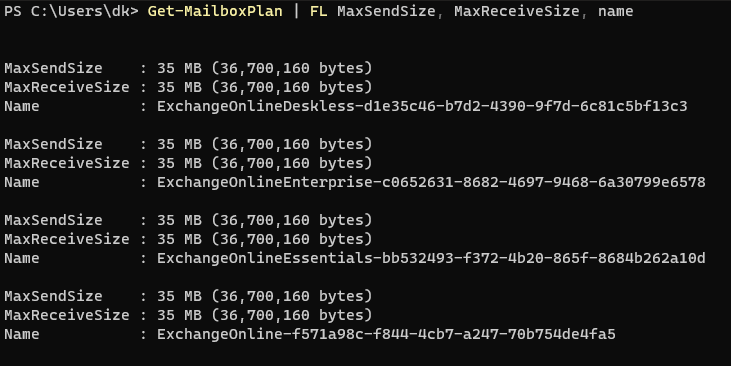
- Run the following PowerShell command to set the default message size to be 150 MB
Get-MailboxPlan | Set-MailboxPlan -MaxSendSize 150MB -MaxReceiveSize 150MB

- Confirm the settings are applied by running the following PowerShell command again
Get-MailboxPlan | FL MaxSendSize, MaxReceiveSize, name
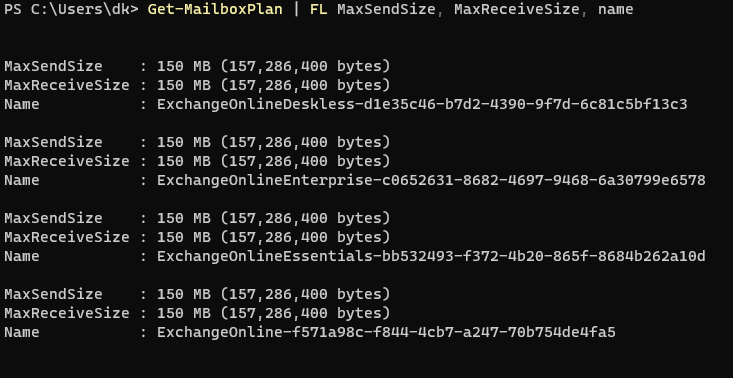
You may have noticed that I am not calling this an attachment setting as this message size limit applies to the whole email not just the attachments. In reality, you’d be able to attach up to 149 MB of attachments to the email be that one attachment totaling 149 MB or multiple attachments that don’t surpass 149 MB.
Just because the message size limit on your side is set to 150 MB, it does not mean the recipient supports it and that could result in bouncebacks from the recipient.
There are a few other things to be aware of, Outlook for Windows or Mac will honor the message size limit but OWA and Outlook for iOS or Android doesn’t.
If you want to learn about message size limits you can read about it in Microsoft’s documentation here.