Deploy Sophos Firewall on VMware vCenter
A virtual SFOS (Sophos Firewall Operating System) can run on many hypervisors, including VMware.
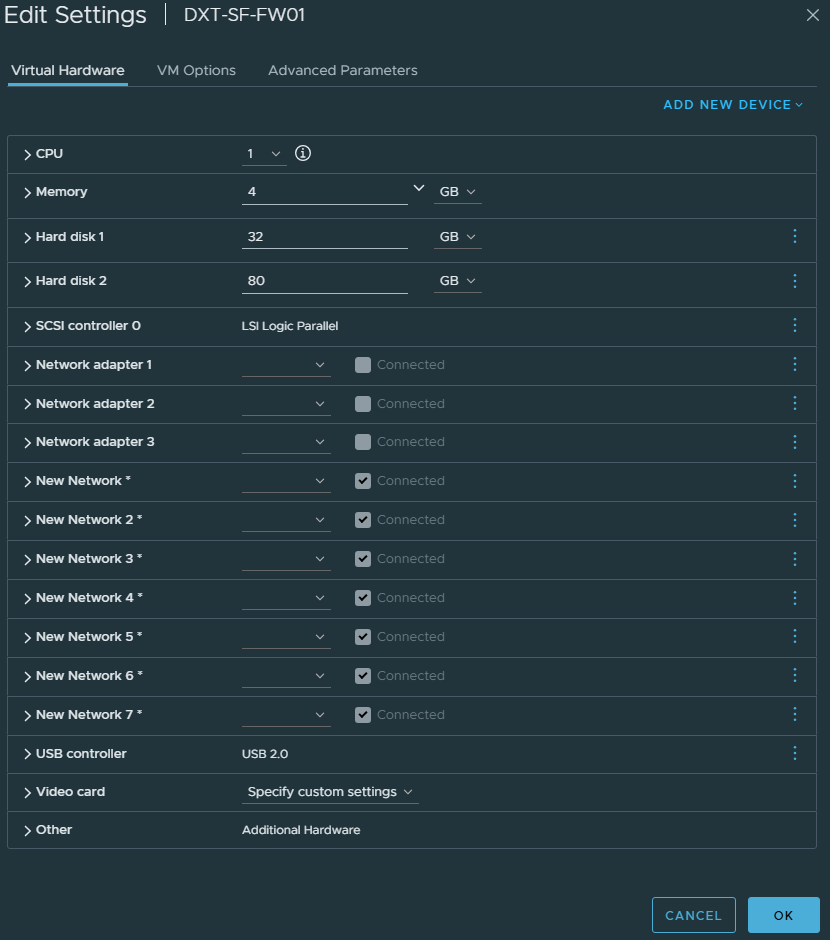
In this post, I will show you step by step how to deploy a virtual SFOS on VMware vCenter.
The Process
- Download the ZIP file for the SFOS version you want to deploy from Sophos.
There are two locations where you can download the Sophos firewall files. The first is the Sophos Firewall Installers page, and the second is the Sophos Knowledge Base Article KBA-000007972.
- Extract the ZIP file contents.
Inside the ZIP, there are a few files. The files we care about are sf_virtual_vm8_paravirtual.ovf, sf_virtual-disk1.vmdk, and sf_virtual-disk2.vmdk.
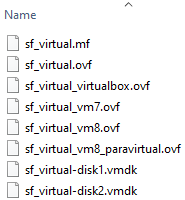
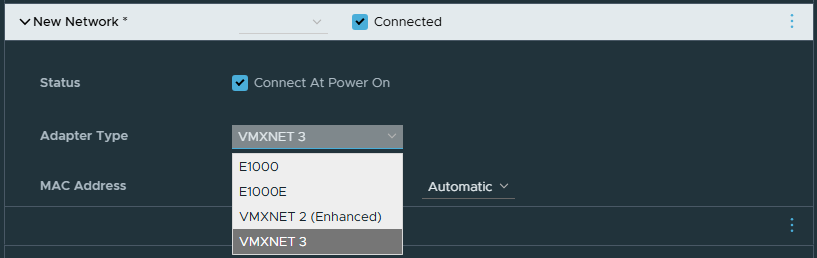
The sf_virtual_vm8_paravirtual.ovf is the most important because it supports VMXNET 3.
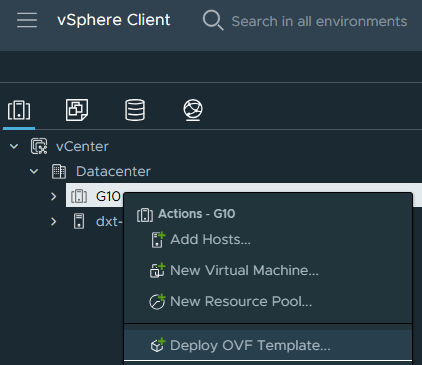
- In VMware vCenter, right-click the cluster or host you want to deploy SFOS to, and click Deploy OVF Template.
- Select Local file and click Upload Files.
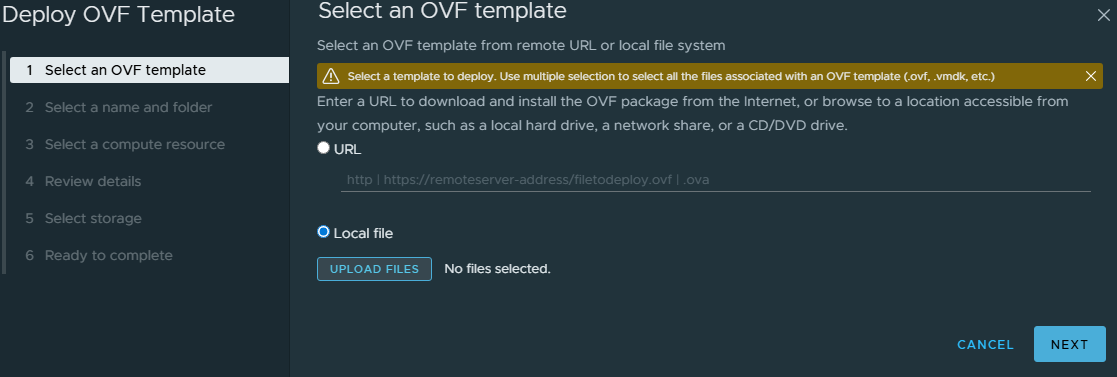
The Sophos documentation instructs you to select the manifest file sf_virtual.mf, the OVF file you want to use, and the VMDKs. This process only work if you are using the sf_virtual.ovf OVF file.
If you use the manifest file sf_virtual.mf with any OVF other than sf_virtual.ovf, the vCenter checksum verification will fail, and you can not proceed.

If you open the manifest file sf_virtual.mf with notepad, you see that it only contains the checksums for sf_virtual.ovf, sf_virtual-disk1.vmdk, and sf_virtual-disk2.vmdk.
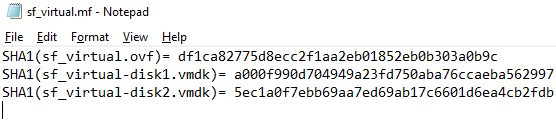
This explains why the vCenter checksum verification fails when you select any OVF other than sf_virtual.ovf.
We don’t want to use the OVF sf_virtual.ovf because it uses the Vlance network adapter, which is an emulated version of the AMD 79C970 PCnet32 LANCE NIC, a 10 Mbps NIC.