Reset Windows Password
Certain situations can arise where you no longer know a Windows user account password and need to reset it or make a new one. Third-party tools can assist, but in my experience, many of them have been hit-and-miss.
In this post, I will show you step-by-step how to reset a Windows password using Windows install media with the help of Utilman and cmd. I will also show you a way to prevent this.
Utilman is the executable name for the Utility Manager in Windows. Utility Manager allows for easy access to accessibility features in Windows. You can call Utility Manager right from Windows by pressing the Windows key and the letter U simultaneously.
On the Windows login screen, you can invoke Utilman by clicking on the Ease of access or the Accessibility icon in the bottom right beside the network icon.
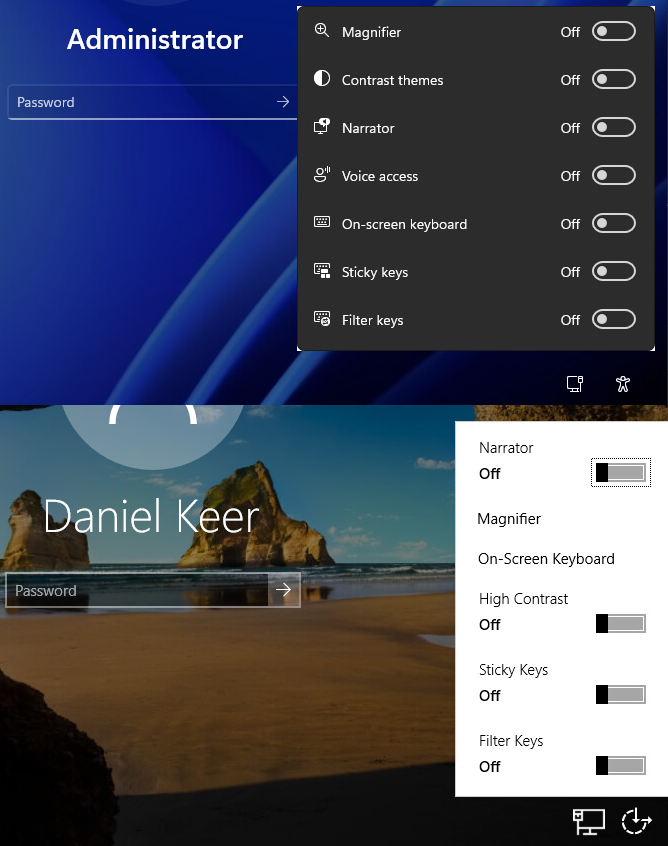
If we make Utilman launch CMD instead, we can get a command prompt window running with system-level permissions.
Prerequisites
- Physical access to the system.
- Bootable Windows install media.
The Process
- Boot off of the Windows install media.
It doesn’t matter if the Windows install media matches the target OS.
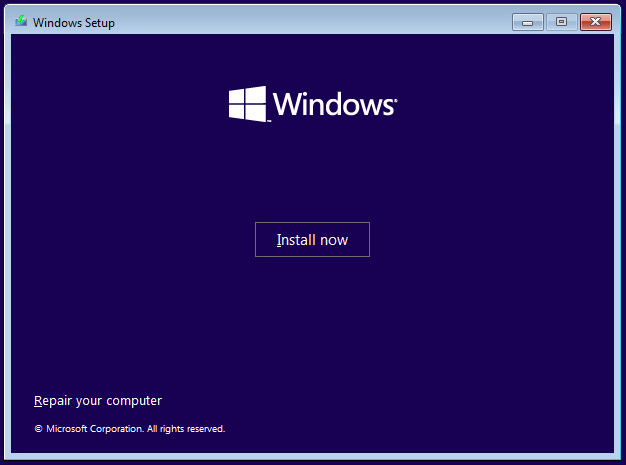
- Click on Repair your computer.
- Select Troubleshoot.
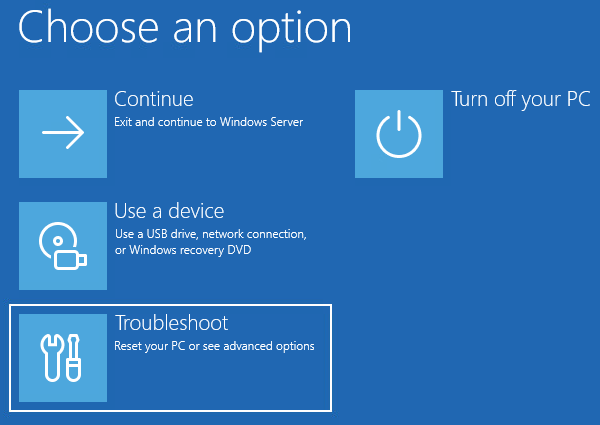
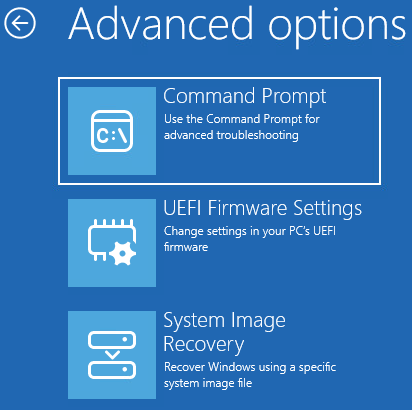
- Select Command Prompt.