
Cloudflare Access IdP with Entra ID
Cloudflare Access is a wonderful tool that can add MFA (Multi-Factor Authentication) to applications that don’t support it.
I’ve previously covered Setting Up Cloudflare Access using email OTP (One-time PIN). What I didn’t cover in that post was how to set up Cloudflare Access with an IdP (Identity Provider).
In this post, I will show step-by-step how to set up Cloudflare Access to use Microsoft Entra ID (formerly Microsoft Azure Active Directory) as the IdP and use Microsoft 365 SSO (Single sign-on) to make everything very transparent to the user.
Prerequisites
- DNS for the web application in Cloudflare with Cloudflare Proxy enabled on the DNS record. (or a Cloudflare Tunnel)
The Process
- Login to Cloudflare One (it used to be called Cloudflare Zero Trust Dashboard) (https://one.dash.cloudflare.com/)
- Click on Settings.
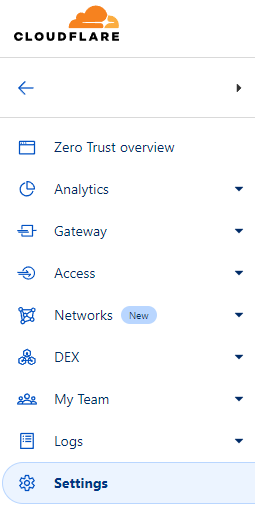
- Click on Custom Pages.
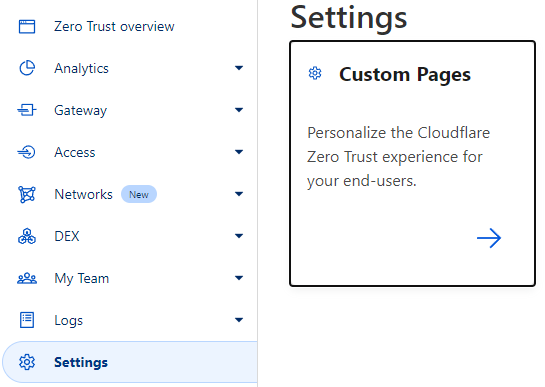
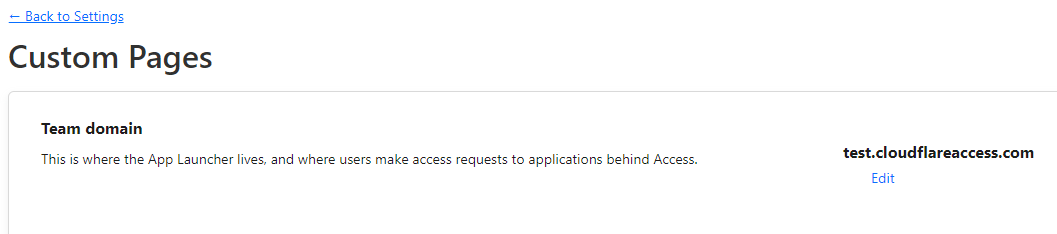
- Make a note of your Team domain.
For this example, I will be using the team domain test.cloudflareaccess.com
Microsoft Entra ID Configuration
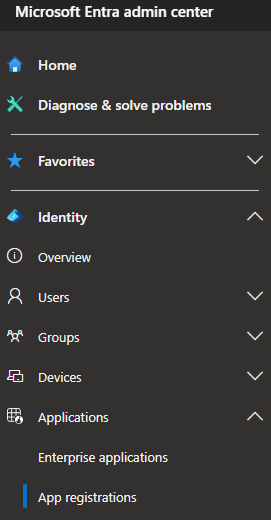
- Login to Microsoft Entra admin center.
- Click on Applications > App registrations.
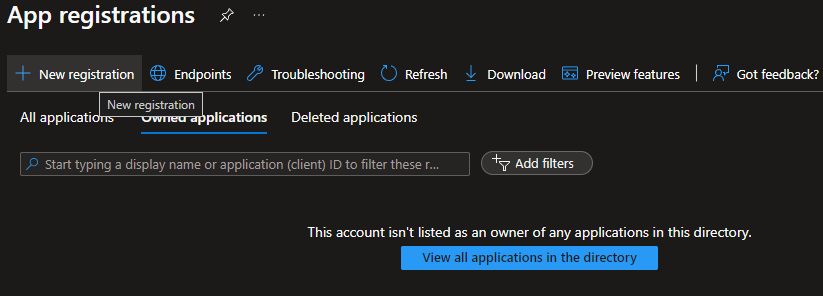
- Click on New registration.
- Name your application. I will use the name Cloudflare Access.
- Select Accounts in this organizational directory only (Single tenant)
- Set the Redirect URI platform to Web.
- Set the Redirect URI to the URL of the Team domain you noted down earlier. Add
https://to the front of it and add/cdn-cgi/access/callbackto the end of it.