Install Matrix
At EUC World Amplify 2025, I gave a presentation titled “Transforming Chaos into Control: Mastering Windows App Deployments with Intune“. The presentation covered the ways I’ve been deploying applications with Intune that aren’t just repackaging the same Win32 application each time there’s an update. Instead, I package a PowerShell script as a Win32 application.
If you are interested in the presentation, I created a landing page on GitHub that includes the PowerPoint file. You can find that on my GitHub here.
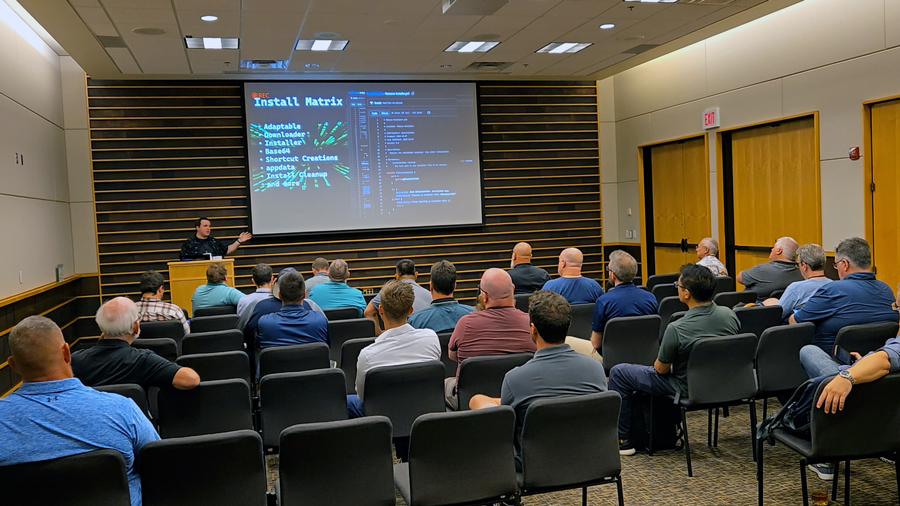
During the presentation, I introduced a GitHub project called the Install Matrix that I created in collaboration with a coworker. The goal of the Install Matrix is to modularize each part of a PowerShell install script into functions that can be reused in new PowerShell scripts to install applications. The Install Matrix helps reduce duplicate work, making it quick and easy to package applications and reducing overhead when updating them.
You can check out the Install Matrix GitHub repo here https://github.com/thedxt/Install-Matrix
In this post, I’ll show you how you can use the Install Matrix in your own PowerShell scripts.
Putting it Together
When creating a PowerShell application install script with the Install Matrix, the first step is to set the script’s defaults. Typically, this will include the temp folder, the silent install arguments, and a download URL.
Usually, I define these as CmdletBinding, allowing for simple parameter changes if needed.
Example
  [CmdletBinding()]
  param (
      [string]$TempDir = "C:\Temp",
      [string]$InstallArgs = '/S',
      [string]$DownloadUrl = "https://download.website.com/program.exe"
  )Code language: PowerShell (powershell)
For the download URL, if the application vendor doesn’t have an always-current URL, I recommend setting up your own URL shortener so you can update the URL for new versions without changing the script or repackaging.
I like using Shlink because it’s open source, you can self-host it, and you can even put it behind a Cloudflare tunnel. For more information about setting up Shlink, see my blog post, Shlink with Docker and Cloudflare Tunnel.
The next step is to store the current ProgressPreference value, as we will change ProgressPreference to SilentlyContinue. To allow for faster downloads.
Example
# get and store the current ProgressPreference setting
$OGProgressPreference = $ProgressPreference

# make downloads go fast
$ProgressPreference = 'SilentlyContinue'Code language: PowerShell (powershell)
The reason we do this is that when you run a PowerShell script via Intune or an RMM, it typically runs headless with the built-in PowerShell 5.1. PowerShell 5.1 has an issue where downloads are slow when running headless unless you set the progress preference to silently continue. My blog post, PowerShell ProgressPreference Issue, goes into more detail.
Next, we want to start loading in the functions we need.
Get-Installer.ps1
The first function I want to load is Get-Installer, which checks whether a temp folder exists and creates it if needed.
The Get-Installer function uses Invoke-WebRequest, which includes a built-in wait function to ensure the download completes. The Get-Installer function was recently updated to use the UseBasicParsing parameter to ensure it is not affected by the recent Invoke-WebRequest security update.
Install-App.ps1 or Install-MSI.ps1
Next, we need an installer function. For this, there are two Install-App for EXEs and Install-MSI for MSIs.
Both use Start-Process with the wait parameter. The difference between them is that Install-MSI also uses msiexec for MSIs, whereas Install-App doesn’t, since it isn’t needed for EXEs.
Remove-Installer.ps1
Next, we need to clean up the downloaded install file. For this, we will load the Remove-Installer function, which cleans up after everything is completed.
Other Functions
The Install Matrix has many other functions for various edge cases I’ve encountered, such as creating shortcuts, retrieving the final file name from a URL, using Base64 to deploy license information, and more. Check the Install Matrix GitHub repo for all the functions.
Execution
Once you’ve loaded each of the functions you need into your script, you need to build the main script execution.
The first thing we need to do is define the name and extension of the downloaded program. You’ll want to combine this with the temp directory. We will define this as the InstallerPath variable.
Example
$InstallerPath = Join-Path $TempDir "Program.exe"Code language: PowerShell (powershell)I like to add some output to my install scripts, so next I will add lines indicating when the installation process starts and which download URL is being used.
Example
Write-Host "Starting installation process"
Write-Host "Using download URL: $DownloadUrl"Code language: PowerShell (powershell)
Next, we need to call the Get-Installer function with the DownloadUrl variable we set as the script’s default, and tell it to output the file to the InstallerPath variable we just defined.
Example
Get-Installer -DownloadUrl $DownloadUrl -OutputPath $InstallerPathCode language: PowerShell (powershell)Next, we need to call the Install-App or Install-MSI function.
For example, I will call the Install-App function and use the InstallerPath variable to specify the installer file location.
Install-App -InstallerPath $InstallerPathCode language: PowerShell (powershell)Next, we need to call the Remove-Installer function and specify the downloaded file to remove using the InstallerPath variable. I like to put this in an if statement.
    if (Test-Path -Path $InstallerPath) {
        Remove-Installer -InstallerPath $InstallerPath
    } else {
        Write-Host "Installer file not found.  No cleanup necessary."
    }
    Write-Host "Cleanup Completed"Code language: PowerShell (powershell)
Next, I add a line indicating that the installation process is complete.
Example
Write-Host "Installation process completed"Code language: PowerShell (powershell)Now we need to set ProgressPreference back to the original setting.
$ProgressPreference = $OGProgressPreferenceCode language: PowerShell (powershell)For extra safeness I like to put all of this in a try-catch block.
This is what the main script execution looks like.
$InstallerPath = Join-Path $TempDir "Program.exe"

Write-Host "Starting installation process"
Write-Host "Using download URL: $DownloadUrl"

try {
    Get-Installer -DownloadUrl $DownloadUrl -OutputPath $InstallerPath
    Install-App -InstallerPath $InstallerPath

}
catch {
    Write-Host "An error occurred during the installation process: $_"
    Exit 1
}
finally {
    if (Test-Path -Path $InstallerPath) {
        Remove-Installer -InstallerPath $InstallerPath
    } else {
        Write-Host "Installer file not found.  No cleanup necessary."
    }
    Write-Host "Cleanup Completed"
}

Write-Host "Installation process completed"

#set ProgressPreference back to OG setting

$ProgressPreference = $OGProgressPreferenceCode language: PowerShell (powershell)
The main reason the main script execution is not function itself is due to program installation variables when you need to add extra functions to get your install perfect.
Final Script
Here’s an example of what the final script we created could look like.
# Program-Install.ps1
#
# Contributors: @theDXT
# Created: 2026-Jan-04
# Last Modified: 2026-Jan-04
# Version 1.0.0
#
#Set the defaults
  [CmdletBinding()]
  param (
      [string]$TempDir = "C:\Temp",
      [string]$InstallArgs = '/S',
      [string]$DownloadUrl = "https://download.website.com/program.exe"
  )

# get and store the current ProgressPreference setting
$OGProgressPreference = $ProgressPreference

# make downloads go fast
$ProgressPreference = 'SilentlyContinue'

# Get-Installer.ps1
#
# Function: Get-Installer
#
# Contributors: @kaysouthall, @theDXT
# Created: 2024-Oct-07
# Last Modified: 2026-Jan-04
# Version 2.0.2
#
# Script URI: https://github.com/thedxt/Install-Matrix
#
# Description:
#   Downloads the installer from the specified URL and saves it to the specified output path.
#   Ensures that the temporary directory exists before downloading.
#
# Parameters:
#   - DownloadUrl <string>
#       URL to download the installer from.
#
#   - OutputPath <string>
#       The full path (including filename) to save the downloaded installer.

function Get-Installer {
    param (
        [string]$DownloadUrl,
        [string]$OutputPath
    )

    if (-Not (Test-Path -Path $TempDir)) {
        New-Item -ItemType Directory -Path $TempDir | Out-Null
        Write-Host "Created temporary directory: $TempDir"
    }

    try {
        Invoke-WebRequest -Uri $DownloadUrl -OutFile $OutputPath -ErrorAction Stop -UseBasicParsing
        Write-Host "Downloaded installer to: $OutputPath"
    } catch {
        Write-Host "Error downloading installer: $_"
        Exit 1
    }

}

# Install-App.ps1
#
# Function: Install-App
#
# Contributors: @kaysouthall, @theDXT
# Created: 2024-Oct-07
# Last Modified: 2026-Jan-04
# Version 3.0.2
#
# Script URI: https://github.com/thedxt/Install-Matrix
#
# Description:
#   Executes the downloaded installer with specified arguments to perform a silent installation.
#
# Parameters:
#   - InstallerPath <string>
#       The full path to the installer file to be executed.

function Install-App {
    param (
        [string]$InstallerPath
    )

    try {
    Write-Host "Installation is starting"
       Start-Process $InstallerPath $InstallArgs -wait -WindowStyle Hidden

        Write-Host "Installation completed successfully"
    } catch {
        Write-Host "Error during installation: $_"
        Exit 1
    }
}

# Remove-Installer.ps1
#
# Function: Remove-Installer
#
# Contributors: @kaysouthall
# Created: 2024-Oct-07
# Last Modified: 2026-Jan-04
# Version 2.0.1
#
# Script URI: https://github.com/thedxt/Install-Matrix
#
# Description:
#   Removes the downloaded installer file after installation.
#
# Parameters:
#   - InstallerPath <string>
#       The full path to the installer file to be removed.

function Remove-Installer {
    param (
        [string]$InstallerPath
    )

    try {
        Remove-Item -Path $InstallerPath -ErrorAction Stop
        Write-Host "Cleaned up installer file: $InstallerPath"
    } catch {
        Write-Host "Error cleaning up installer file: $_"
        Exit 1
    }

}

# Main script execution
#
# Contributors: @theDXT
# Created: 2025-Jan-04
# Last Modified: 2025-Jan-04
# Version 1.0.0
#

$InstallerPath = Join-Path $TempDir "Program.exe"

Write-Host "Starting installation process"
Write-Host "Using download URL: $DownloadUrl"

try {
    Get-Installer -DownloadUrl $DownloadUrl -OutputPath $InstallerPath
    Install-App -InstallerPath $InstallerPath

}
catch {
    Write-Host "An error occurred during the installation process: $_"
    Exit 1
}
finally {
    if (Test-Path -Path $InstallerPath) {
        Remove-Installer -InstallerPath $InstallerPath
    } else {
        Write-Host "Installer file not found.  No cleanup necessary."
    }
    Write-Host "Cleanup Completed"
}

Write-Host "Installation process completed"

#set ProgressPreference back to OG setting
$ProgressPreference = $OGProgressPreferenceCode language: PowerShell (powershell)
Deployment
Once you have the script built, you can use it in your RMM or package it as an Intune Win32 application for deployment.
Intune Notes
If you are deploying it with Intune and aren’t sure how to package a Win32 application, my blog post Intune Win32 Packaging goes into detail on the process.
When building the install detection for Intune, I like to use version info because it lets me use greater than or equal to, which gives me control over when all systems consider the currently installed version old and start installing the new version. Allowing me to mass-update all systems on a date I pick, while also allowing new installations to get the latest version.
If you combine this with updating the Short URL, you have a quick and straightforward way to push versions to all systems without repackaging anything.
Another item to be aware of with Intune is that when you deploy a Win32 application, the Intune Management Engine is a 32-bit application. For the most part, this won’t be an issue. However, if you need to escape the 32-bit space into the 64-bit space (typically when checking whether a program is installed or manually uninstalling a program), you will need to use the SysWOW64 pathing. For more information, see my blog post, 32-bit on Windows 64-bit, which goes into detail.



One thought on “Install Matrix”