Duo Authentication Proxy Upgrade
Duo Authentication Proxy is a very useful way to add MFA to LDAP and RADIUS. It is also a way to sync your users with Duo. You can install Duo Authentication Proxy on Windows or Linux.
While older versions of Duo Auth Proxy typically keep working, a Duo certificate expires in February 2026, and you will need to upgrade to version 6.5.1 or higher to avoid being affected.
In this post, I will show you step by step how to upgrade the Duo Authentication Proxy for Windows.
The Process
- Review the release notes for each Duo Authentication Proxy version between your current and target versions.
Here are the Duo Authentication Proxy release notes.
- Check the Duo documentation to confirm if you can upgrade directly to the target version.
Typically, you can skip versions when upgrading, but some versions introduce changes that may affect compatibility or functionality, and not all upgrades are backwards compatible. Here is the Duo documentation about skipping versions of the Duo Auth Proxy.
- Download the new version of the Duo Authentication Proxy.
An always current URL you can use is https://dl.duosecurity.com/duoauthproxy-latest.exe
- Connect to your Duo Auth Proxy server.
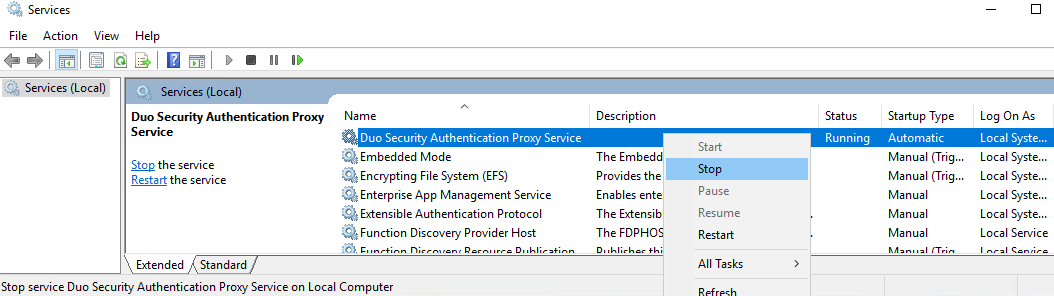
- Open Services.

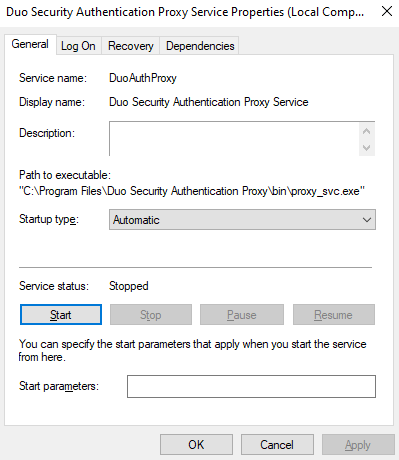
- Stop the service named Duo Security Authentication Proxy Service.
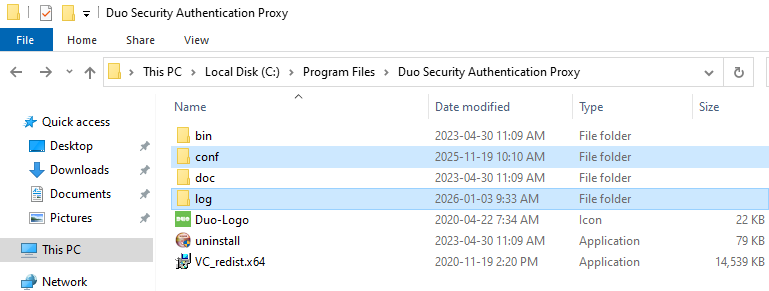
- Back up the
confandlogfolders of the Duo Auth Proxy installation.
Typically, they are located in the C:\Program Files\Duo Security Authentication Proxy folder.
Store the backup securely, as it contains your configuration’s passwords and secrets.
- Start the service named Duo Security Authentication Proxy Service.
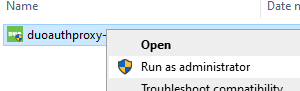
- Run the new Duo Auth Proxy installer as administrator.
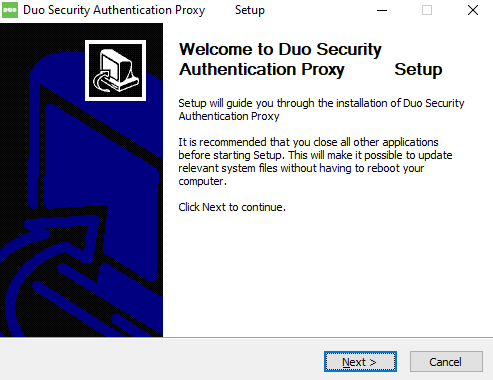
- Click Next to start the upgrade installation wizard.
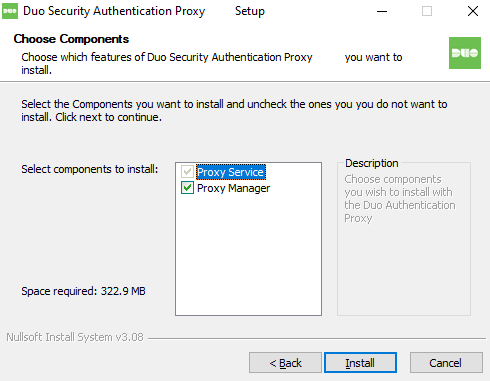
- Select the features you want to upgrade, then click Install.
- Wait while Duo Auth Proxy is upgraded.
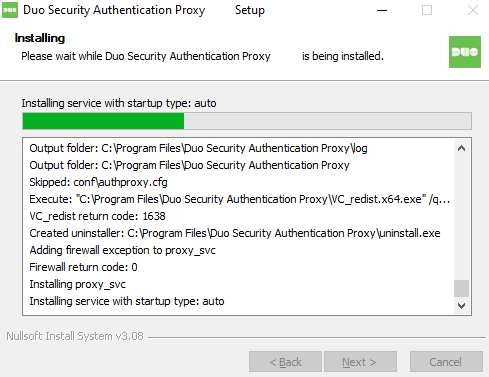
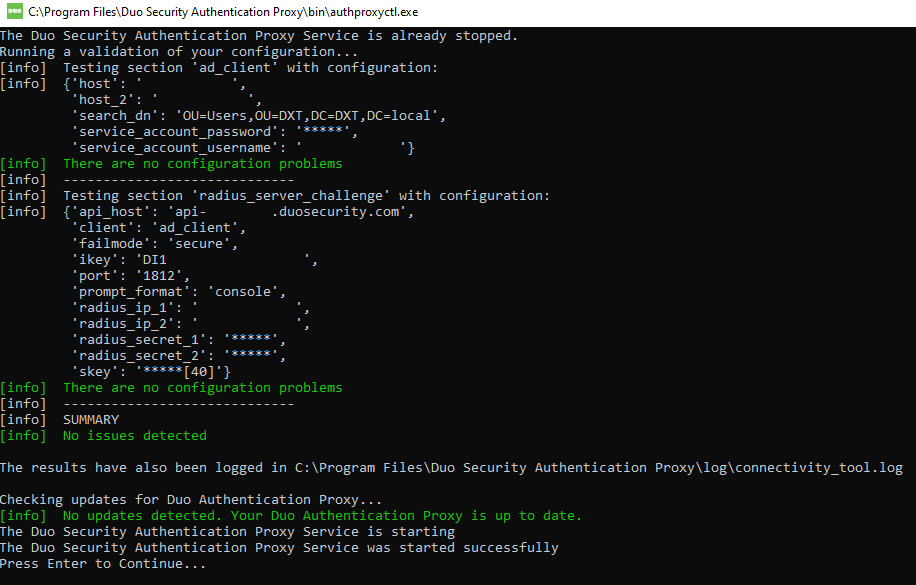
- During the upgrade, the connectivity tool will run. Review the connectivity tool output. If all is good, press enter.
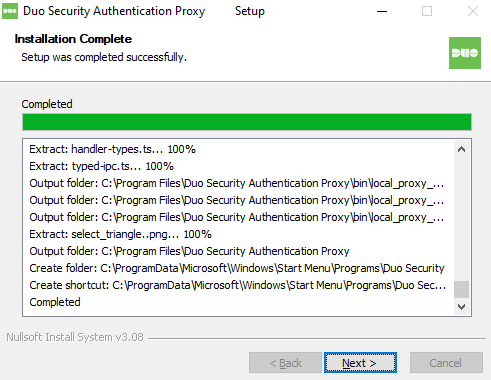
- Click Next to complete the install.
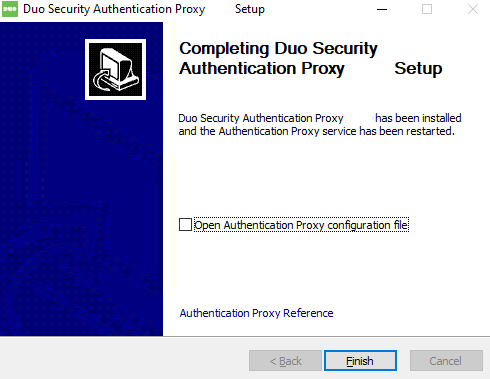
- Click Finish to close the Duo Authentication Proxy upgrade installation wizard.
- Test your Duo Auth Proxy setup to make sure everything is working as expected.
If you have more than one Duo Auth Proxy server, you’ll need to repeat the process for each of them.
That’s all it takes to upgrade the Duo Authentication Proxy on Windows.
If you want to learn more about the Duo Authentication Proxy upgrade, see the Duo documentation.
If you want to read more about the Duo certificate expiry, here is the Duo support article.
PowerShell Scripts
I created a few PowerShell scripts to assist with the Duo Auth Proxy upgrade.
The PowerShell scripts I created perform the following tasks.
- Checks if Duo Auth Proxy is installed and which version is installed
- A silent install of Duo Auth Proxy.
- An upgrade script that is a combination of the Duo Auth Proxy installation check and the Duo Auth Proxy install script that performs both in the same script, but only takes action if Duo Auth Proxy is installed and the version is less than the defined version.
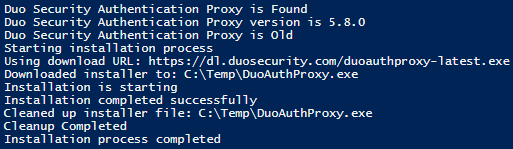
You can find all 3 scripts on my GitHub. https://github.com/thedxt/Duo