Microsoft 365 Passkey Setup
Microsoft 365 supports hardware security keys with passkeys. Passkeys are sometimes called FIDO2. Passkeys are one of many ways you can secure your accounts.
In this post, I will show you step-by-step how to set up a passkey in Microsoft 365, including configuring a passkey with a break glass emergency access account.
Prerequisites
- Hardware security key that is FIDO2 compliant. (A common one is YubiKey 5)
- Microsoft Entra ID Authentication Method for Passkey (FIDO2) and Temporary Access Pass enabled.
The Process
- Login to Microsoft 365.
- Click on your account in the top right and click on View account.

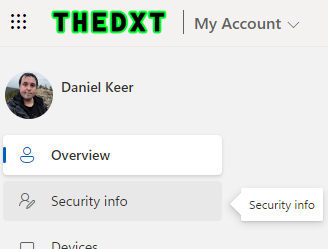
- Click on Security info.
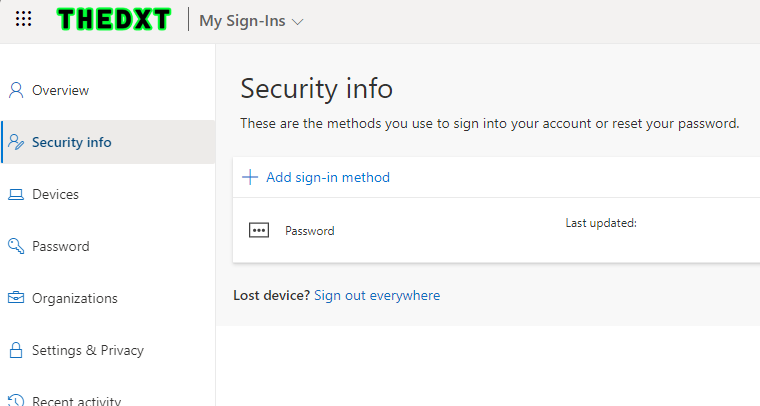
- Click on Add sign-in method.
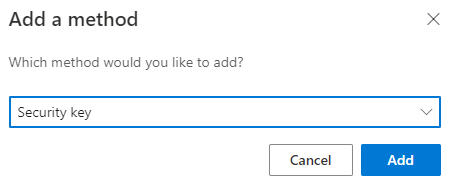
- Select Security key and click Add.
- Select the type of security key you have.
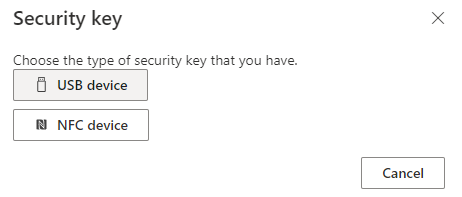
In this example, I will use a USB device.
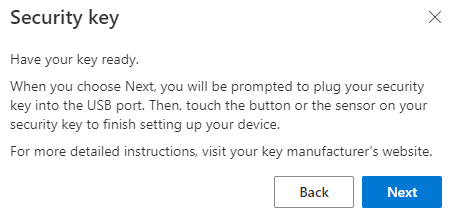
- Plug your security key into your computer and click Next.
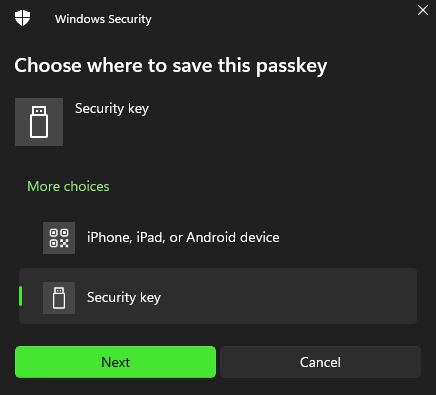
- On the new window select the Security key option to save the passkey to the security key and click Next.