
Windows Autopilot Hardware ID
Windows Autopilot uses several mechanisms to function. A common one is the device’s hardware hash, also called the hardware ID. There are several ways to gather the hardware ID from a device to use in Windows Autopilot.
In this post, I will show step-by-step how to get the hardware ID from a system with PowerShell and how to import it into Windows Autopilot. The process is the same regardless of whether the system is a virtual machine or a physical machine, and it doesn’t matter if the system is running Windows 10 or Windows 11.
Get Hardware ID
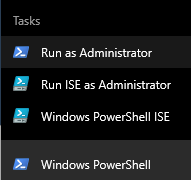
- Open PowerShell as Admin.
- Run the following command to enable TLS 1.2
[Net.ServicePointManager]::SecurityProtocol = [Net.SecurityProtocolType]::Tls12

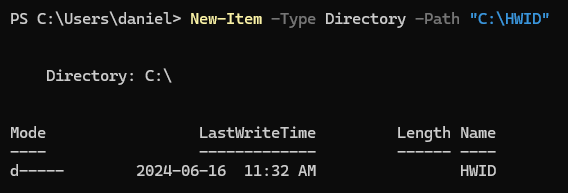
- The following command will create a folder named HWID on the root of C for the hardware ID file
New-Item -Type Directory -Path "C:\HWID"
- Switch into that directory with the following command
Set-Location -Path "C:\HWID"

- Add
C:\Program Files\WindowsPowerShell\Scriptsto the path environment variable by running the following command$env:Path += ";C:\Program Files\WindowsPowerShell\Scripts"
