PowerShell ProgressPreference Issue
PowerShell is a wonderful tool built into Microsoft Windows. Both Windows and Windows Server come with PowerShell version 5.1 pre-installed.
PowerShell version 5.1 was initially released in 2016. Since then, there have been many improvements to PowerShell. However, many of those improvements are only available in newer versions of PowerShell and aren’t always backported to PowerShell 5.1, even though PowerShell 5.1 is still actively supported.
PowerShell has a variable called ProgressPreference. This variable tells PowerShell how to handle progress updates, such as rendering progress bars when downloading a file.
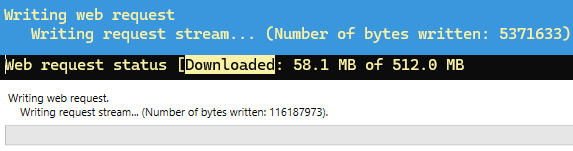
By default, ProgressPreference is set to Continue, which will display progress bars when possible, and usually isn’t an issue until you start running your scripts outside of PowerShell ISE, as even a headless script needs to calculate a progress bar even if it isn’t displayed, which can cause significant slowdowns.
ProgressPreference Continue
To help illustrate this issue, I created a PowerShell script called download-tester on my GitHub https://github.com/thedxt/Download-Tester
The script will download a 512MB test file from ThinkBroadband and will calculate how long the download took.
- In PowerShell ISE, the script ran in 35 seconds.
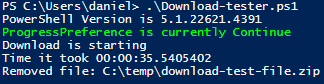
- In PowerShell 5.1, the script ran in 5 minutes and 35 seconds.
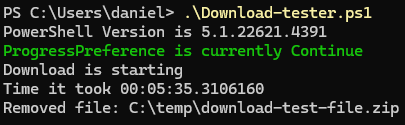
- In PowerShell 7, the script ran in 32 seconds.
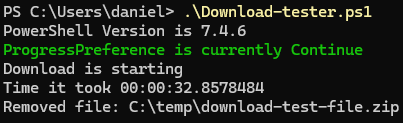
From the results, we can see a significate slowdown in downloads in PowerShell 5.1 when used outside of PowerShell ISE.
The ProgressPreference Continue download slowdowns have been resolved in newer versions of PowerShell. However, PowerShell 5.1 is left behind with this issue.
Technically, I could just install PowerShell 7 on everything. However, that is easier said than done. I also don’t like altering a system permanently just to make a script work or run faster.
Fortunately, by temporarily changing ProgressPreference from Continue to SilentlyContinue, we can resolve the issue in PowerShell 5.1.
ProgressPreference SilentlyContinue
Once the ProgressPreference variable is set to SilentlyContinue, PowerShell will no longer display progress bars, which helps speed up file downloads in PowerShell scripts.
The same Download-Tester PowerShell script used earlier has a switch called ChangeProgPref. If the ChangeProgPref switch is present, the script will temporarily set the ProgressPreference variable to SilentlyContinue. When the script is finished, it will set the ProgressPreference variable back to its original value.
I re-ran the tests with the ChangeProgPref switch.
- In PowerShell ISE, the script with
ChangeProgPrefran in 26 seconds.

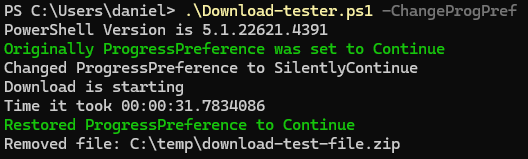
- In PowerShell 5.1, the script with
ChangeProgPrefran in 31 seconds
- In PowerShell 7, the script with
ChangeProgPrefran in 36 seconds
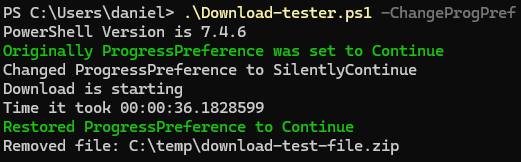
From the results, we can see that the downloads are much faster.
The Fix
To handle the ProgressPreference issue in my scripts, I’ve started storing the original value of ProgressPreference and then setting ProgressPreference to SilentlyContinue, and once the script is complete, I change it back to the original value.
If you want to read more about ProgressPreference, here is the Microsoft documentation.



3 thoughts on “PowerShell ProgressPreference Issue”
In your example, PowerShell 7 seems to be a bit slower when run with SilentlyContinue. Have you seen this behavior consistently and/or in other scripts?
Hi Jake,
The slightly slower example of PowerShell 7 was a one off. I just ran the same test again and it took 29 seconds. I probably should’ve ran the tests a few times and averaged the times.