




Sometimes you need to move mailboxes, such as from one on-premises Exchange server to another, to Exchange Online, or between two Exchange Online tenants. Stellar Migrator for Exchange is a tool that can help with this process.
In this post, I will show you step by step how to use the Stellar Migrator for Exchange to migrate an Exchange mailbox from one Microsoft 365 tenant to another.
Prerequisites
- VM or Workstation with the following:
- 16 GB RAM or more.
- 250 MB disk space or more.
- Windows 8 or newer, or Windows Server 2012 or newer.
The Process
I’ve divided the process into several sections.
- Install Stellar Migrator for Exchange
- Activate Stellar Migrator for Exchange
- Create Migration Job
- Migration
- Final Thoughts
Install Stellar Migrator for Exchange
To get started with Stellar Migrator for Exchange, first we need to install the migration application on a system.
- Connect to the system you will use for the Stellar Migrator for Exchange application.
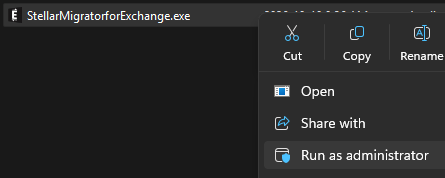
- Run
StellarMigratorforExchange.exeas an administrator.
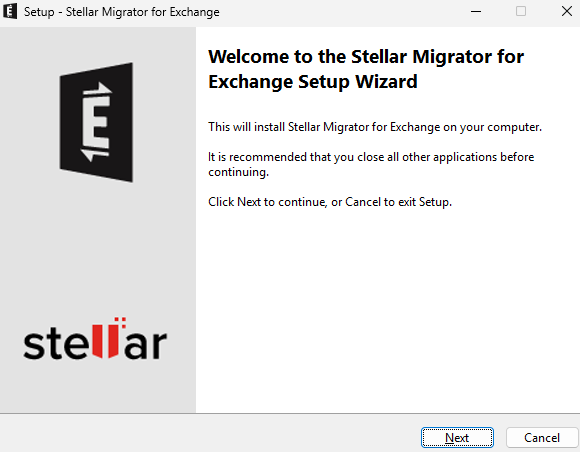
- On the Welcome screen, click Next.
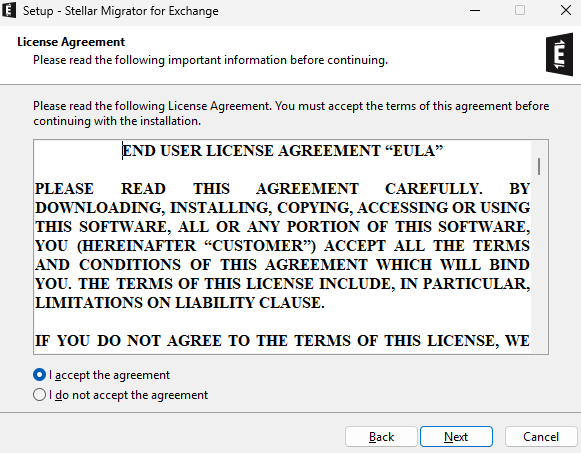
- Review the License Agreement. If you agree, select I accept the agreement and click Next.
- By default, the installer puts Stellar Migrator for Exchange in
C:\Program Files\Stellar Migrator for Exchange. You can click Browse to choose a different location. When ready, click Next.
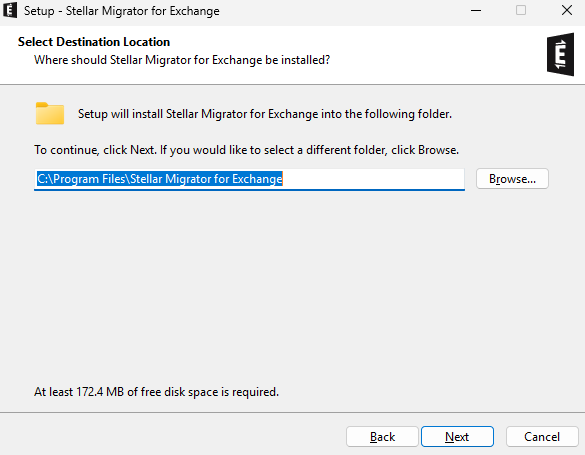
In my example, I will leave it as the default.
- By default, the installer also creates a Start Menu folder named Stellar Migrator for Exchange in
C:\ProgramData\Microsoft\Windows\Start Menu\Programs. You can click Browse to change this location. When ready, click Next.
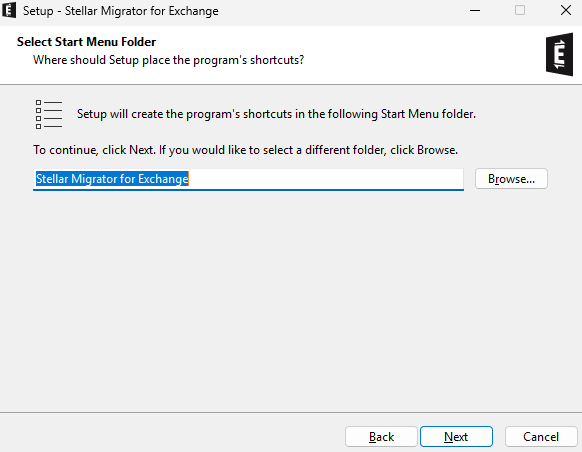
In my example, I will leave it as the default.
- Select whether to create a desktop shortcut for the user installing Stellar Migrator for Exchange and click Next.
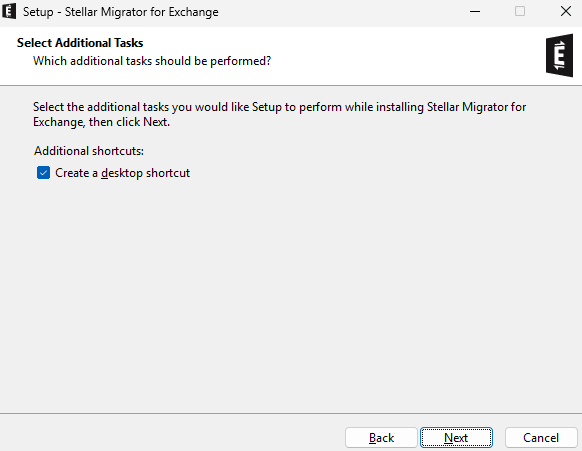
In my example, I select Create a desktop shortcut.
- Review all the install options you’ve configured, then click Install.
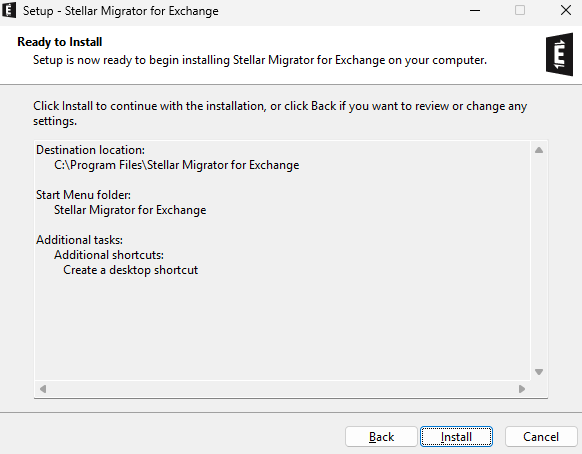
- Wait for Stellar Migrator for Exchange to finish installing.
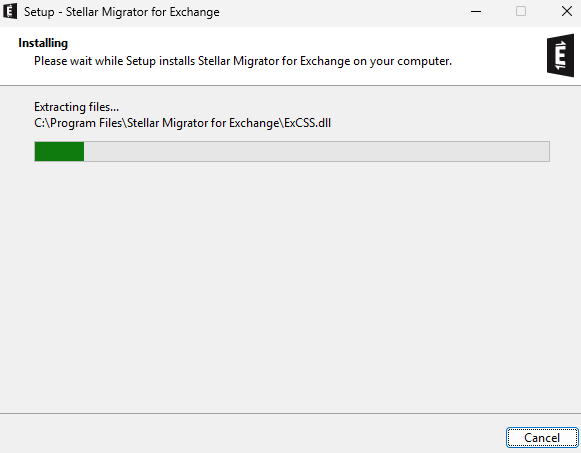
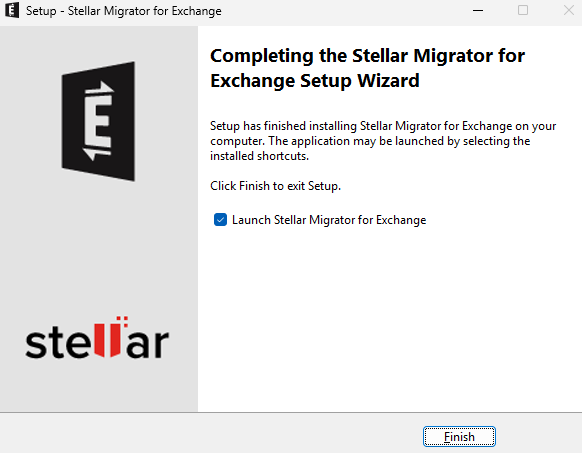
- Once the installation is complete, choose whether to launch Stellar Migrator for Exchange, then click Finish.
Activate Stellar Migrator for Exchange
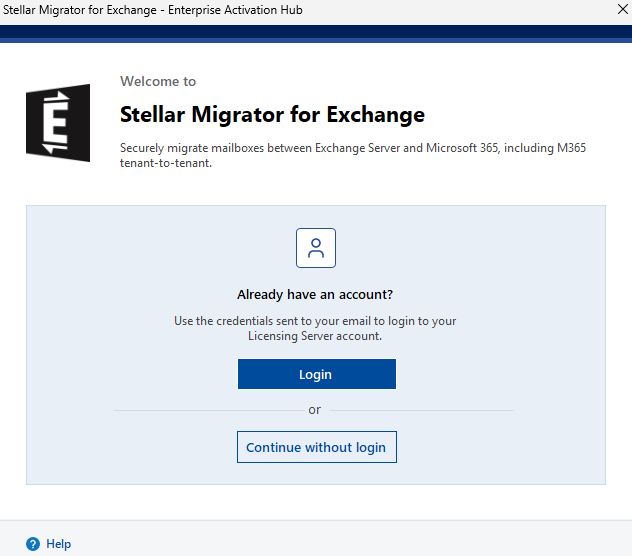
When you open Stellar Migrator for Exchange, you’ll be asked to log in to your Stellar licensing account. You can set up everything without logging in, but you cannot start a migration until you do.
- Click Login.
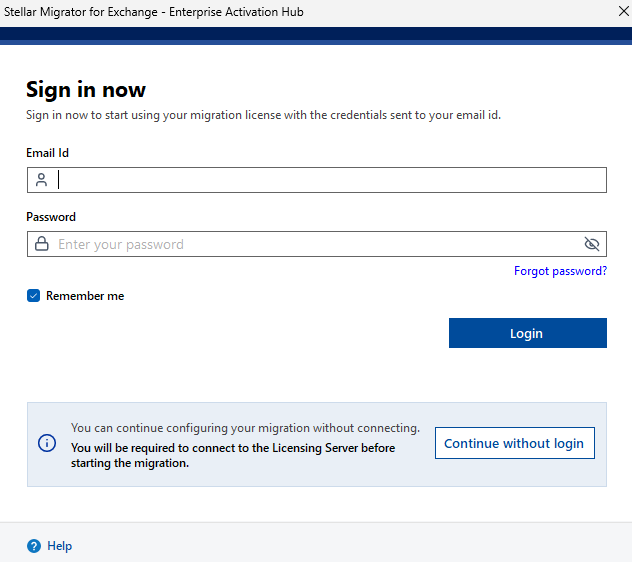
- Enter your Stellar licensing username and password, then click Login.
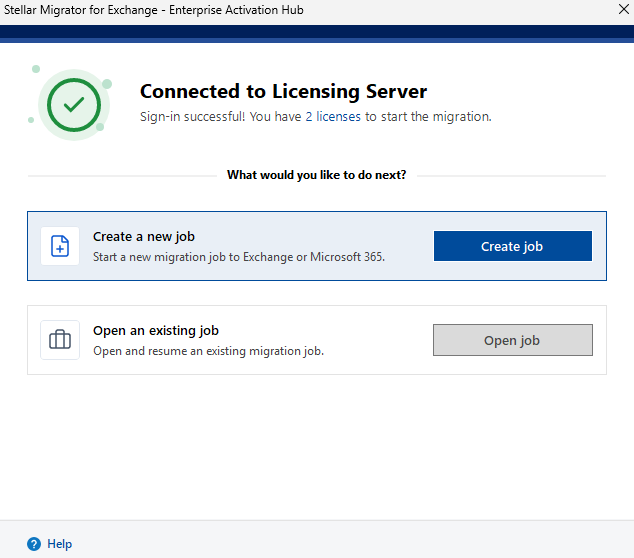
- After you log in, Stellar Migrator for Exchange will show how many licenses you have. From there, you can create a migration job or close the window.
Create Migration Job
When setting up a migration job, you need to choose the source and target mailboxes. You cannot add or remove mailboxes after the job is created.
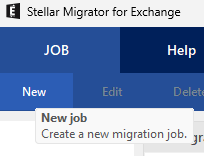
- In Stellar Migrator for Exchange, click Job > New.
- Select your source and target type and click Next.
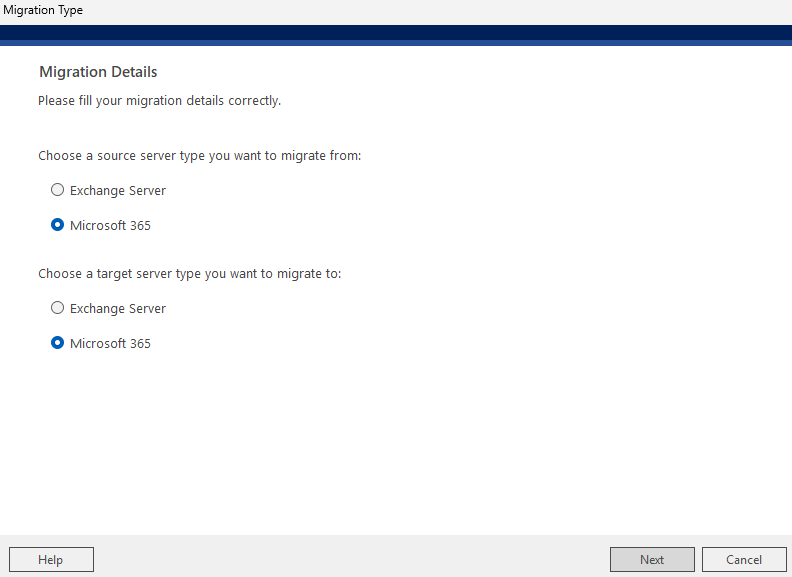
In my example, I will select Microsoft 365 as the source and target.
- Provide a name for the migration job.
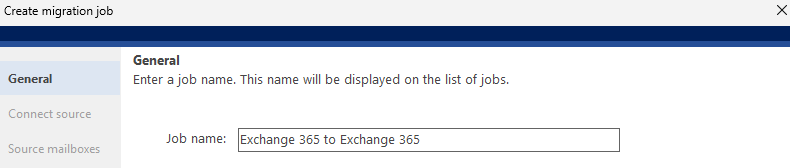
In my example, I will use the name Exchange 365 to Exchange 365.
- Choose the mailbox types you want to migrate.
Stellar Migrator for Exchange matches source mailboxes to target mailboxes using the mailbox ID. If it can’t find a match or selects the wrong mailbox, you can manually select the correct one. For many mailboxes, it’s easier to use the Migrate using CSV option.
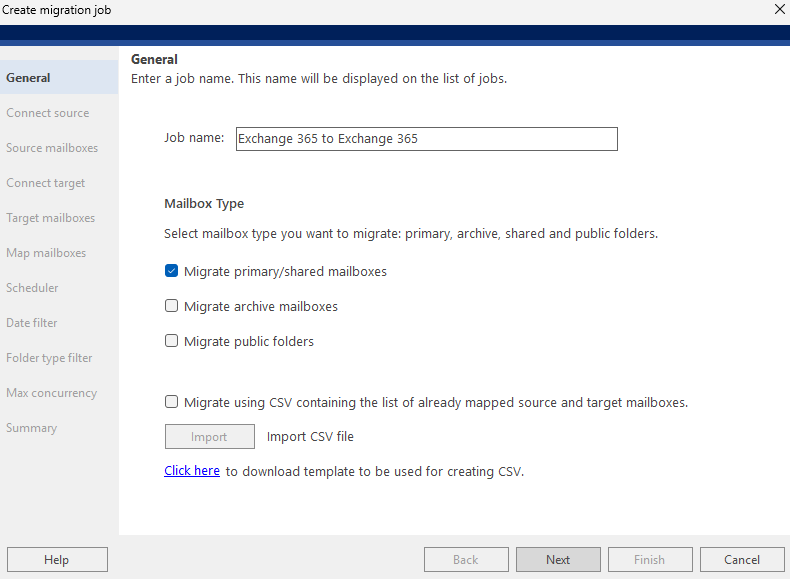
In my example, I am only migrating one mailbox, so I will select Migrate primary/shared mailboxes.
Next, we connect to the source and target Microsoft 365 tenants.
- Choose whether to use Auto registration or Manual registration.
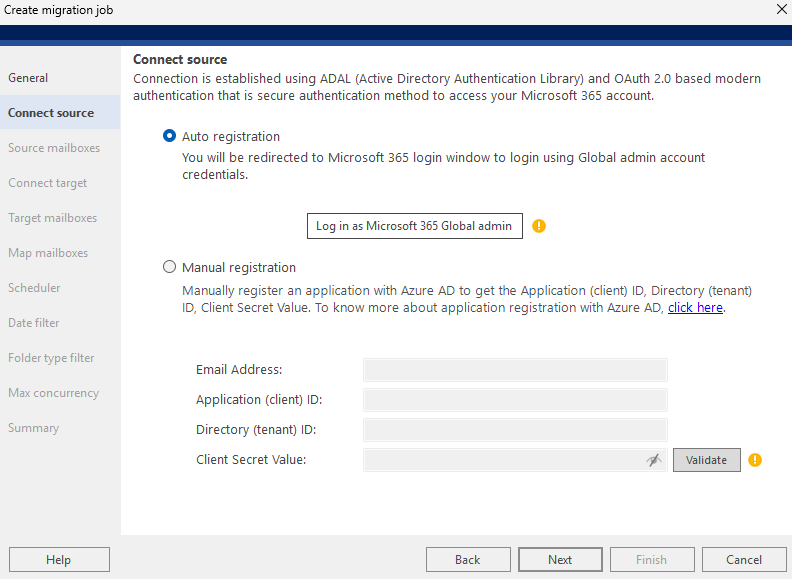
Create Migration Job – Microsoft 365 Tenant Auto Registration
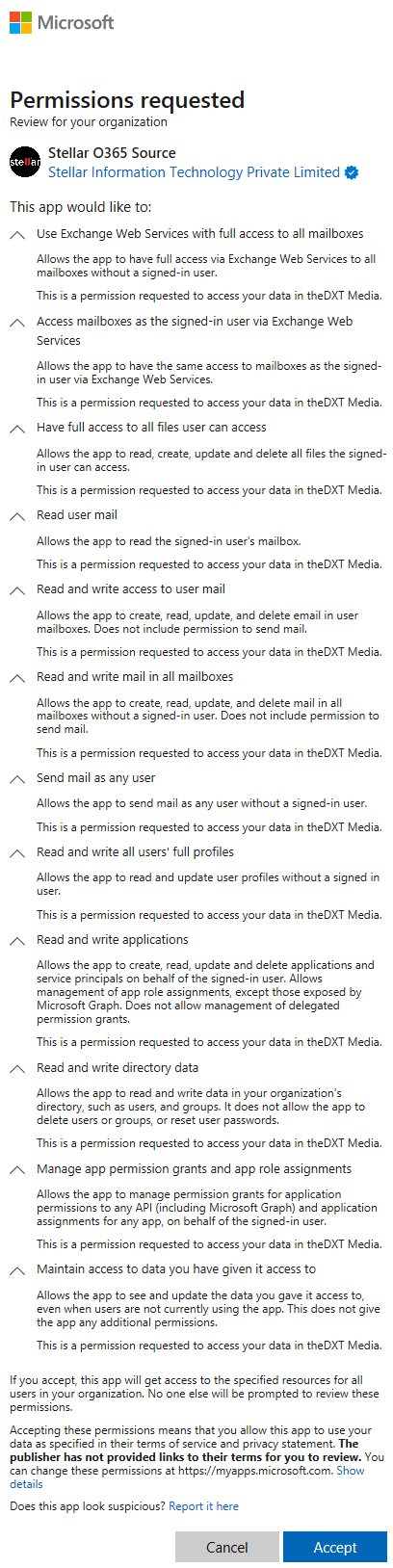
Auto registration will add the Entra App named Stellar O365 Source (Application ID: 720e6e7a-2f7d-4843-a9ea-4e44f61e769a) to the Microsoft 365 tenant.
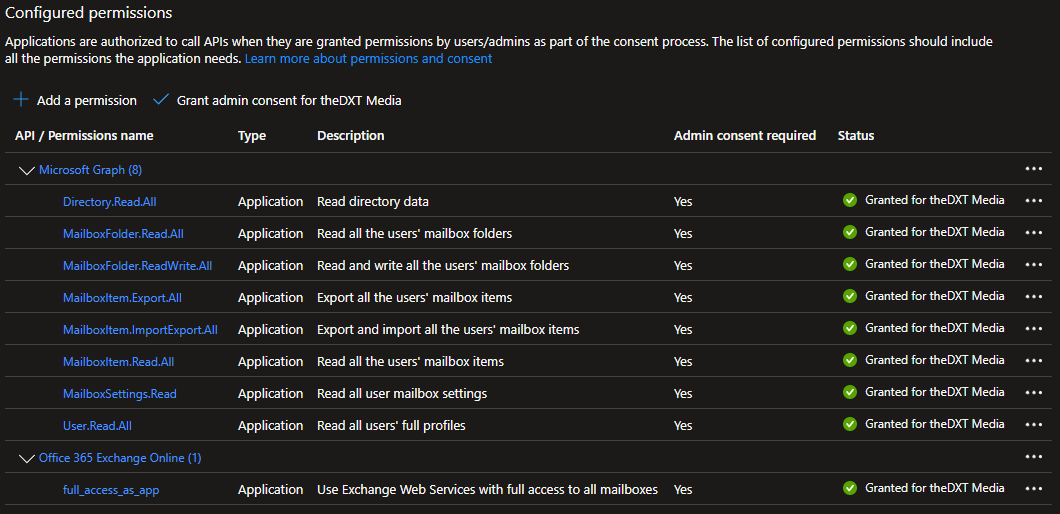
- Auto registration will also create an app registration named
Stellar Migrator For Exchangewith the following permissions:- Microsoft Graph
Directory.Read.AllMailboxFolder.Read.AllMailboxFolder.ReadWrite.AllMailboxItem.Export.AllMailboxItem.ImportExport.AllMailboxItem.Read.AllMailboxSettings.ReadUser.Read.All
- Office 365 Exchange Online
full_access_as_app
- Microsoft Graph
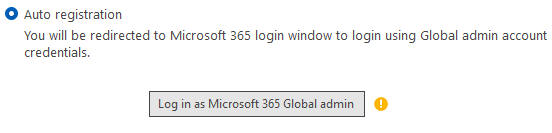
- Select Auto registration and click Login as Microsoft 365 Global admin.
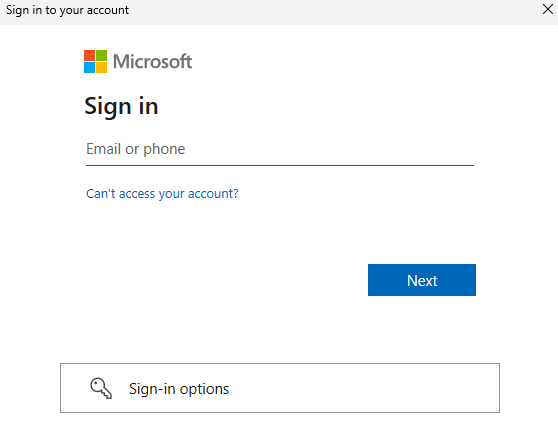
- Log in to your Microsoft 365 tenant.
- Review the requested permissions. If you agree with them, click Accept.
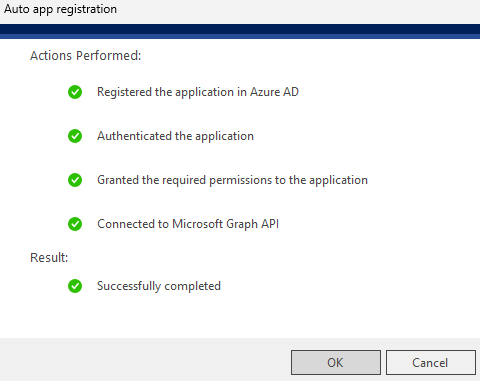
- Wait while the Entra application is created. Once it’s complete, click OK.
Create Migration Job – Microsoft 365 Tenant Manual Registration
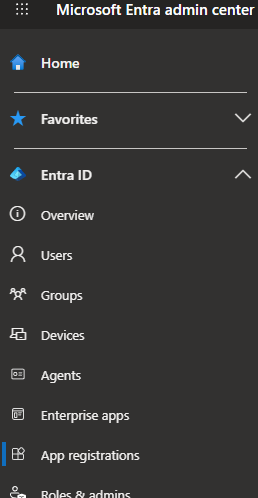
- Log in to the Microsoft Entra admin center.
- Click on Entra ID > App registrations.
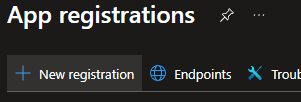
- Click New registration.
- Enter a name for the application.
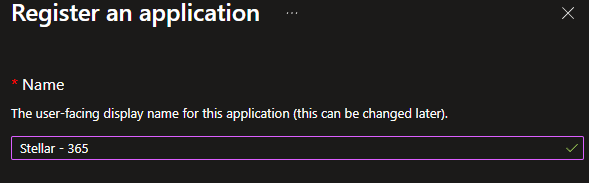
In my example, I will name it Stellar – 365.
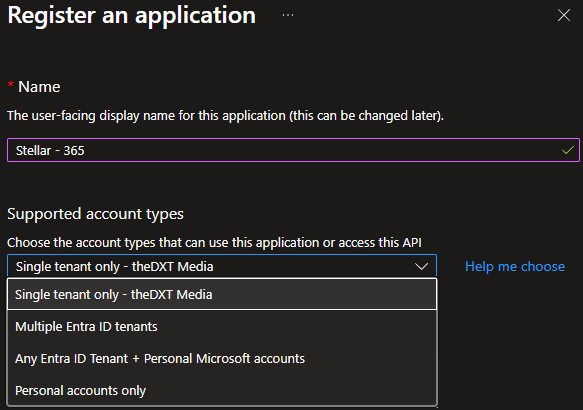
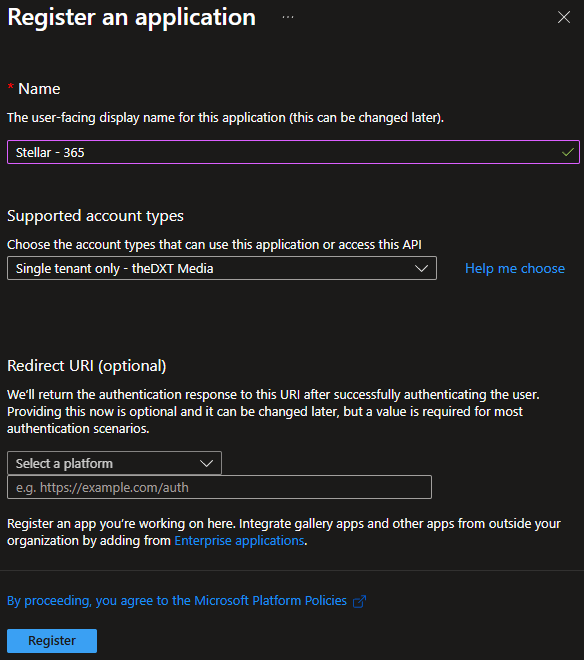
- For Supported account types, select Single tenant only.
- Then click Register.
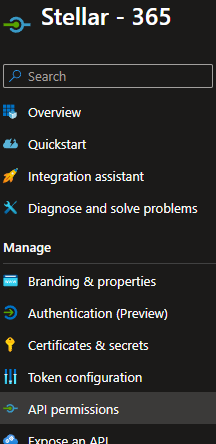
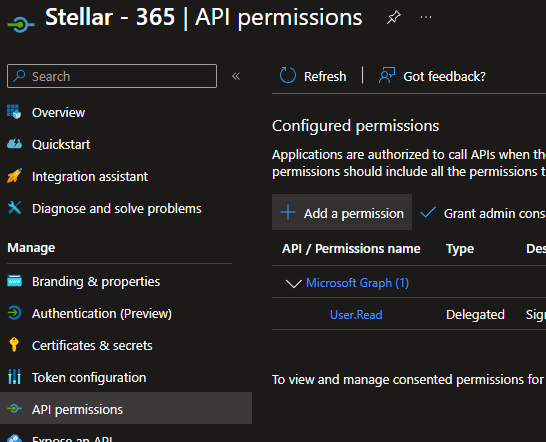
- In the Manage section, click API permissions.
- Click Add a permission.
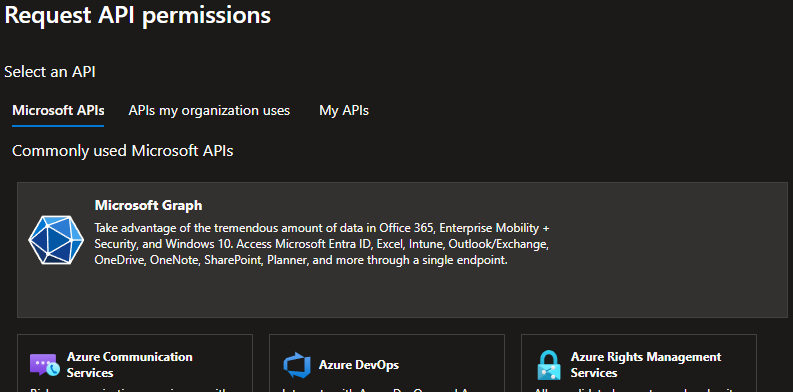
- Click on Microsoft Graph.
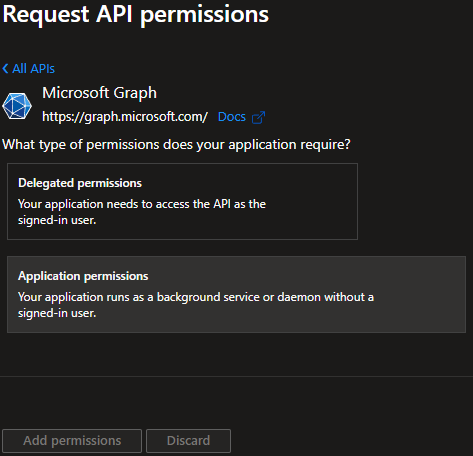
- Click on Application permissions.
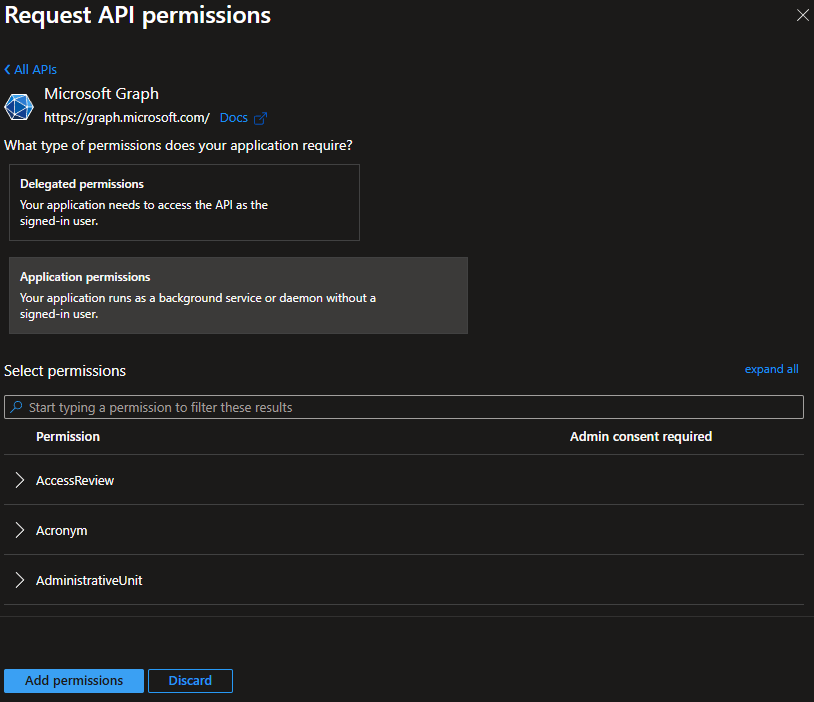
- Select the following permissions:
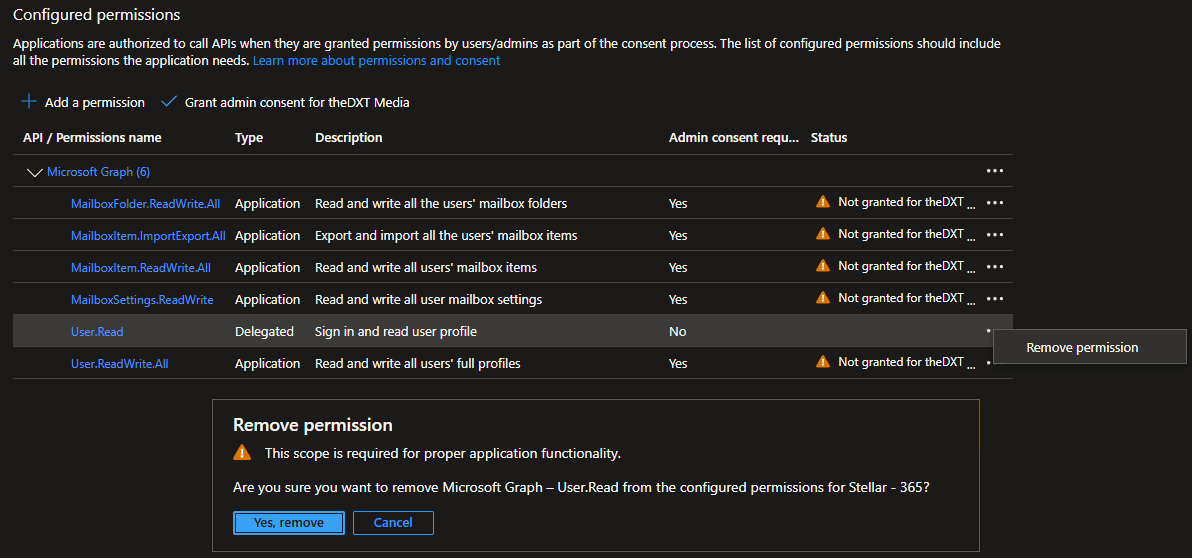
MailboxFolder.ReadWrite.AllMailboxItem.ImportExport.AllMailboxItem.ReadWrite.AllMailboxSettings.ReadWriteUser.ReadWrite.All
- When ready, click Add permissions.
By default, a new Entra App registration grants the User.Read delegated permission. You can remove it as it is not needed.
For the permissions we’ve added to work, we need to grant admin consent.
- Click on Grant admin consent.
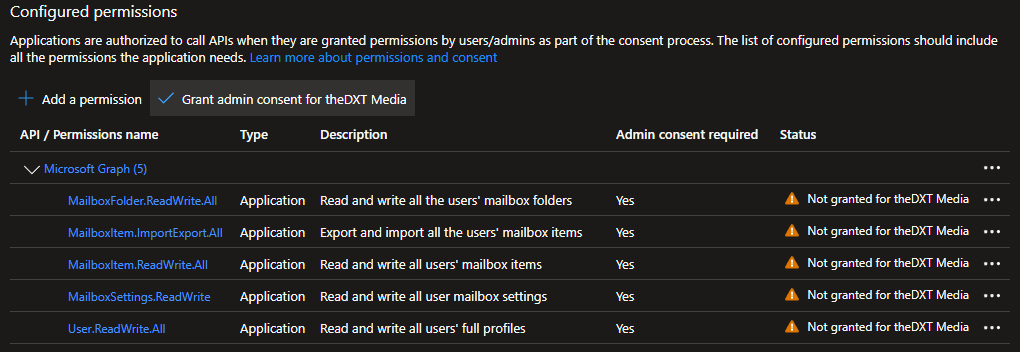
- Click Yes to confirm that you are granting admin consent.

- Confirm that all of the admin consents were granted successfully.
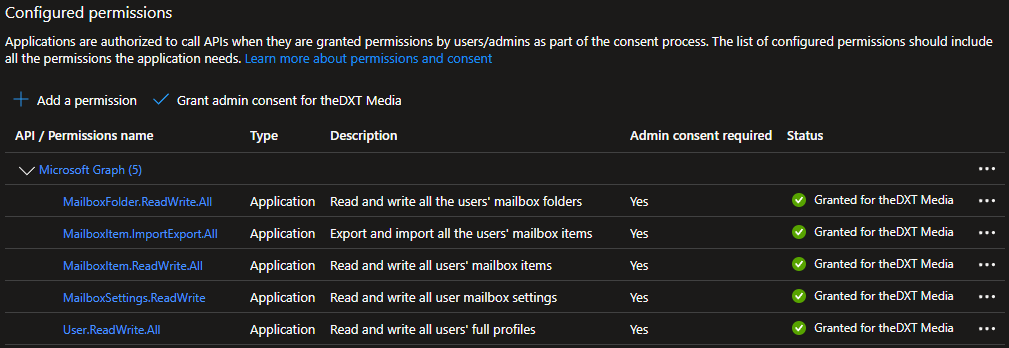
With the required permissions in place, we now configure how Stellar Migrator for Exchange will access the Entra App.
- In the Manage section, click Certificates & secrets.
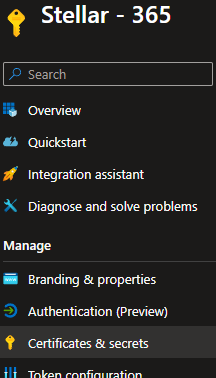
- Click the Client secrets tab and click New client secret.
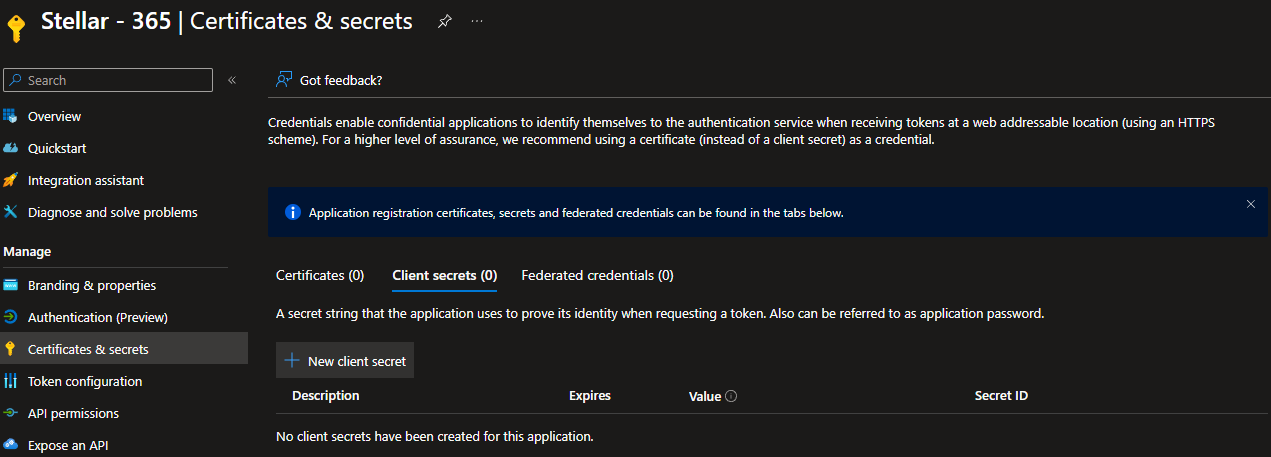
- Enter a description for the secret.

In my example, I will name it Stellar 365 Migrator Secret.
- Select how long until the secret expires.
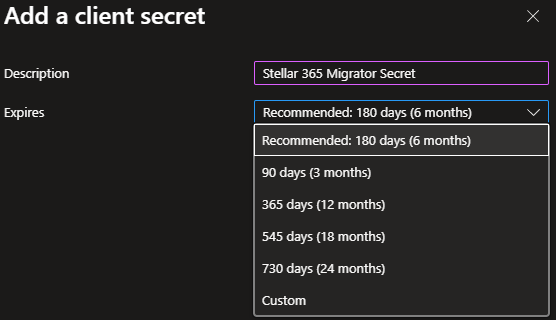
In my example, I will select 180 days (6 months).
- When ready, click Add.
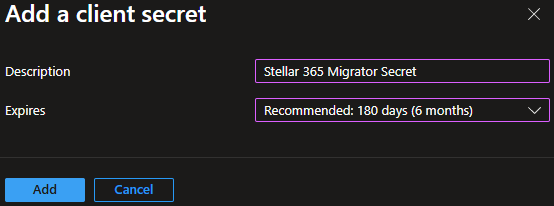
- Make a note of the secret value, as this is the only time you will see it in full.

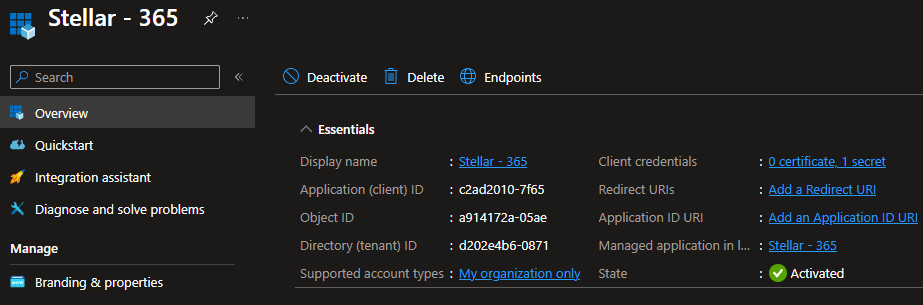
- Click on Overview.
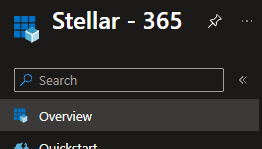
- Make a note of the Application (client) ID and the Directory (tenant) ID.
- In Stellar Migrator for Exchange, select Manual registration.
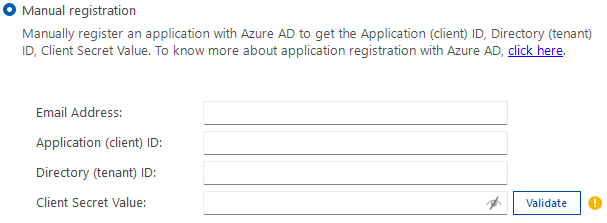
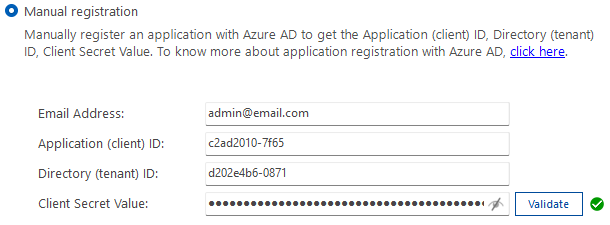
- Populate the following fields.
- For Email Address, provide an email address of any user in the Microsoft 365 tenant.
- For Application (client) ID, provide the application ID of the Stellar Entra app you created.
- For Directory (tenant) ID, provide your Microsoft 365 tenant ID from the Stellar Entra app overview page.
- For Client Secret Value, provide the client secret for the Stellar Entra app you created.
- When ready, click Validate.
Create Migration Job – Map Mailboxes
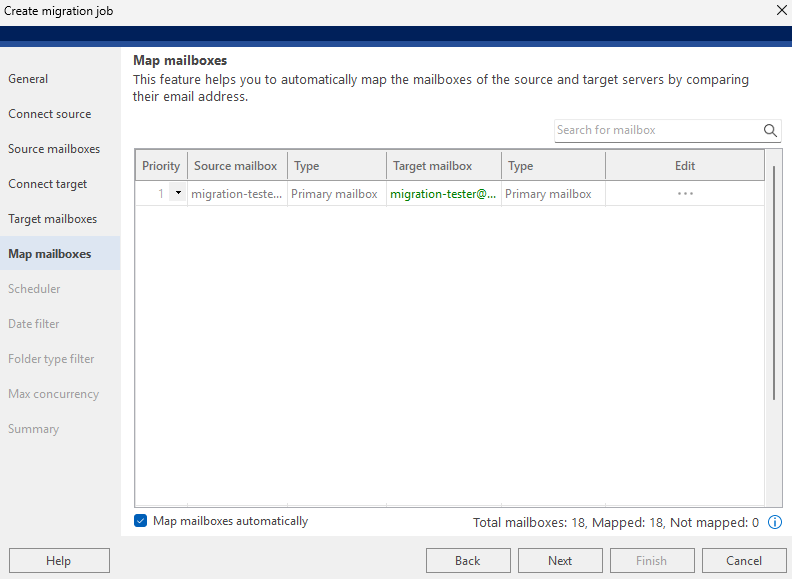
After you’ve connected the source and target in Stellar Migrator for Exchange, it will try to map the mailboxes automatically using the mailbox ID. If it can’t find a match or selects the wrong mailbox, you can manually select the correct one. If you used the Migrate using CSV option, this step is skipped.
- Check the mapped mailboxes and click Edit if you need to fix any. When you’re ready, click Next.
Create Migration Job – Scheduler
- Choose whether you want to run the migration manually or schedule it. Then click Next.
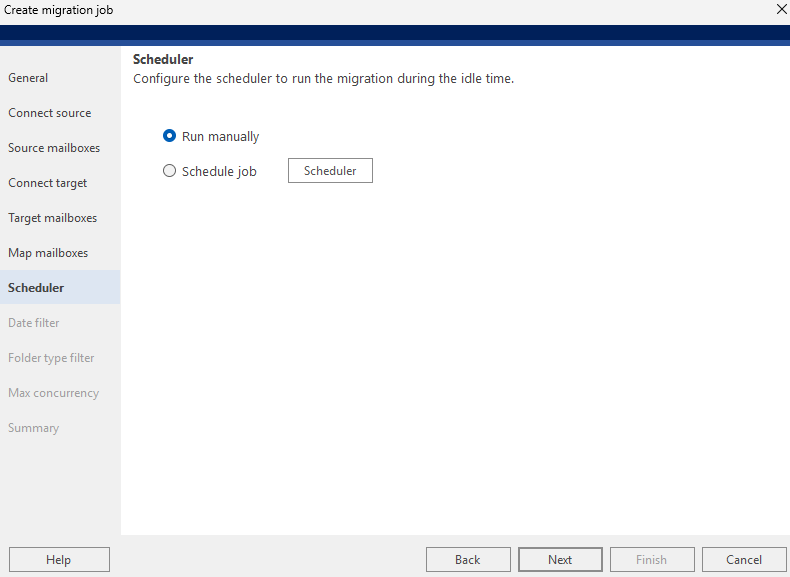
In my example, I will select Run manually.
Create Migration Job – Date Filter
You can use the date filter to migrate only certain items. You can edit these settings after you create the migration job.
- Decide if you want to migrate all items, only items older than a certain date, newer than a certain date, or between two dates. Then click Next.
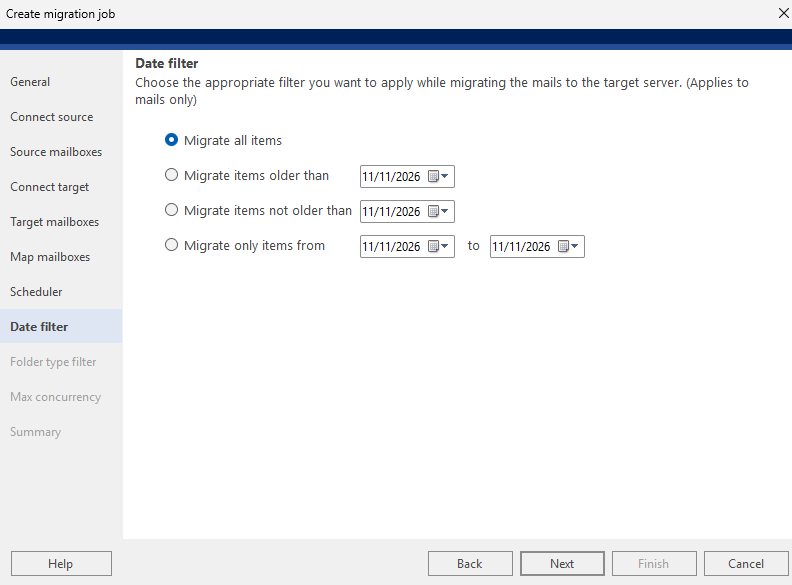
In my example, I will select Migrate all items.
Create Migration Job – Folder Type Filter
- Select the folders you want to migrate. Then click Next.
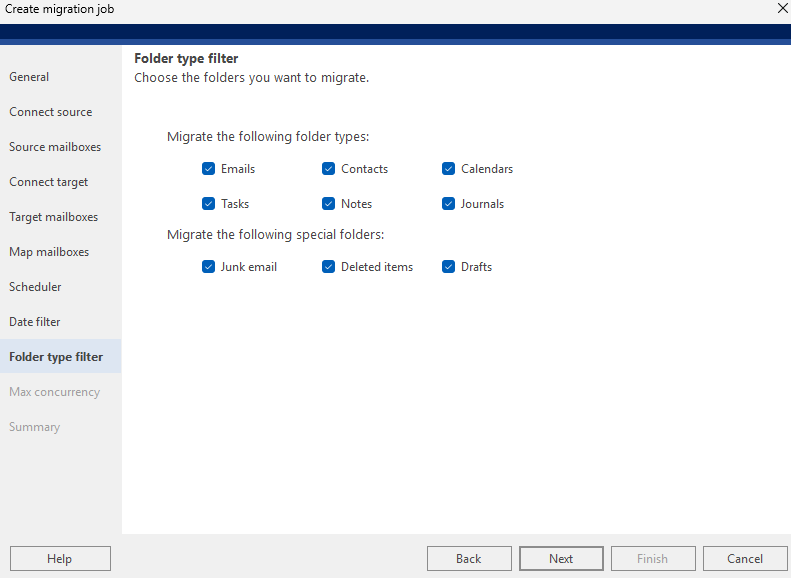
In my example, I will select all folders.
Create Migration Job – Max Concurrency
Now, we define how many mailboxes, items, and retries the job should use.
- For Concurrent mailbox migration threads, choose how many mailboxes you want to migrate at once.
- For Concurrent item migration threads per mailbox, set how many items to migrate at a time for each mailbox.
- For In case of network failure, rerun job, set how many times the migration job should retry if something goes wrong.
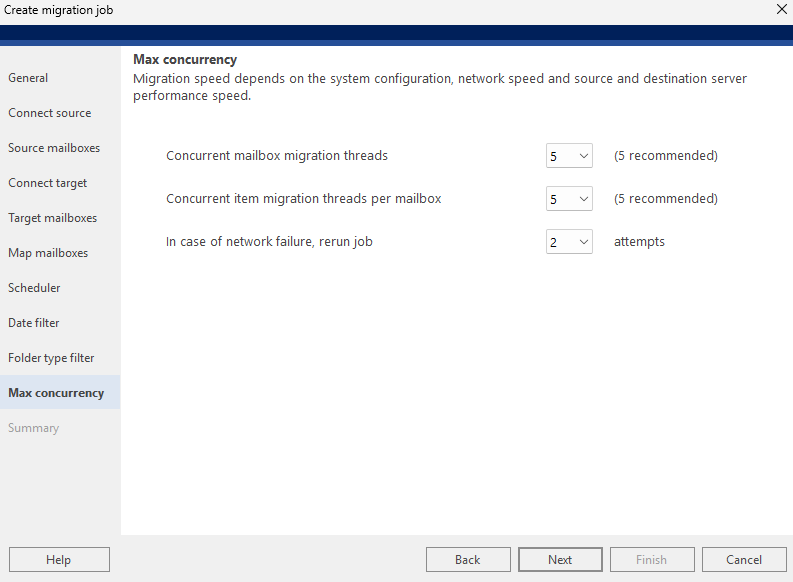
In my example, I will leave them at their default values.
- When ready, click Next.
Create Migration Job – Summary
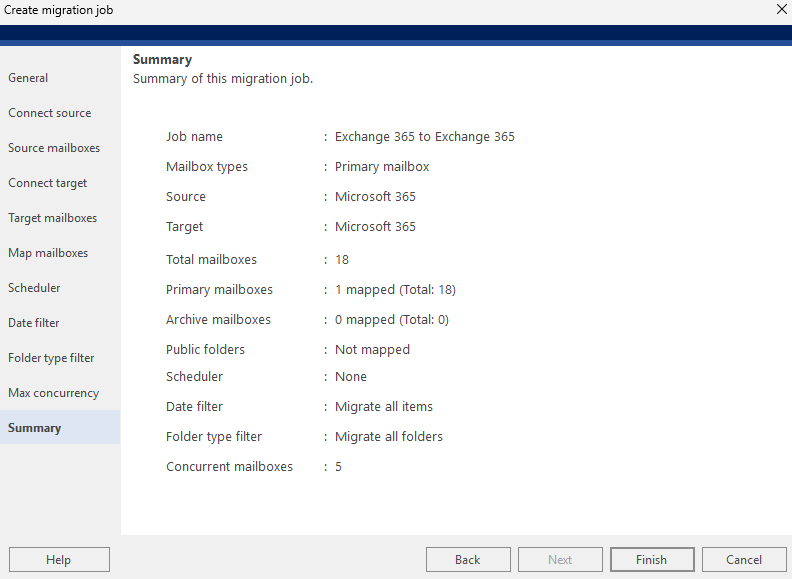
- Review the migration job details. If all looks good, click Finish.
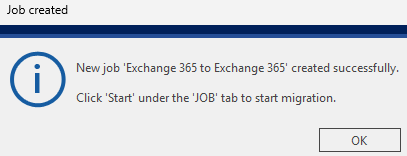
- Click OK to confirm the migration job is created.
Migration
After creating the migration job, you can start the migration.
- In Stellar Migrator for Exchange, click Job.
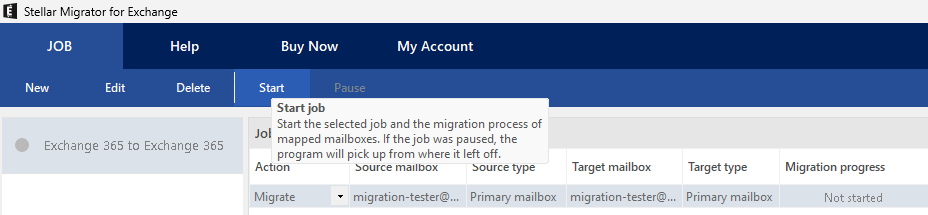
- Select the job and click Start.
- Wait for Stellar Migrator for Exchange to migrate the emails.

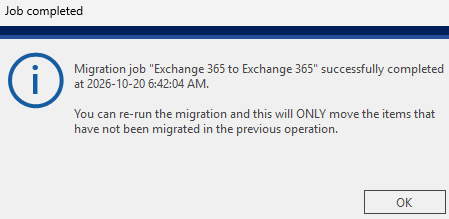
- When the migration job is done, click OK on the completion notification.
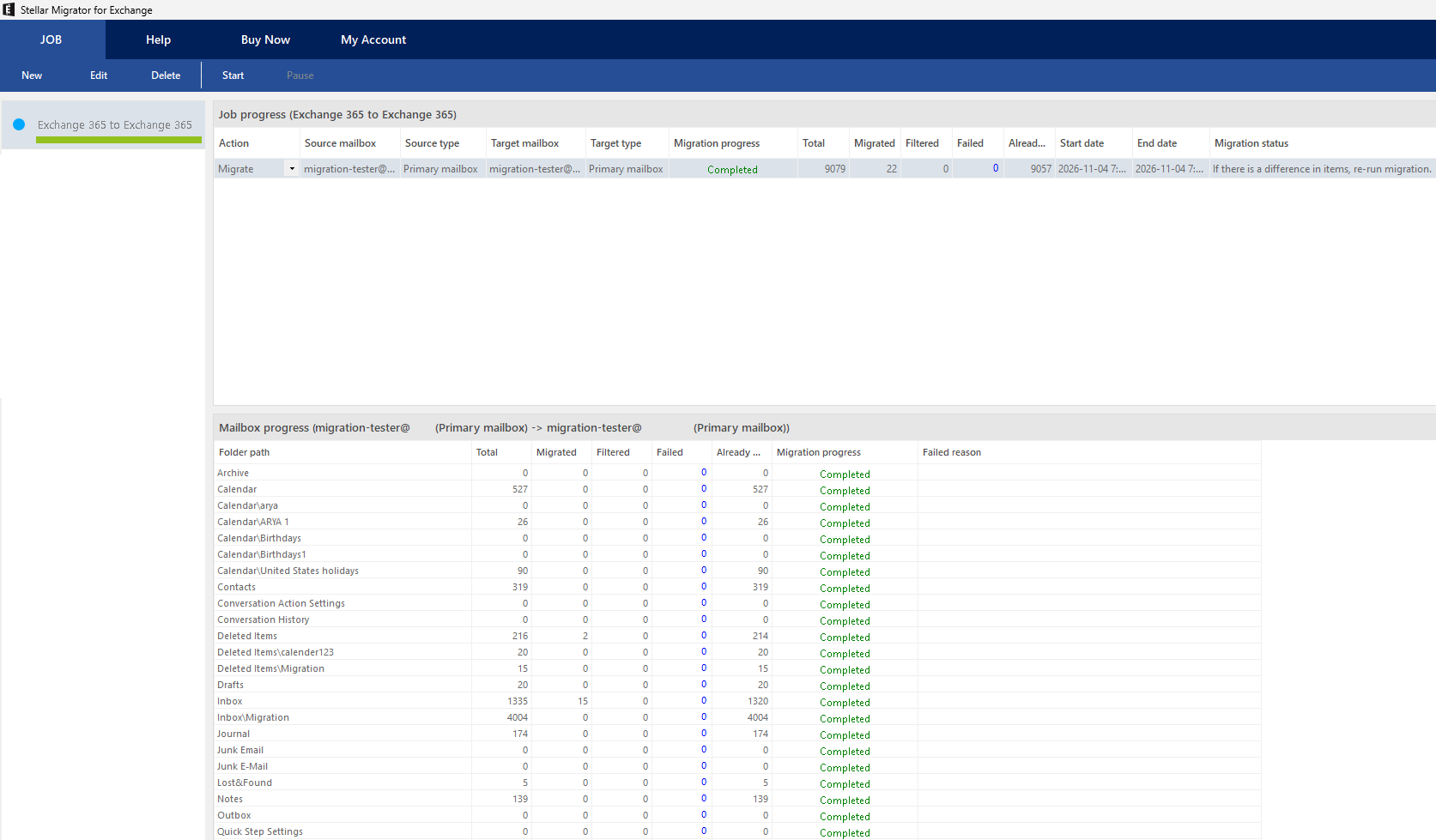
During and after migration, you can see details about what’s being migrated or already migrated in the Mailbox progress pane.
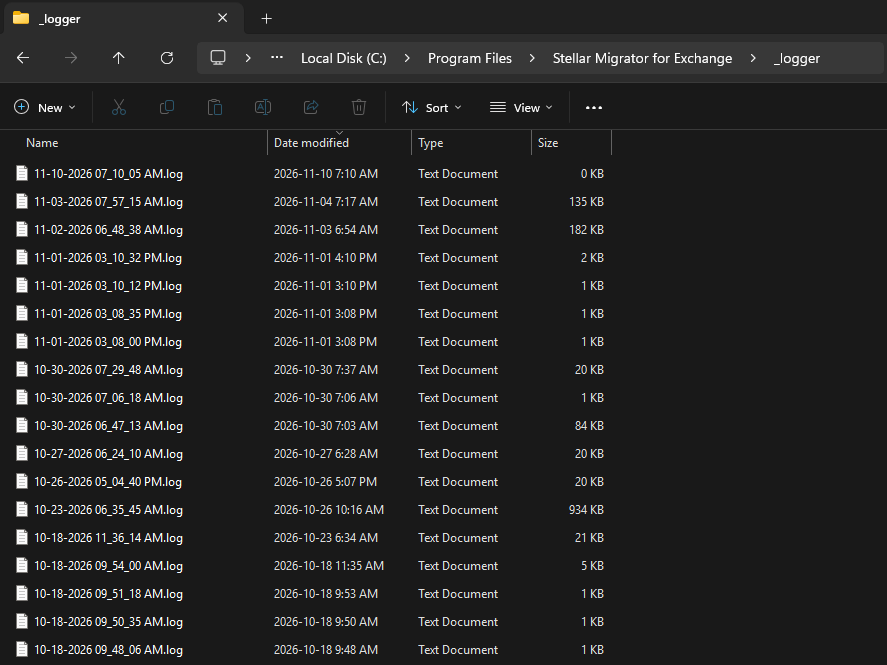
If you need more details, you can find the log files in C:\Program Files\Stellar Migrator for Exchange\_logger.
Final Thoughts
Overall, I found Stellar Migrator for Exchange to be a very useful tool for migrating mailboxes. The entire experience was intuitive, worked as expected and was straightforward and seamless. If you need to migrate mailboxes, consider trying Stellar Migrator for Exchange.
One feature I wish Stellar Migrator for Exchange offered is the option to migrate just a few items from each mailbox, so you can check your settings before using a license. I also wish it let you add more mailboxes to existing jobs.
While testing Stellar Migrator for Exchange, I ran into an issue and contacted support. Support was very responsive and helpful. They provided me with a fix very quickly.
To learn more about the Stellar Migrator for Exchange, check out the Exchange migration tool.