


Once you have deployed the VCF Installer, you need to configure a depot connection to access the binaries needed to deploy VCF (VMware Cloud Foundation) or VVF (VMware vSphere Foundation).
In this post, I will show you step by step how to configure an online depot connection for the VCF Installer and download the binaries for VCF or VVF.
Before VCF 9.1, you configured the VCF Installer online depot connection using a download token. In VCF 9.1, the process has changed. You now need to register the VCF Installer in the VCF licensing portal.
Prerequisites
- VCF Installer deployed.
If you need to learn how, my blog post Deploy VCF Installer details the steps.
- Internet access on the VCF Installer appliance.
A list of URLs that the VCF Installer needs access to is available from Broadcom here.
The Process
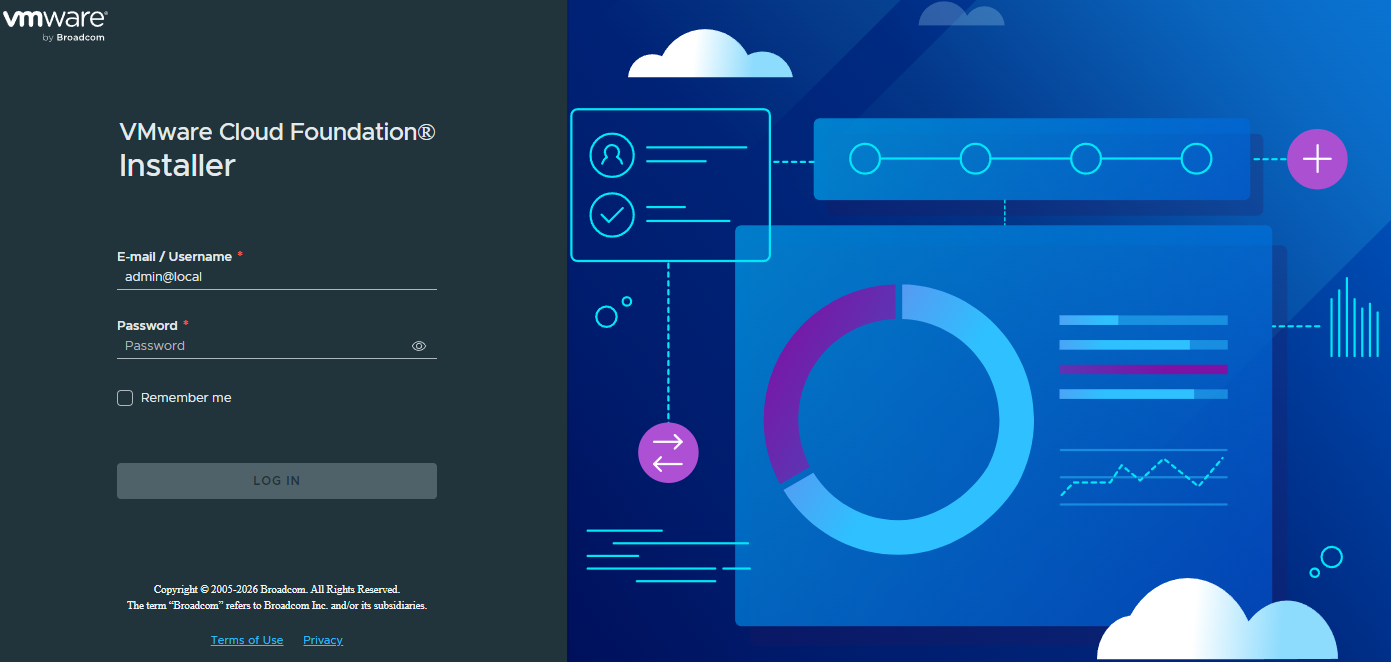
- Login to the VCF Installer as the
admin@localuser.
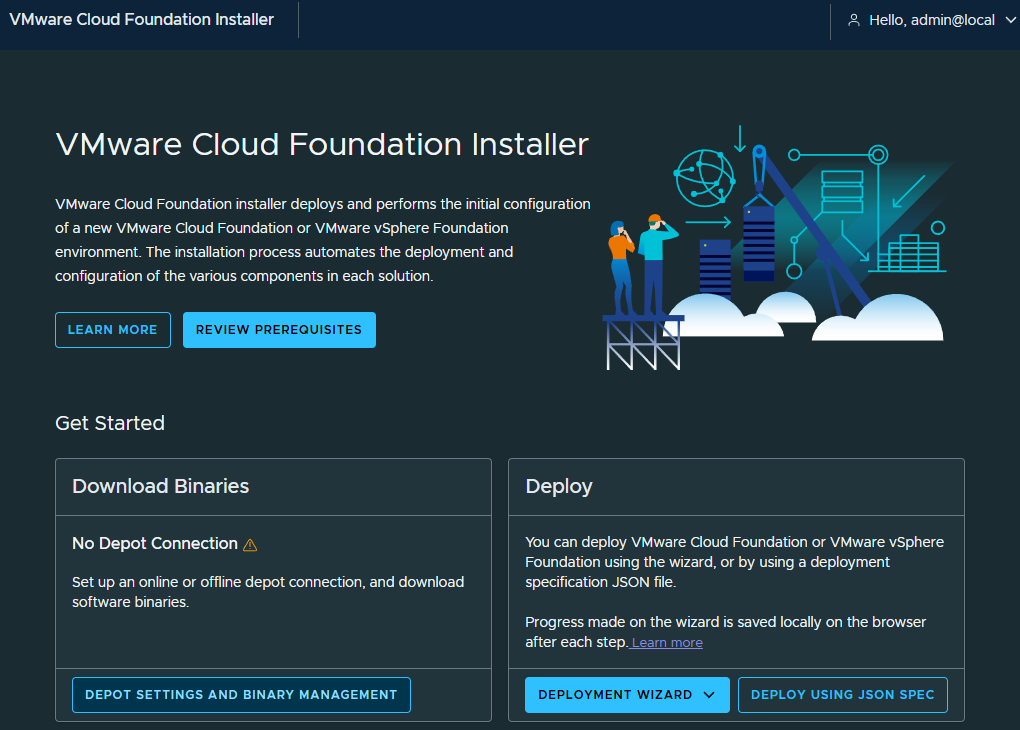
- In the Get Started section, in the Download Binaries tile, click on Depot Settings and Binary Management.
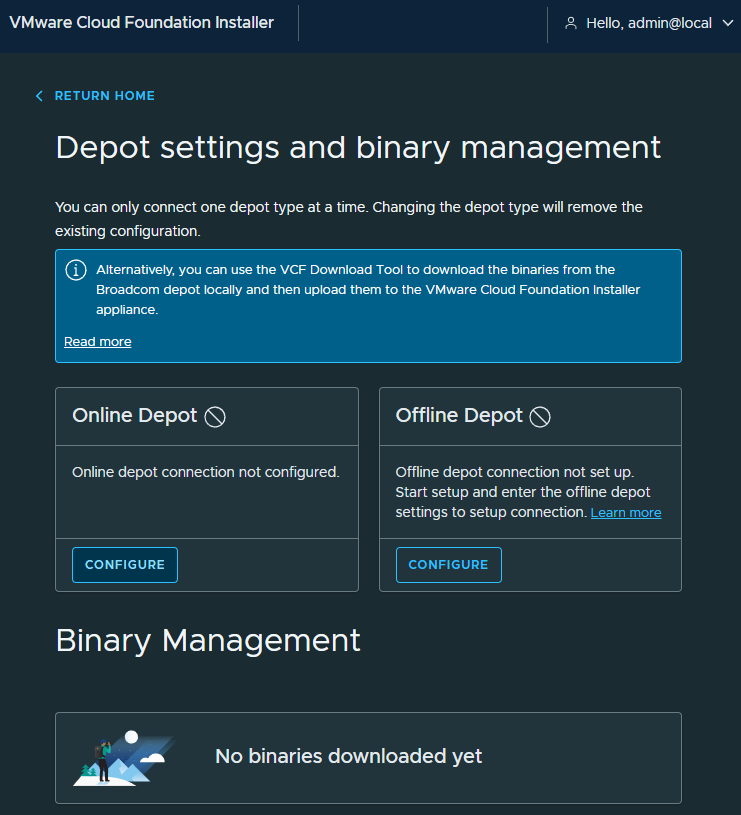
- In the Online Depot tile, click on Configure.
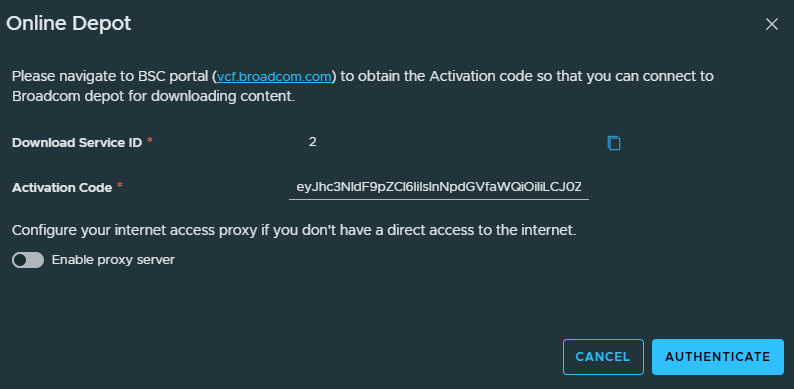
- Copy your Download Service ID.
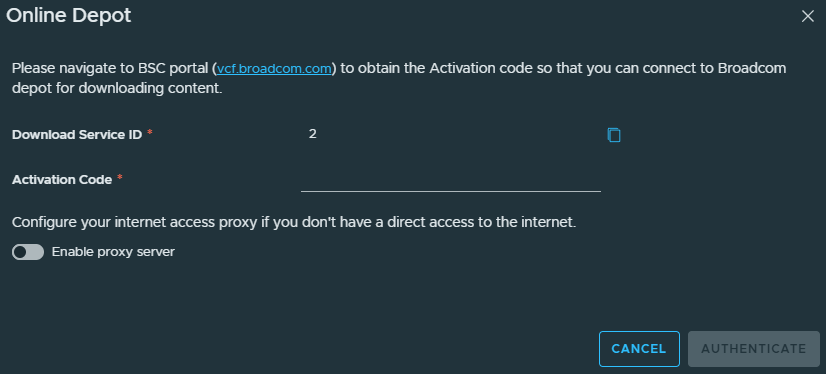
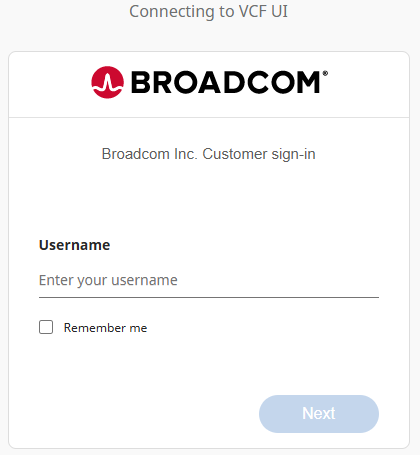
- Login to the Broadcom VCF BSC (Business Services Console) portal https://vcf.broadcom.com.
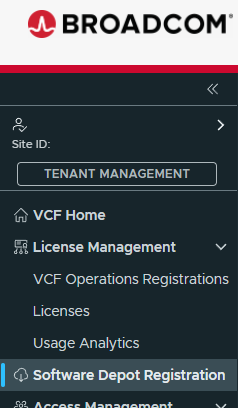
- Click on Software Depot Registration.
- Click on Register Software Depot.
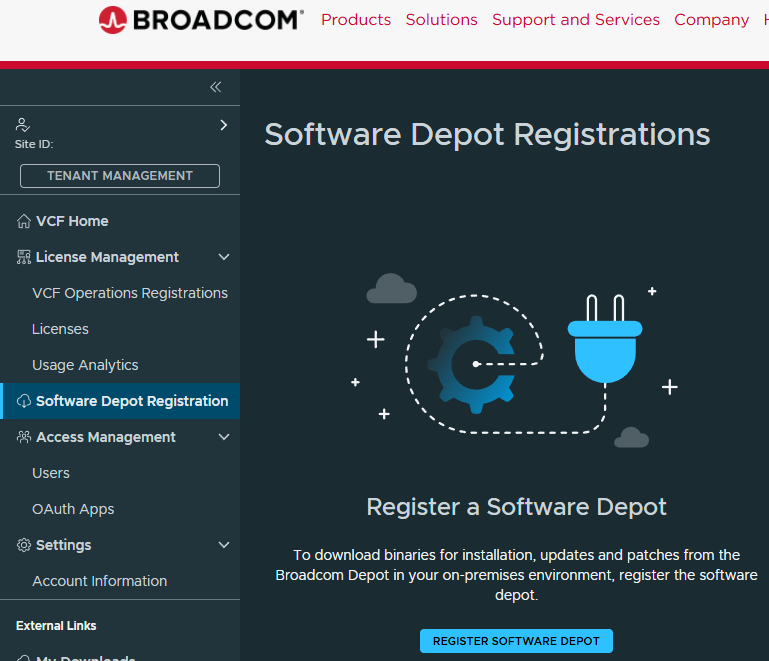
- For Software Depot ID, enter the Download Service ID you copied earlier from the VCF Installer.
- For Software Depot Name, enter a name to identify your VCF Installer depot connection, then click Register.
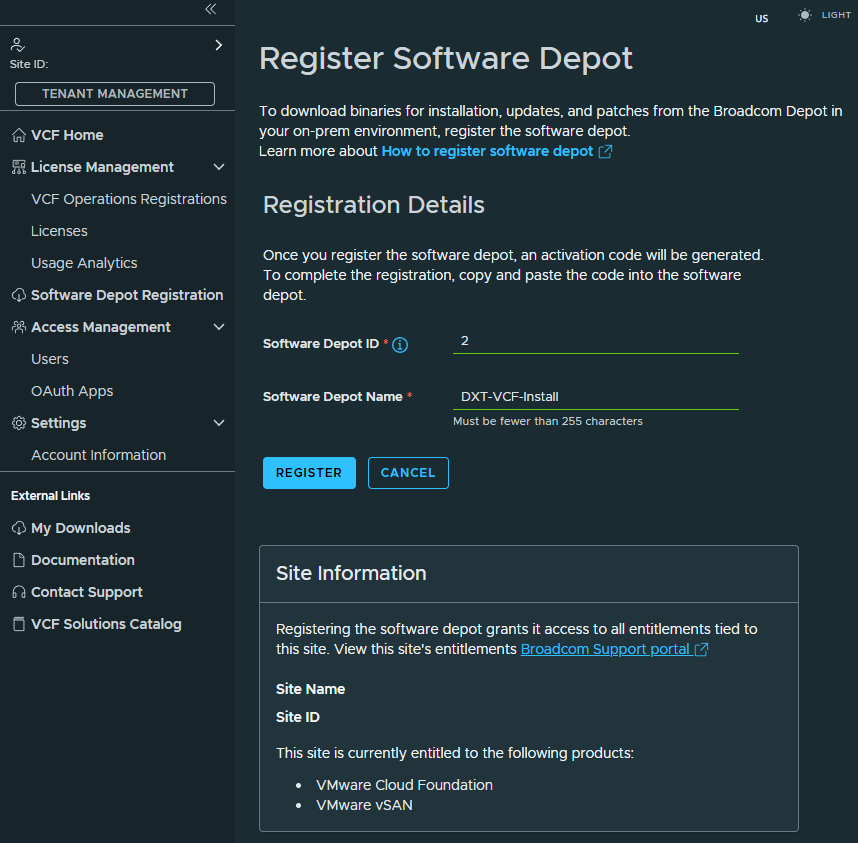
In my example, I will enter the Software Depot Name as DXT-VCF-Install.
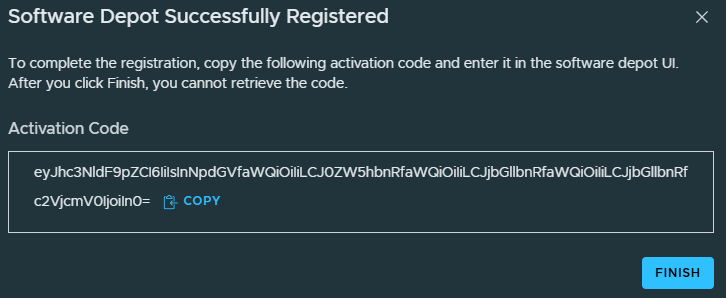
- Copy the base64 Activation Code.
- In the VCF Installer, paste the Activation Code and click Authenticate.
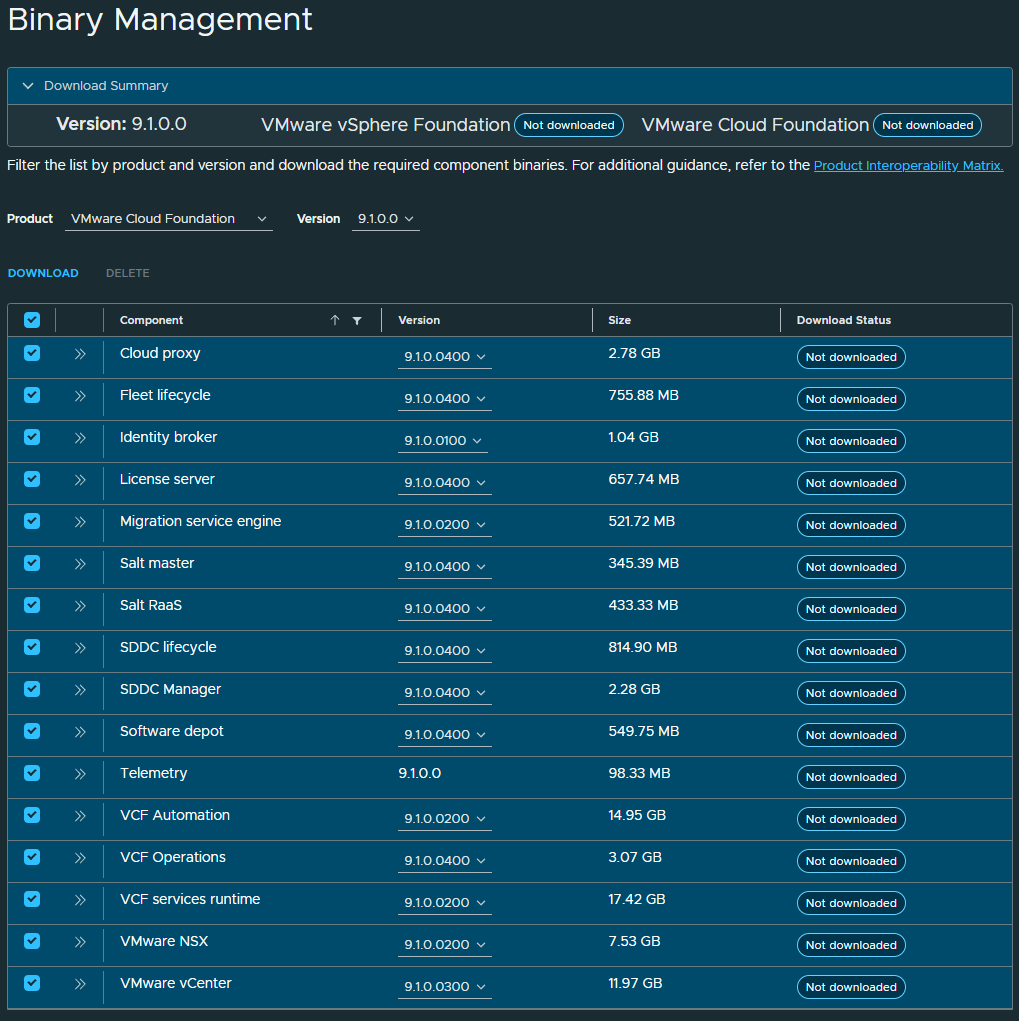
- In the Binary Management section, select which Product you want to download, VMware Cloud Foundation or VMware vSphere Foundation.
- A VCF deployment downloads the following components:
- Cloud proxy
- Fleet lifecycle
- Identity broker
- License server
- Migration service engine
- Salt master
- Salt RaaS
- SDDC lifecycle
- SDDC Manager
- Software depot
- Telemetry
- VCF Automation
- VCF Operations
- VCF services runtime
- VMware NSX
- VMware vCenter
- A VVF deployment downloads the following components:
- Fleet lifecycle
- License server
- SDDC lifecycle
- SDDC Manager
- Software depot
- Telemetry
- VCF Operations
- VCF services runtime
- VMware vCenter
- A VCF deployment downloads the following components:
If you select VCF, you will have everything you need to deploy VVF too.
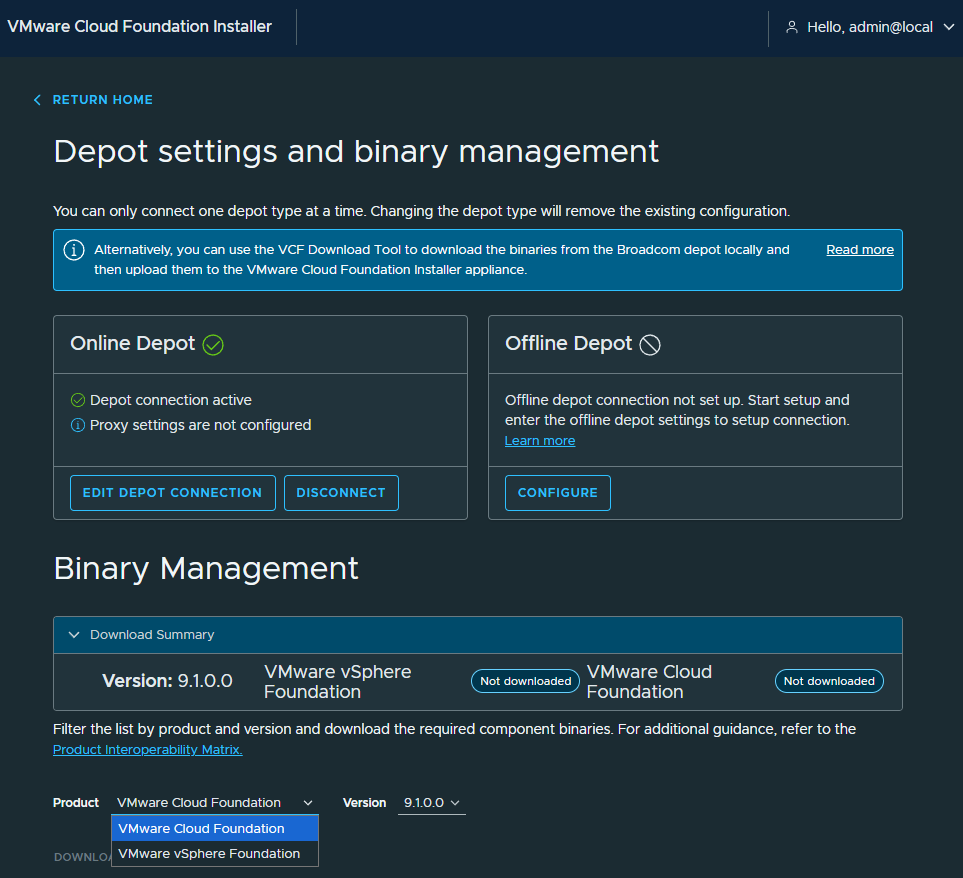
In my example, I will select VCF.
- Select all components, then click Download. (If needed, you can change the version of each component).
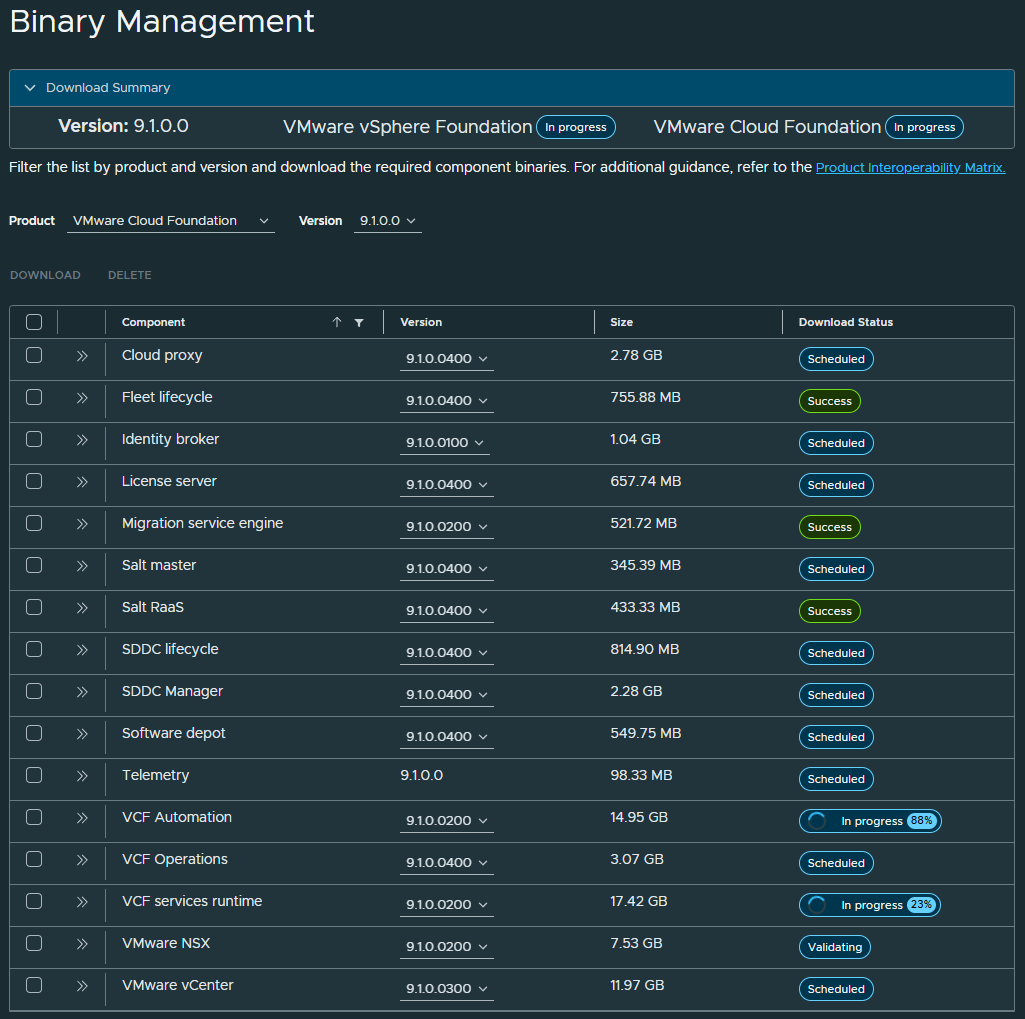
- Wait while all the components are downloaded.
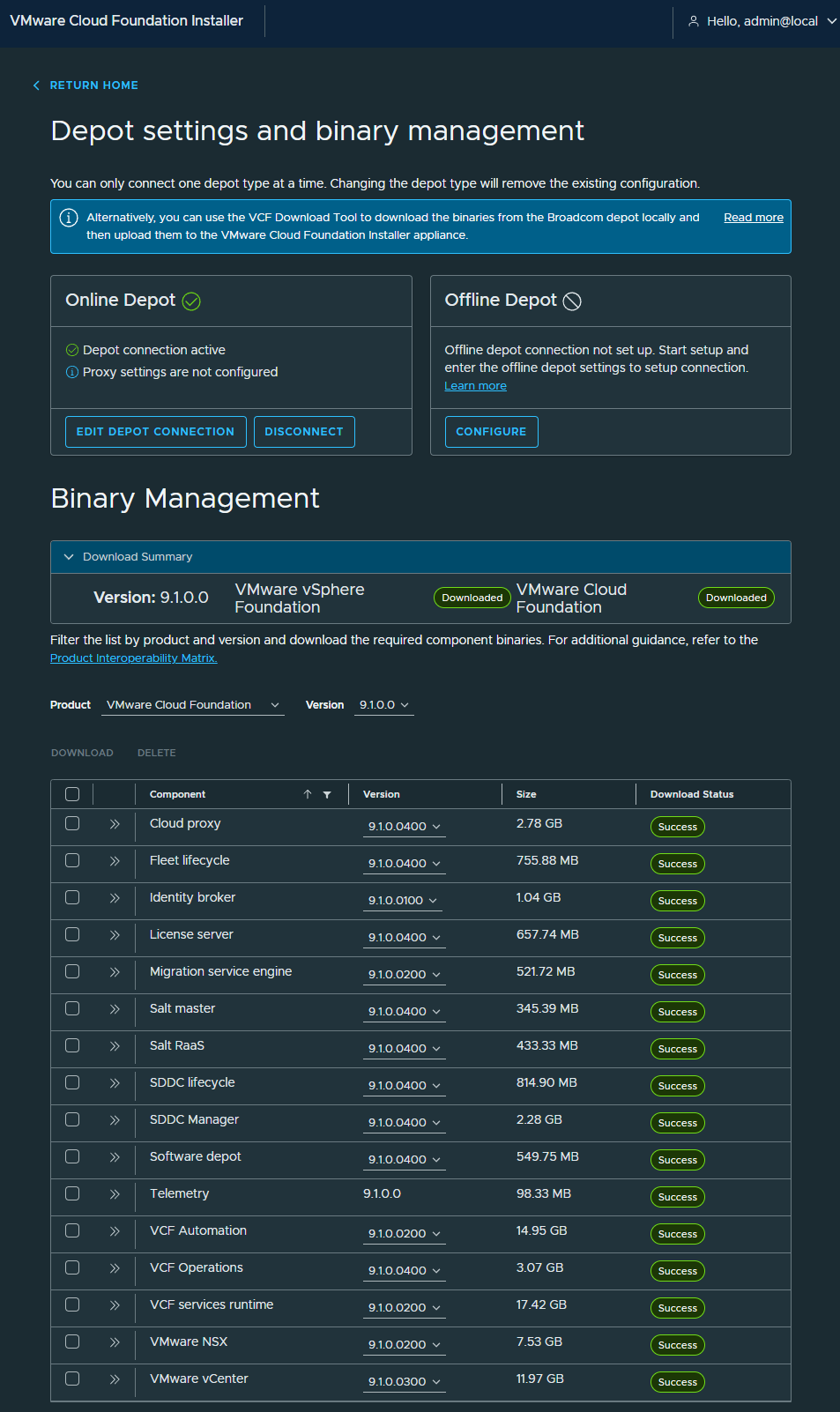
- Once all components have been successfully downloaded, click Return Home.
- You can now use the VCF Installer to deploy VCF or VVF with the Deployment Wizard or JSON.
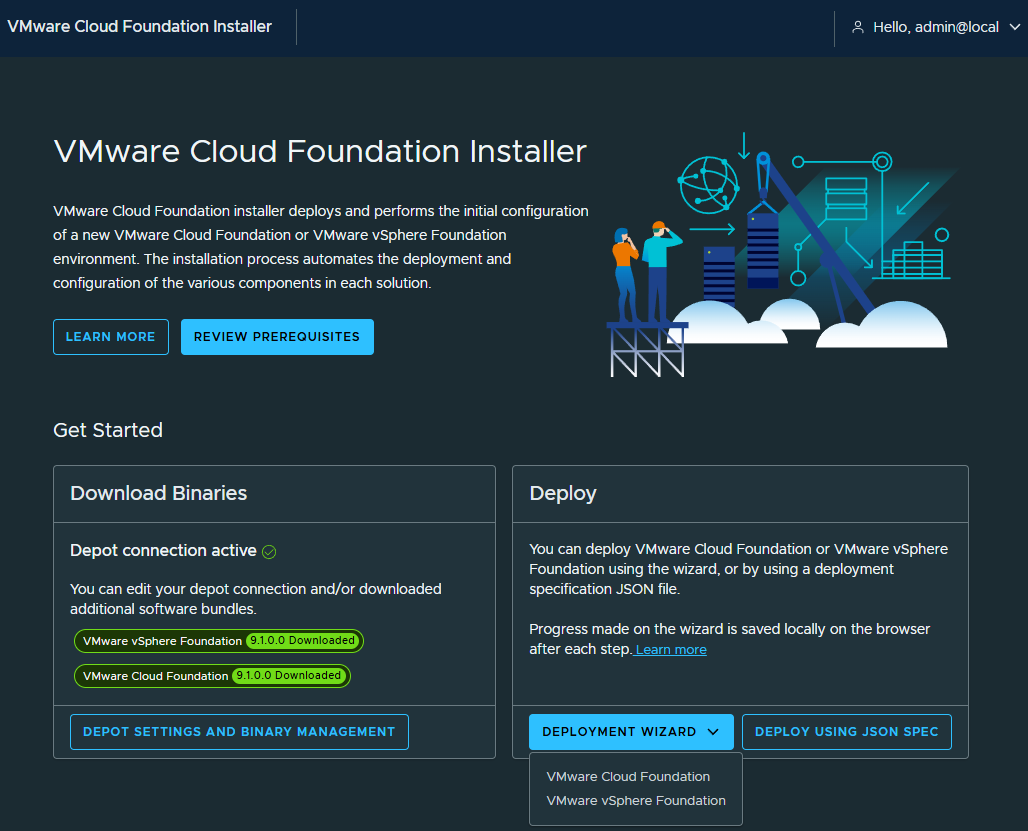
That’s all it takes to configure an online depot for the 9.1 VCF Installer and download the VCF and VVF components.
If you want to read more about configuring the VCF Installer with a depot connection, here is the Broadcom documentation.