



In this post, I will show you step by step how to deploy Claude Desktop on Non-Persistent VDI.
The Process
The entire setup is split into a few stages.
- Install Claude Desktop
- Disable Claude Desktop Updates
- Manually Update Claude Desktop
- Claude Desktop User Settings Capture
Install Claude Desktop
To deploy Claude Desktop for Non-Persistent VDI, you need to use the Claude Desktop MSIX.
- Go to the Deploy Claude Desktop for Windows page.
- Download the MSIX file.
- Install the Claude Desktop MSIX on your gold image with the following PowerShell command
Add-AppxProvisionedPackage -Online -PackagePath "Claude.msix" -SkipLicense -Regions "all"Code language: PowerShell (powershell)
Now, when a user uses the updated non-persistent VDI desktop, Claude Desktop will be installed.
Disable Claude Desktop Updates
Claude Desktop gets updates very frequently, but you do not need to install them right away. Fortunately, Anthropic provides a way to disable updates on Claude Desktop. It’s also recommended to disable application auto-updates when used on non-persistent VDI.
- Create the following registry key
HKLM:\SOFTWARE\Policies\Claude - Create a DWORD named
disableAutoUpdateswith the value of1
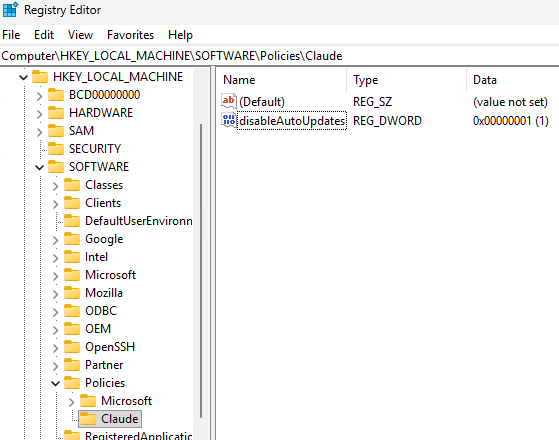
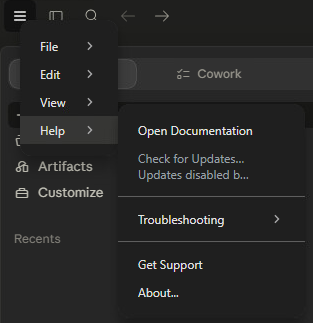
When you launch Claude Desktop, it will no longer automatically check for updates, and the option to check for updates will be disabled.
Manually Update Claude Desktop
When you want to update Claude Desktop on your non-persistent VDI gold image, you need to remove it first.
- Run the following PowerShell command to remove the Claude Desktop MSIX deployment.
Get-AppxProvisionedPackage -online | where DisplayName -like *Claude* | Remove-AppxProvisionedPackage -OnlineCode language: PowerShell (powershell)
- Run the following PowerShell command to remove the Claude Desktop MSIX installation.
Get-AppxPackage *Claude* -allusers | Remove-AppxPackage -allusersCode language: PowerShell (powershell)
- Now you can download the updated MSIX from Claude and install the new version using the same process as Install Claude Desktop.
Claude Desktop User Settings Capture
When a user launches Claude Desktop for the first time, their settings are stored in the MSIX redirected location %LOCALAPPDATA%\Packages\Claude_pzs8sxrjxfjjc\LocalCache\Roaming\Claude and %LOCALAPPDATA%\Packages\Claude_pzs8sxrjxfjjc\LocalCache\Roaming\Claude-3p

Depending on how you capture the user’s AppData, the default MSIX redirected location can cause issues. Solutions such as FSLogix ignore the %LOCALAPPDATA%\Packages\*\LocalCache folders regardless of your configuration.
If you create %AppData%\Claude and %AppData%\Claude-3p folders in the user’s profile before they launch Claude Desktop, then Claude will save all the user settings in %AppData%\Claude and %AppData%\Claude-3p instead of %LOCALAPPDATA%\Packages\Claude_pzs8sxrjxfjjc\LocalCache\Roaming\Claude and %LOCALAPPDATA%\Packages\Claude_pzs8sxrjxfjjc\LocalCache\Roaming\Claude-3p
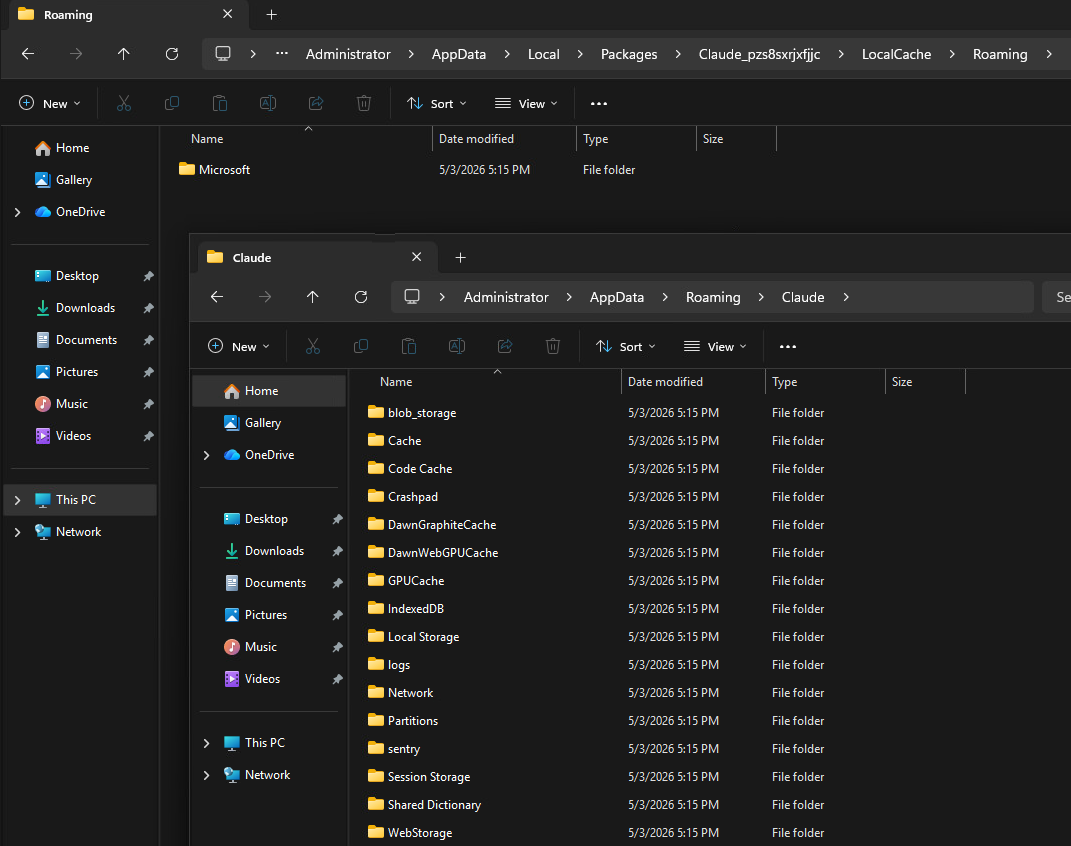
By creating the Claude AppData folders ahead of time, you can easily capture the user’s Claude settings and make them persist.
There are a few ways to create the Claude AppData folders before the user launches Claude Desktop, such as a folder creation GPO or a logon script.
Here’s an example of the logon script.
if not exist %appdata%\Claude mkdir %appdata%\Claude
if not exist %appdata%\Claude-3p mkdir %appdata%\Claude-3pCode language: DOS .bat (dos)
Creating the Claude AppData folders before the user launches Claude Desktop is an undocumented solution, so it may stop working eventually.
Claude Cowork Considerations
If you are using Claude Cowork, you should exclude the %AppData%\Claude\vm_bundles folder from capture, as it stores about 10GB of baseline VM data for Claude Cowork. The vm_bundles folder will rebuild itself if needed.
FSLogix Claude Desktop Config
Here is an example of the FSLogix redirection.xml file that you can use to exclude the VM Bundles folder.
<?xml version="1.0" encoding="UTF-8"?>
<FrxProfileFolderRedirection ExcludeCommonFolders="0">
<Excludes>
<Exclude Copy="0">AppData\Roaming\Claude\vm_bundles</Exclude>
</Excludes>
<Includes />
</FrxProfileFolderRedirection>Code language: HTML, XML (xml)
Omnissa DEM Claude Desktop Config
Here is an example of the Omnissa DEM (Dynamic Environment Manager) configuration template to capture the Claude Desktop user settings and to exclude the VM Bundles folder.
[IncludeFolderTrees]
<AppData>\Claude
<AppData>\Claude-3p

[ExcludeFolderTrees]
<AppData>\Claude\vm_bundlesCode language: HTML, XML (xml)
Summary
That’s all it takes to deploy Claude Desktop on non-persistent VDI, and how to address the VM Bundles folder if you are using Claude Cowork.
If you want to read more about deploying Claude Desktop, here is the Claude documentation.
If you want to read more about controlling the Claude Desktop user settings, here is the Claude documentation.